Chapters
- 1. Getting started
- 2. Adding items
- 3. Catalogue
- 4. Bookcases and plan view
- 5. Copies and loans
- 6. Editions and supplements
- 7. Circulation
- 8. Reports
- 9. Sign in with Microsoft
- 10. Reading
- 11. Genres
- 12. Libraries, roles, invitations
- 13. Settings
- 14. On your phone
- 15. Connect AI assistants
- 16. Regalzeile for Chrome
- 17. What's new
Getting started
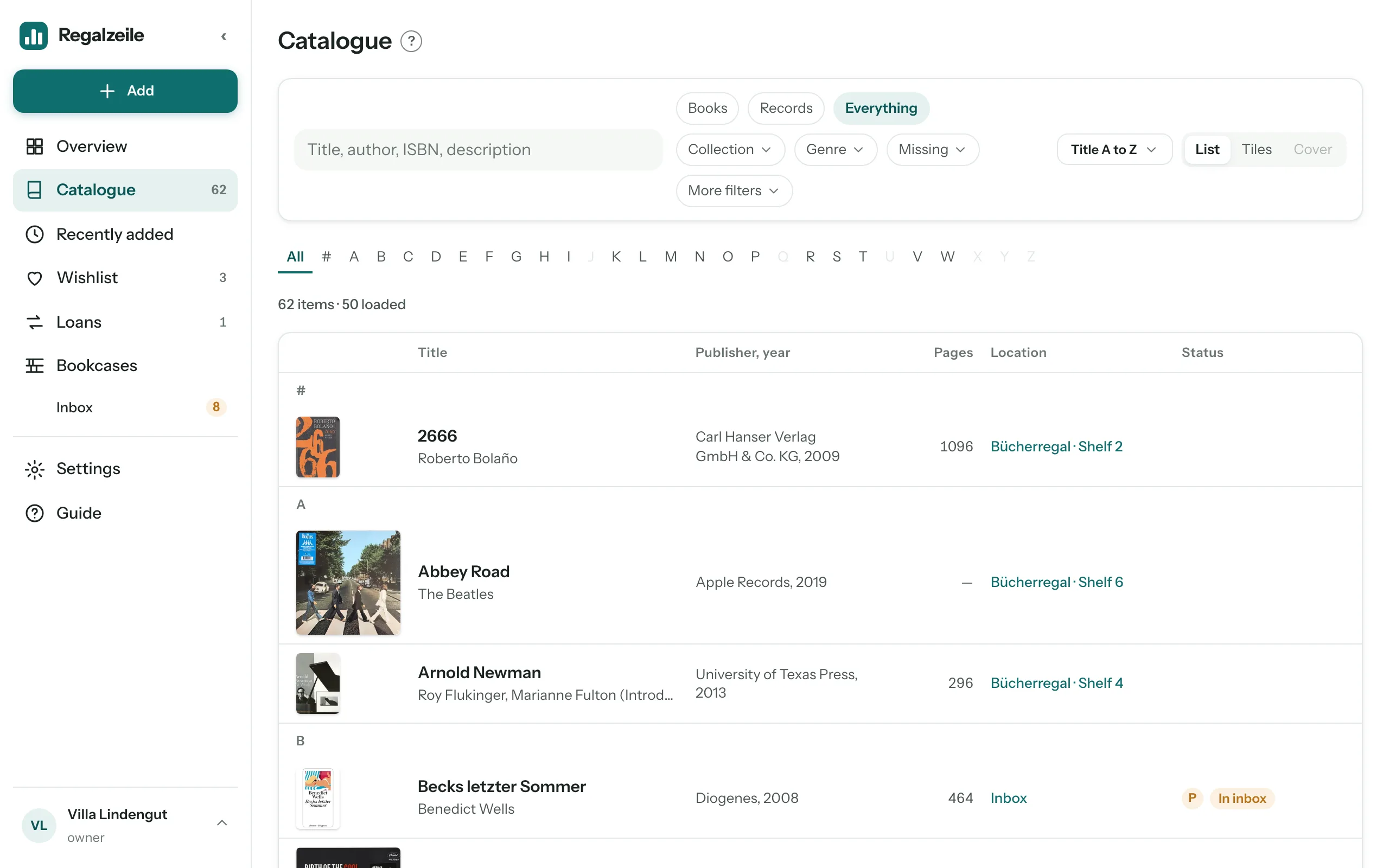
Regalzeile is a catalogue for your books and records — and a plan of your bookcases in which every copy has its place. You add titles by ISBN or barcode, sort them into collections, put them on the bookcase in the plan and see on the Overview what is missing, what is lent out and what you have read.
Account and library
Everything belongs to a library — the shared collection of a household. There are two ways in: you sign up for free — then your own library “Bibliothek von …” is created the first time you sign in, and you can rename it in the settings — or someone invites you into their library. You can sign in with email and password, with Google or with Apple. If you sign up with a password, you first confirm your email address via the link in the welcome email.
The checklist
A new library shows a “Getting started” card on the Overview: name your library, add your first book, create a collection, create a bookcase and put the book in — and, with the Full plan, invite a member as well. The ticks appear by themselves as soon as a step is done. “Hide” removes the card for good; the empty catalogue and the empty bookcase page still show the matching hint.
Help inside the app
Once signed in, you find this help under “Guide” in the menu, together with the step-by-step guides. The small “?” next to a page title opens the chapter for that page as a drawer — your form, filters and plan view stay just as they were.
The menu
At the top left is the teal Add button (Add item, Scan, Import, New collection). Below it are the everyday destinations: Overview, Catalogue, “Recently added”, Wishlist, Loans and Bookcases, with the inbox as a number in amber while books are waiting in it. Set apart follow “Settings” and “Guide”. At the very bottom is your library with your role; a tap on it shows your address, switching between libraries and “Sign out”. On the iPad in portrait and with “‹” on the desktop, the menu shrinks to a bar of icons. On the phone it sits at the bottom as a bar with Overview, Catalogue, Scan, Bookcases and “More”. You find the switch “Books · Records · Everything” in the header of the catalogue. Maintenance pages such as genres, dimensions and backup are reached through the settings.
The first collection
A collection has a media type: books or records (films, video games and board games are possible too). When you add your first title you choose the collection; with the “+ Collection” button in the sidebar you create more. One collection is marked as the default (star in the settings) and is preselected in the form.
The first book
- Click “Add item” in the sidebar.
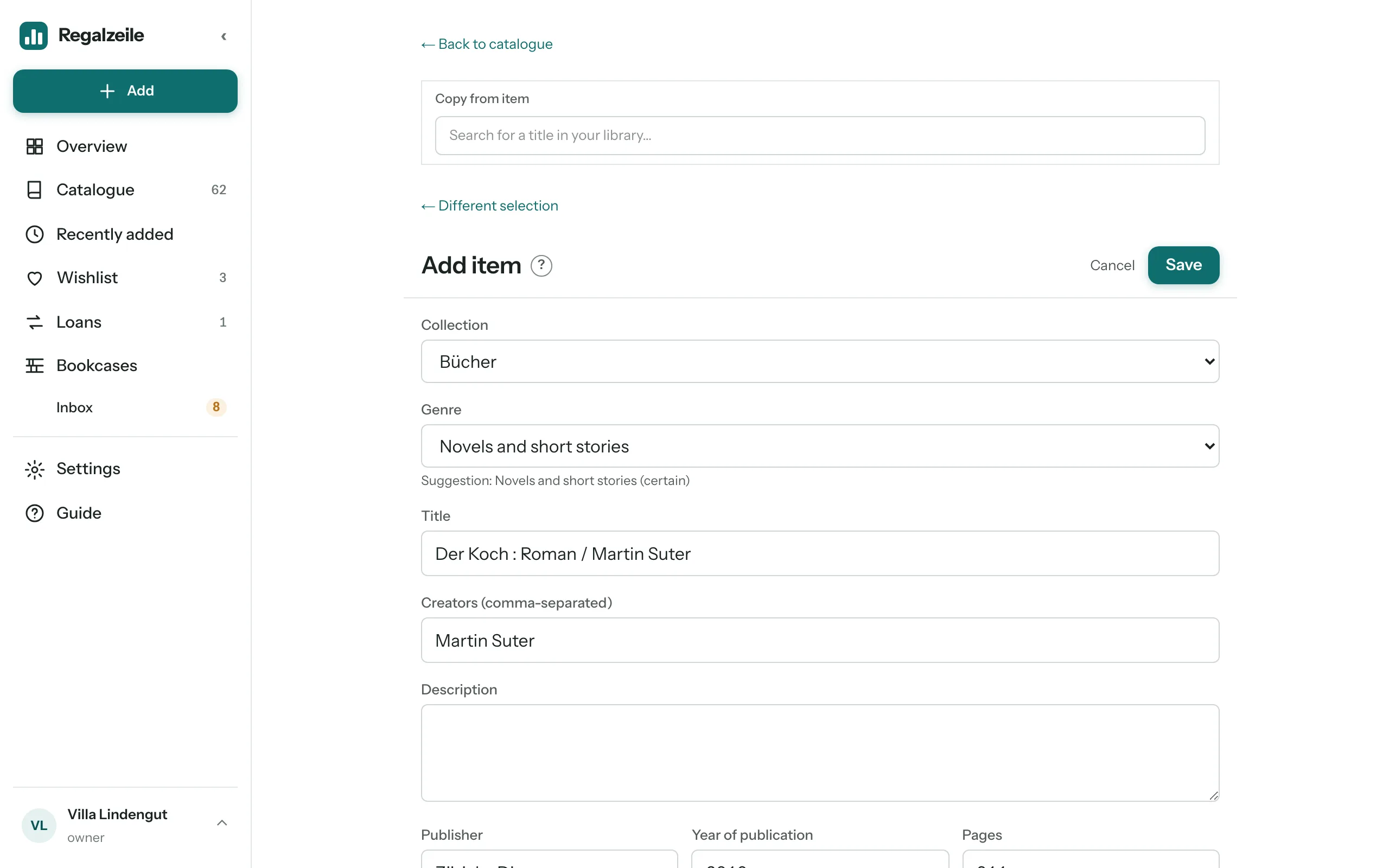 Type the ISBN (the 13-digit number by the barcode) into the search field and pick the match — title, author, publisher and cover arrive by themselves.
- Check the collection, fill in what is missing, and save.
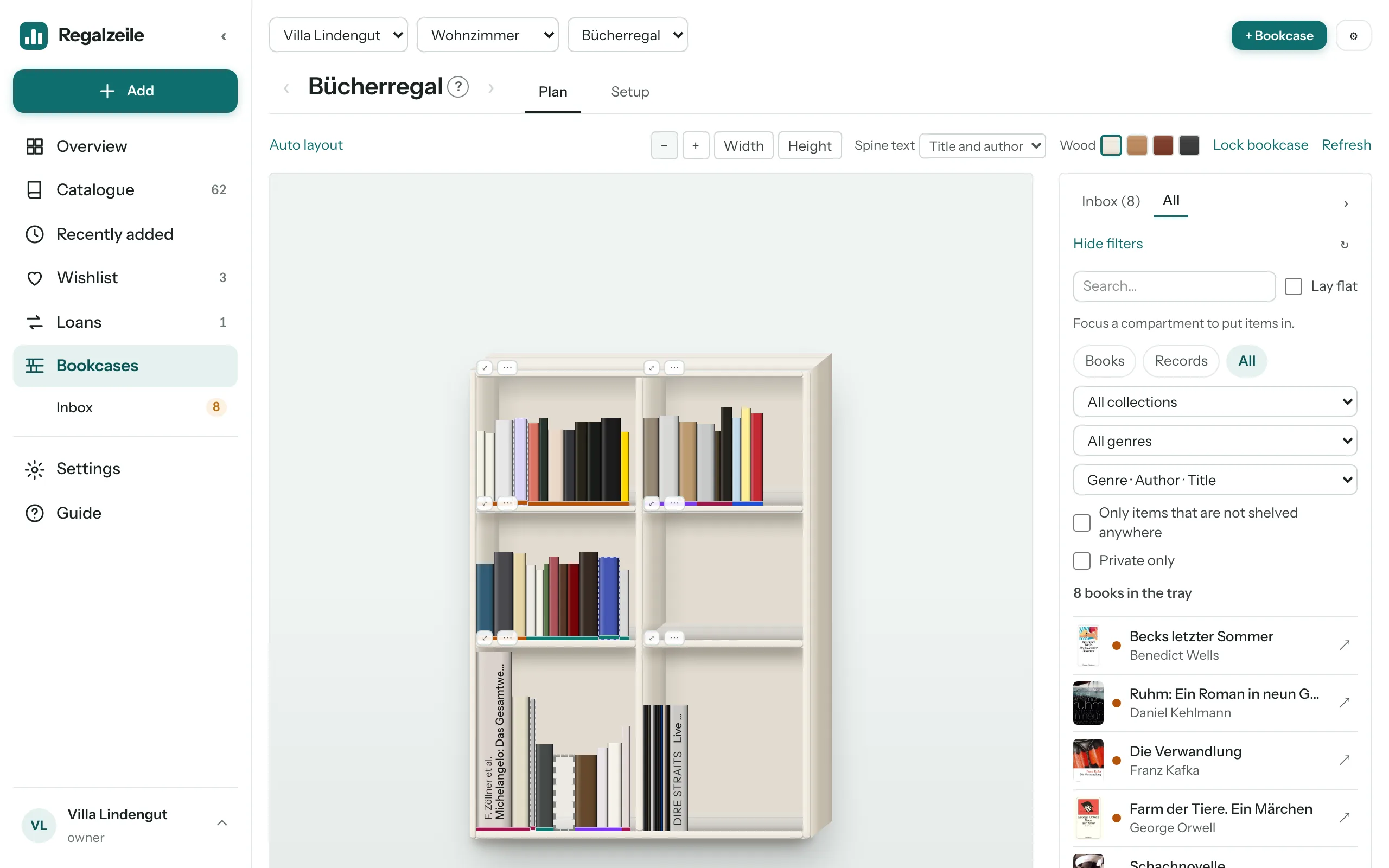 The book now sits in the plan view’s tray until you put it on a bookcase.
On the phone it is quicker with the scanner: hold the barcode in front of the camera, done.
The Overview
The Overview starts with what is going on right now: the book you are reading, the inbox (books that still have to go on a bookcase) and the loans (both from member upwards). Then come the new arrivals, your reading year, the collection in numbers with rankings by genre, author and decade (books and records as tabs), how full your bookcases are, and at the very bottom the upkeep as a single line (without bookcase spot, without spine width, without height, without cover). Most numbers lead to the matching list.
More chapters
Related guides
- Adding your first 50 booksScanner, ISBN and inbox: how your books land in the app within an hour.
- Planning your bookcasesCreate shelves, put books in, see the spines in the bookcase — the plan view step by step.