Chapters
- 1. Getting started
- 2. Adding items
- 3. Catalogue
- 4. Bookcases and plan view
- 5. Copies and loans
- 6. Editions and supplements
- 7. Circulation
- 8. Reports
- 9. Sign in with Microsoft
- 10. Reading
- 11. Genres
- 12. Libraries, roles, invitations
- 13. Settings
- 14. On your phone
- 15. Connect AI assistants
- 16. Regalzeile for Chrome
- 17. What's new
Sign in with Microsoft
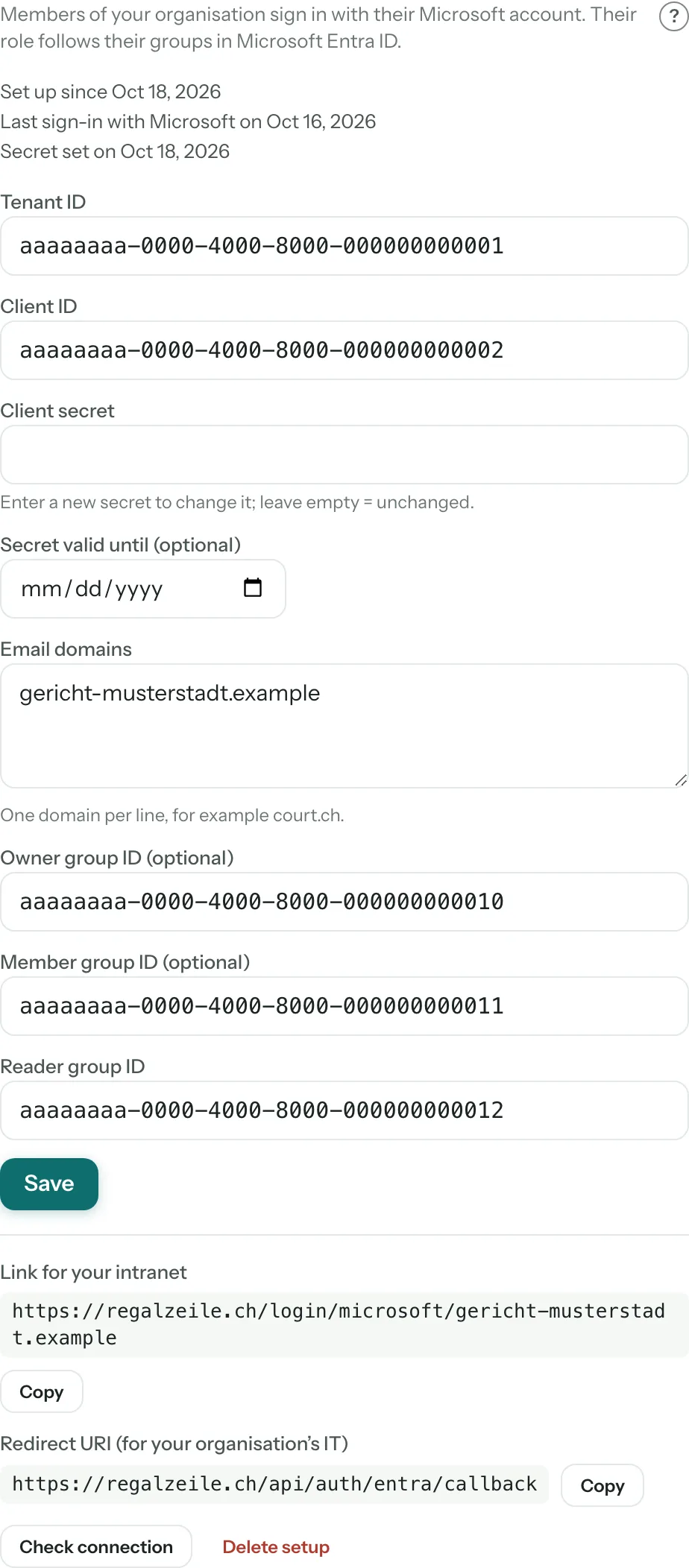
With “Sign-in with Microsoft”, the staff of an organisation sign in with their Microsoft account, without another password. Their role in Regalzeile follows their groups in Microsoft Entra ID, the organisation’s directory. The sign-in is part of the offer for organisations; only the owner sees the block in Settings. Setting it up has two parts: the organisation’s IT creates an app once in the Microsoft Entra admin centre and hands the values to the owner; the owner enters them in Regalzeile.
For your organisation’s IT
- In the Microsoft Entra admin centre open “Entra ID” → “App registrations” → “New registration”. Name, for example, “Regalzeile”, account type “Accounts in this organizational directory only”. As redirect URI choose the type “Web” and enter
https://regalzeile.ch/api/auth/entra/callback(Regalzeile shows it in the block under “Redirect URI” for copying). - On the app’s overview page note the “Application (client) ID” (this is the client ID) and the “Directory (tenant) ID” (this is the tenant ID).
- Under “Certificates & secrets” create a “New client secret” and choose a lifetime (24 months at most). Copy the value straight away; Microsoft does not show it again. Note the expiry date.
- Under “API permissions” the delegated permissions
openid,profileandemailof “Microsoft Graph” must be present (they usually are). Then choose “Grant admin consent”. - Under “Token configuration” add a groups claim: “Groups assigned to the application”, for the ID token as group ID.
- Under “Entra ID” → “Groups” create three security groups or pick existing ones: one for owners, one for members, one for readers. Note the object ID of each.
- Under “Enterprise applications” open the app “Regalzeile”. Under “Properties” set “Assignment required?” to “Yes”. Under “Users and groups” assign the three groups to the app.
- Hand over to the Regalzeile owner: tenant ID, client ID, client secret (the value from step 3), expiry date and the three group IDs.
For the owner
- Open Settings and find the block “Sign-in with Microsoft”. It appears only in the plan for organisations and only for the owner.
- Enter “Tenant ID”, “Client ID” and “Client secret”, under “Secret valid until” the expiry date (so that Regalzeile can remind you in time) and under “Email domains” your organisation’s domains, one per line, for example
court.ch. You can only add domains that are verified in your organisation’s Microsoft tenant; Regalzeile checks this with Microsoft when you save. - Enter the group IDs: “Reader group ID” is required, “Owner group ID” and “Member group ID” are optional. People who are in none of the groups entered cannot get in.
- Save. Regalzeile never shows the secret again afterwards; leaving the field empty means “unchanged”.
- Press “Check connection” and sign in at Microsoft. Regalzeile shows you a check with your address, whether the tenant matches, whether the domain is entered, which groups are in the token and which role follows from them. The check changes nothing: no account, no membership and no new session is created.
- Pass on the “Link for your intranet”. It looks like this, with your domain at the end:
https://regalzeile.ch/login/microsoft/court.ch. It opens a page with the button “Sign in with Microsoft”, which leads straight to Microsoft.
How staff sign in
On the sign-in page the person types their address. If the domain belongs to a setup, the button “Sign in with Microsoft” appears below the other ways to sign in. Anyone using the intranet link sees a page with exactly this button. If the device is already signed in at Microsoft, it carries on without a password (single sign-on). The first time, Regalzeile creates the account; no invitation is needed. By clicking “Sign in with Microsoft” the person accepts the terms of use and the privacy policy linked below the button, as with Google. Password, Google and Apple stay possible alongside, and invitations still work, for example for external people.
Role and “from Microsoft”
The role comes from the groups: whoever is in the owner group becomes an owner, otherwise the member group applies, otherwise the reader group. With several groups the highest role counts. At every sign-in Regalzeile reconciles the role: if someone changes group in Entra, the role changes at the next sign-in. In the member list under Settings these people show the note “from Microsoft” instead of the role picker; you change the role in Entra, not in Regalzeile. If you remove a person from the list, their membership is created again at the next sign-in as long as they are in a group. Access to individual collections stays in Regalzeile: you keep setting it per member, and signing in never touches it. More under Libraries, roles, invitations.
The last owner stays an owner: if a sign-in would demote them, they keep the role, and a notice explains that the library would otherwise have no owner.
When someone leaves, Entra alone is not enough: a person removed from all Regalzeile groups can no longer sign in with Microsoft, but keeps their membership, any running session and any access with password, Google or Apple. So also remove the person from the member list under Settings.
When signing in fails
The sign-in page names the reason; here are the seven cases with their cause.
- “No Microsoft sign-in is set up for this email domain.” The domain is in no setup, or the setup was deleted. Check “Email domains”.
- “Microsoft sign-in is no longer available for this organisation.” The setup exists, but the library’s plan no longer includes sign-in with Microsoft.
- “… belongs to a different Microsoft directory …” The account comes from a different tenant than the one entered under “Tenant ID”.
- “Microsoft did not send an email address …” The account has no email address in Entra. IT has to add one.
- “The email address … is not in the domains …” The address’s domain is missing under “Email domains”.
- “… is not in any Regalzeile group.” The person is in none of the groups entered, or the groups are missing from the token. Check the group IDs, the assignment of the groups to the app and the groups claim “Groups assigned to the application”.
- “Signing in with Microsoft failed.” Microsoft refused or cancelled, or the process took too long (it lasts ten minutes at most). Most common cause: a wrong or expired client secret. “Check connection” shows it.
The secret expires
If you entered a date under “Secret valid until”, Regalzeile sends an email to all owners 30 days before. Then create a new secret in Entra under “Certificates & secrets”, enter the value under “Client secret” and the new date, and save. Afterwards you can delete the old secret in Entra. If the secret expires before you have replaced it, signing in fails with “Signing in with Microsoft failed.”
Privacy
When someone signs in, Regalzeile receives their name and email address as well as the identifiers of the tenant, of the person and of their groups. Regalzeile never sees a Microsoft password. The organisation is responsible for the tenant.