Chapters
- 1. Getting started
- 2. Adding items
- 3. Catalogue
- 4. Bookcases and plan view
- 5. Copies and loans
- 6. Editions and supplements
- 7. Circulation
- 8. Reports
- 9. Sign in with Microsoft
- 10. Reading
- 11. Genres
- 12. Libraries, roles, invitations
- 13. Settings
- 14. On your phone
- 15. Connect AI assistants
- 16. Regalzeile for Chrome
- 17. What's new
Libraries, roles, invitations
Create an account
At regalzeile.ch/register you create an account for free: name, email address, password and the tick for the terms of use and the privacy policy. You get an email with a confirmation link — only after clicking it can you log in. If no email arrives, look in your spam folder; on the login page there is the “Resend email” button. With Google or Apple it works without a confirmation email, because these providers have verified the address themselves.
When you log in for the first time, your own library is created, named “Bibliothek von first name”. You can rename it at any time in the settings under “Library”. Ten general genres are already set up, and more are added as soon as the genre automation needs them. The plan is Basic: up to 200 titles and one member. Anyone who joins through an invitation lands directly in the inviting library instead — the link from the invitation email works unchanged, even if you already have an account of your own.
A library is the shared collection of a household: its own bookcases, its own settings, its own list of members. You can be a member of several libraries — the sidebar then shows a switcher that lets you switch between them.
Roles — who may do what
| Area | reader | member | owner |
|---|---|---|---|
| View | yes | yes | yes |
| See private items | – | yes | yes |
| Reading details and yearly goal | yes | yes | yes |
| Add and edit | – | yes | yes |
| Lend | – | yes | yes |
| Build bookcases and put books in | – | yes | yes |
| Settings | Language, two-factor, leave | yes | yes |
| Create and rename collections | – | yes | yes |
| Delete a collection | – | – | yes |
| Invitations, roles and access to collections | – | – | yes |
| Change plan and pay | – | – | yes |
| Backup and restore | – | – | yes |
| Delete library | – | – | yes |
Access to collections
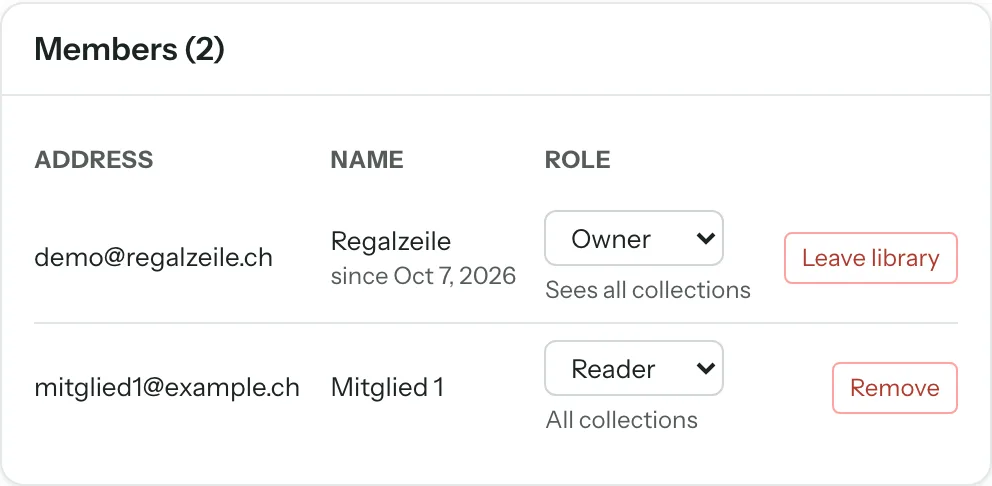
The owner can limit a member’s role per collection: No access, reader or member. The level caps the role, never the other way round: a reader never becomes a member in any collection. The default is “All collections”. Restricted members see only their collections — in counts, search, export and the shelf plan (books from other collections appear there as grey blocks). They may shelve their own books and records from collections where their level is member — grey blocks and books at reader level stay where they are; auto layout, the lock and the setup stay with members who have access to all collections. They add items only in collections where their level is member; creating collections, merging authors, shares and the wish list stay with members who have access to all collections. Set it in Settings under Members or already when inviting. New collections are at first not visible to restricted members.
Inviting
Under Settings → “Invitations”, an owner invites an address with a role and sends the link. Whoever opens the link registers or logs in with an existing account and is then a member of this library. A registration without an invitation creates a separate, new library instead.
Anyone who signs in with Microsoft carries the note “from Microsoft” in the member list: their role then follows the groups in Microsoft Entra ID and can only be changed there. This exists only in the plan for organisations. More under Sign in with Microsoft.
Private items
In the form, the “Private” tick marks an item as private. On the item page, the “Visible to readers” switch in the “In the library” table toggles the same thing. A reader then sees it nowhere — not in the list, search, plan or Overview. Owners and members recognise it by the pill private.
Leaving a library / removing a member
Under “Settings” → “Members” you can leave yourself or — as an owner — remove someone else. The last remaining owner of a library cannot leave. Your personal reading details and your yearly goal are deleted in the process — nothing of them stays behind in the library.
More chapters
Related guides
- Libraries, collections and membersSeveral libraries, collections per media type, inviting members and setting rights per collection.