Chapters
- 1. Getting started
- 2. Adding items
- 3. Catalogue
- 4. Bookcases and plan view
- 5. Copies and loans
- 6. Editions and supplements
- 7. Circulation
- 8. Reports
- 9. Sign in with Microsoft
- 10. Reading
- 11. Genres
- 12. Libraries, roles, invitations
- 13. Settings
- 14. On your phone
- 15. Connect AI assistants
- 16. Regalzeile for Chrome
- 17. What's new
Catalogue
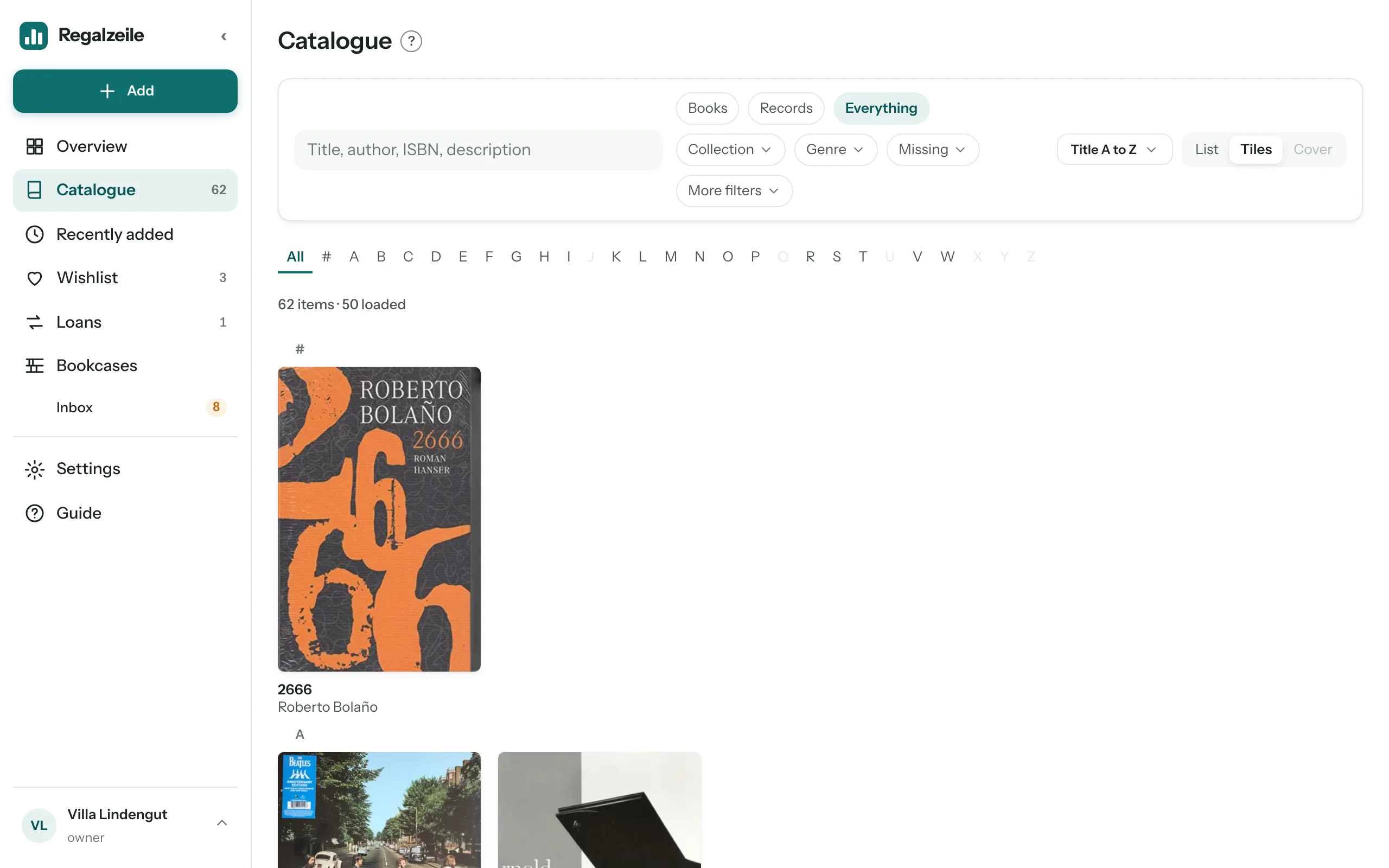
At the top of the catalogue are the chips Books · Records · Everything: they set the media type and remember it for next time. Next to them are the menu chips Collection, Genre, Reading status (books only), Missing (without cover, bookcase spot, spine width, height or genre) and More filters (Lent out, In inbox, Private only, Tags). An active chip turns teal and shows its value; “Reset all” clears everything at once.
Search and index
In the search field the start of a word is enough — “catch” finds “Catcher” — and accents do not matter: “opera” also finds “opéra” and vice versa. With several words the exact word order counts first; if that finds nothing, all the words anywhere in the title count. On the desktop and iPad the A–Z letter index jumps to the first letter; on the phone the small letter headings guide you through the list.
Sorting and view
The sort menu shows what applies: “Title A to Z”, “Author A to Z”, “Newest first”, “Year descending” or — for books only — “Highest rated first”; field and direction are remembered per media type. “Author” sorts by the surname of the first author (for “Hesse, Hermann” by the part before the comma), for records by the artist without a leading “The”; the index and the letter headings then follow the author. “List” shows on the phone and iPad the catalogue row with cover, publisher, year, pages and two lines of description, on the desktop a table with a location column. “Tiles” shows only cover, title and author. “Cover” shows just the covers, large and without headings — books upright, records square — with the “S · M · L” switch for the size; this view exists only for “Books” or “Records” and is locked for “Everything”. A click on a row, tile or cover opens the item; you edit it there.
Letters and chips in the row
Five amber letters show what is still missing: H height, S spine width, P bookcase spot, C cover, G genre. Word chips show the state: green for the location (“Bookcase 2 · Shelf 1”) or “Read”, amber for “In inbox” and “Lent out”, teal for “Reading now”, grey for “private”.
Wishlist
The Wishlist collects what you do not have yet: an ISBN you scan on the go, or a book you found on Amazon — at the top of the Wishlist, paste the ISBN, the Amazon link or the short link from “Share”. The Wishlist resolves title and cover; if the catalogue comes up empty, you enter the title by hand. Each entry has a note (“for Coco for her birthday”), the “Buy on Amazon” button, “Ordered” (with date and person, so nobody buys twice) and “Arrived”: that creates the item including a copy and puts it in the inbox. A book you already have does not go on the list — the item page itself shows a buy button for that, for a gift for example. As an Amazon Associate I earn from qualifying purchases; the price stays the same for you.
“Recently added” and context
“Recently added” in the menu shows the new arrivals as cards by day (Today, Yesterday, date) with the next task — put in bookcase, upload cover, enter dimensions — or the location. The catalogue itself remembers filters, page and scroll position, so that “Back” from the item takes you exactly to where you were. Until an item has a spot, it sits in the plan view’s tray.
Series
The “Series” page (Overview → “Series” card → “All”, or /library/reihen) shows every series in your library as a group: collapsed, the header row with “5 of 8 books” and, in red, the missing numbers (“missing Volume 1–2, 5”); expanded, the items in numerical order — and the gaps between them as grey rows. Tabs separate books, records and magazines; at the top you search for a series, the “incomplete only” filter shows only series with gaps, and the sort orders by name, gaps or count. Regalzeile knows gaps up to the highest number you own; series without numbers show only their count.
“Add to wishlist” on a missing number puts it on the wishlist. For books, Regalzeile first searches the catalogue for “series number” and shows the hits — you pick the right one and the wish lands on the list with ISBN and cover. Without a hit, the page asks whether to add the wish without ISBN, for example as “Asterix Volume 2”. Records and magazines are added directly without ISBN. A wished gap shows “on the wishlist” with a link. Ranges of more than three missing numbers appear as one row; “show individually” expands them.
At the top right you switch between list, tiles and covers as in the library — covers are available for books and records. In tiles and the cover wall, missing numbers appear as dashed placeholders with “Add to wishlist”. If a volume is already on the wishlist without the page recognising it (say, a purchase via the Chrome extension), pick it with “Already on the list” — the wish then carries series and number, and the gap shows “on the wishlist”.
Sharing
If exactly one collection, one genre or one author is filtered (and nothing else — no search, no tag, no letter; the medium Books/Records does not matter), the “Share” button appears on the right in the chip row; on the item page it sits small behind the author’s name. The dialog asks for the period — 7, 30 or 90 days, 30 preselected — and says how many items the rule matches today. “Create link” produces an address regalzeile.ch/s/… that you copy or, on the phone, pass on via “Share via…”. Whoever has the link sees, without an account, a list with cover, title, author, year, genre, for each item a page with description and a buy button, and can sign up on their own with “Create your own library”. The list is live: whatever you add to the collection later shows up there too. Private items are never included — nor are loans, notes, prices, dimensions, copies or reading status. In the settings the “Shares” box lists all links with views and period: End makes a link invalid at once, Extend creates a new link with a new period for an expired or ended share — the old one stays invalid. Owners and members may share.
More chapters
Related guides
- Maintaining genres and authorsGenres automatic and by hand, merging authors and publishers, unifying names.
- Sharing and wishlistShare a collection, genre or author by link, with a time limit and the option to end it; collect wishes and buy on Amazon.