Guide
How to use Regalzeile — from the first book to the finished bookcase.
Getting started
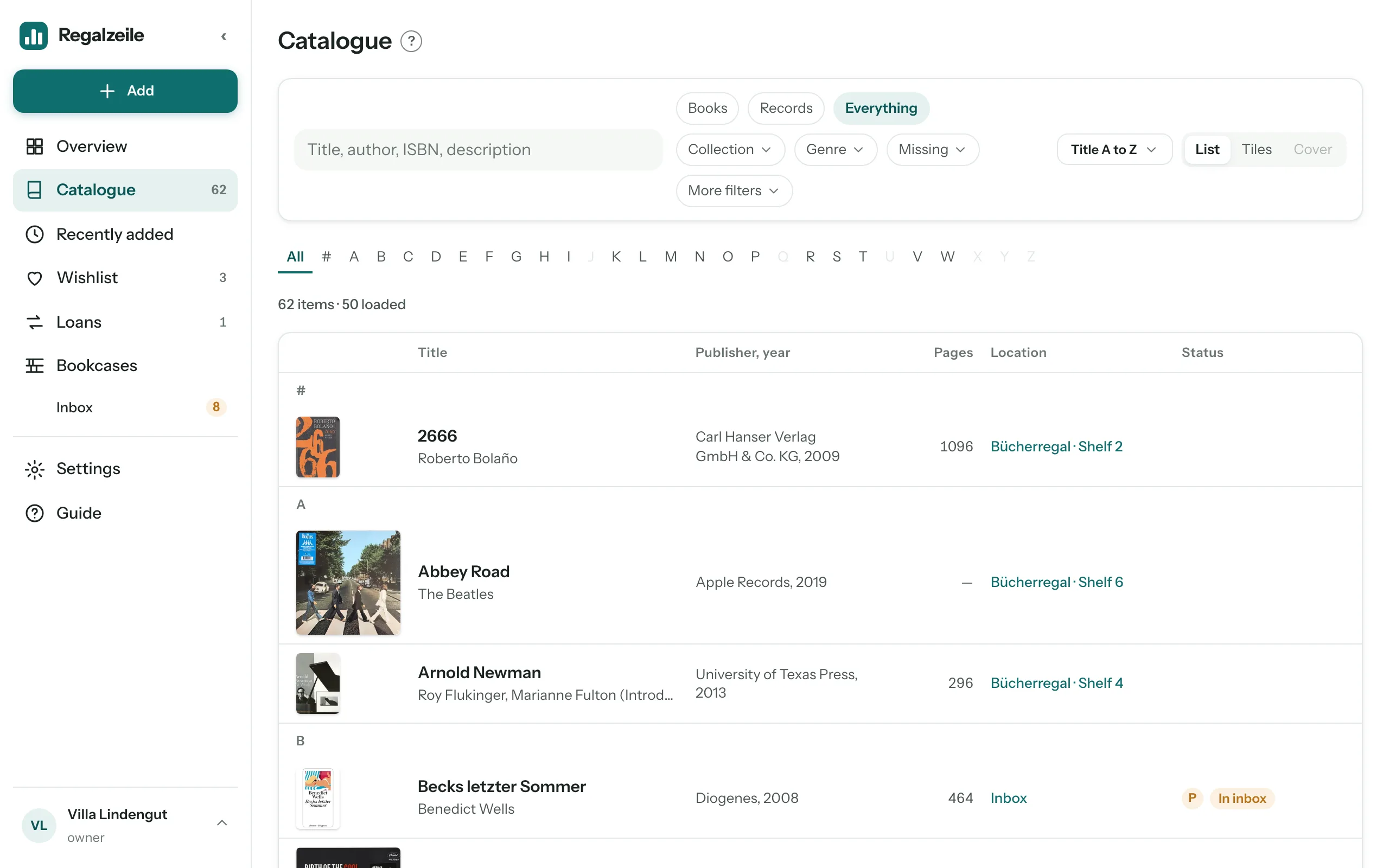
Regalzeile is a catalogue for your books and records — and a plan of your bookcases in which every copy has its place. You add titles by ISBN or barcode, sort them into collections, put them on the bookcase in the plan and see on the Overview what is missing, what is lent out and what you have read.
Account and library
Everything belongs to a library — the shared collection of a household. There are two ways in: you sign up for free — then your own library “Bibliothek von …” is created the first time you sign in, and you can rename it in the settings — or someone invites you into their library. You can sign in with email and password, with Google or with Apple. If you sign up with a password, you first confirm your email address via the link in the welcome email.
The checklist
A new library shows a “Getting started” card on the Overview: name your library, add your first book, create a collection, create a bookcase and put the book in — and, with the Full plan, invite a member as well. The ticks appear by themselves as soon as a step is done. “Hide” removes the card for good; the empty catalogue and the empty bookcase page still show the matching hint.
Help inside the app
Once signed in, you find this help under “Guide” in the menu, together with the step-by-step guides. The small “?” next to a page title opens the chapter for that page as a drawer — your form, filters and plan view stay just as they were.
The menu
At the top left is the teal Add button (Add item, Scan, Import, New collection). Below it are the everyday destinations: Overview, Catalogue, “Recently added”, Wishlist, Loans and Bookcases, with the inbox as a number in amber while books are waiting in it. Set apart follow “Settings” and “Guide”. At the very bottom is your library with your role; a tap on it shows your address, switching between libraries and “Sign out”. On the iPad in portrait and with “‹” on the desktop, the menu shrinks to a bar of icons. On the phone it sits at the bottom as a bar with Overview, Catalogue, Scan, Bookcases and “More”. You find the switch “Books · Records · Everything” in the header of the catalogue. Maintenance pages such as genres, dimensions and backup are reached through the settings.
The first collection
A collection has a media type: books or records (films, video games and board games are possible too). When you add your first title you choose the collection; with the “+ Collection” button in the sidebar you create more. One collection is marked as the default (star in the settings) and is preselected in the form.
The first book
- Click “Add item” in the sidebar.
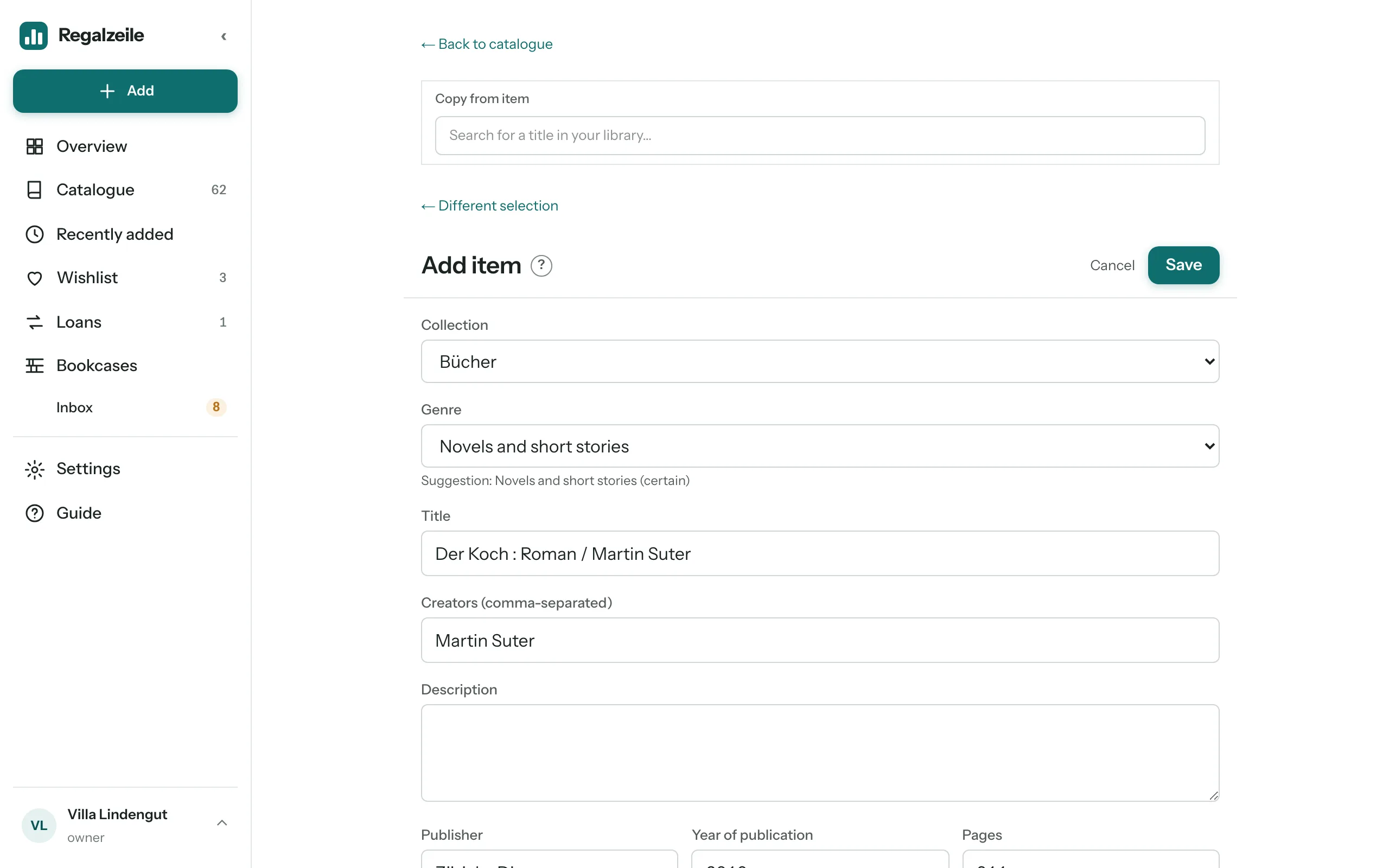 Type the ISBN (the 13-digit number by the barcode) into the search field and pick the match — title, author, publisher and cover arrive by themselves.
- Check the collection, fill in what is missing, and save.
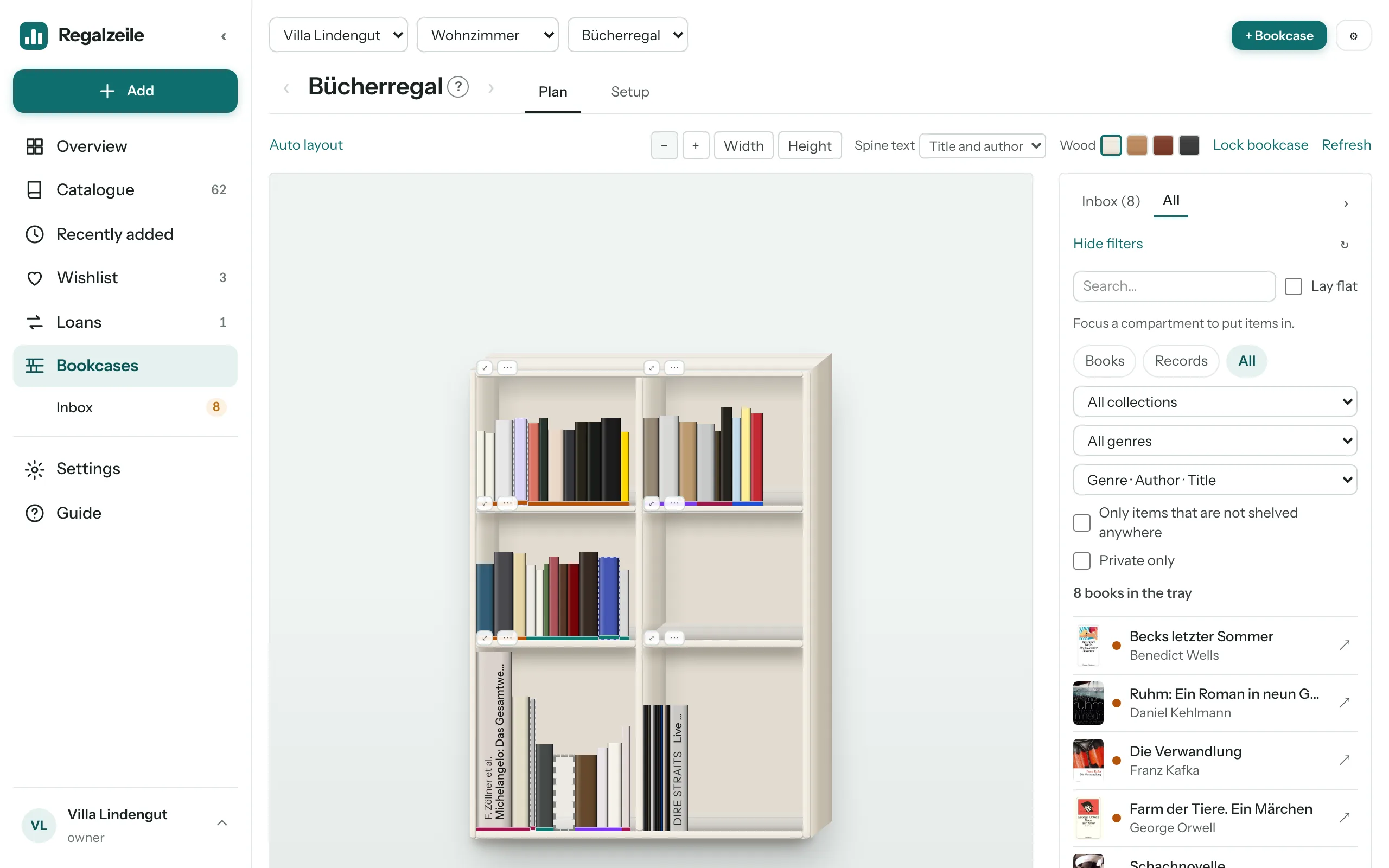 The book now sits in the plan view’s tray until you put it on a bookcase.
On the phone it is quicker with the scanner: hold the barcode in front of the camera, done.
The Overview
The Overview starts with what is going on right now: the book you are reading, the inbox (books that still have to go on a bookcase) and the loans (both from member upwards). Then come the new arrivals, your reading year, the collection in numbers with rankings by genre, author and decade (books and records as tabs), how full your bookcases are, and at the very bottom the upkeep as a single line (without bookcase spot, without spine width, without height, without cover). Most numbers lead to the matching list.
Adding items
You add an item with the “Add” button → “Add item” (on the phone behind “More”) — through a search or by hand in the form. “Cancel” and the back link at the top take you back to where you came from: the Wishlist, the scanner, the Overview or the Catalogue with the same filters.
ISBN search and form
On the “Search” tab you type an ISBN or EAN (a keyword works too); “Apply” on a match opens the form prefilled — title, authors, publisher, year, pages and cover arrive by themselves. On top of that you add price, dimensions (height, width, spine in mm), tags, genre, notes and whether the item should stay Private. A sticky header with “Save” and “Cancel” stays with you, however far you have scrolled. If you want to add the next book straight away, press “Save and next” at the bottom: the item is saved, a line at the top shows it with a link, and search and form are empty again — only the collection stays preselected. On the phone it is even quicker with the scanner.
Suggestions for author and publisher
From the third letter on, Regalzeile suggests authors and publishers that are already in your library — the most common spelling first. With several authors, the suggestion applies to the name after the last comma. You accept it with the arrow keys and Enter, or with a tap.
Copy
“Copy” behind the “⋯” button on the item page — or “Copy from item” in the form — takes over all fields, including identifiers, into a new item; Added on, copies, bookcase spot and loans start from zero. The cover is copied along, your reading details are not. Nothing is created until you press “Save”.
Cover
You upload a cover on the item page with “Change cover” — on the computer the button appears when you hover over the cover, on the phone it sits below it — or you drag an image file straight onto it. If several items lack one at the same time, “Fetch covers” in the settings fetches them from the catalogue sources.
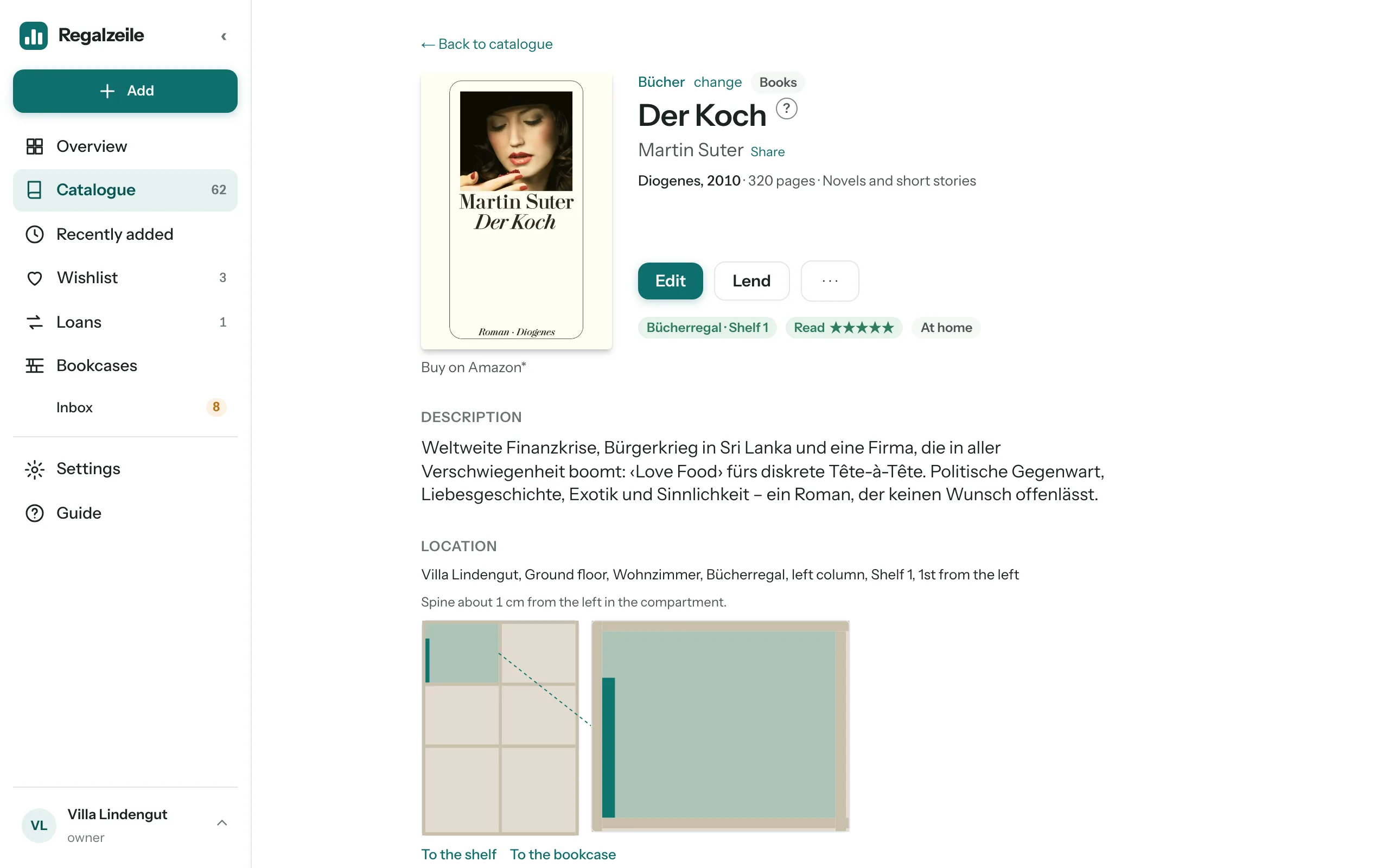
“Remove” next to “Change cover” takes it away again — even a cover that came from the catalogue stays away afterwards. An upload, “Copy from item”, a metadata sync or “Fetch covers” brings one back. “Sync metadata” is at the top right of the “Edition” table on the item page.
Libib import
With the “Import” menu item you upload a CSV export from Libib and choose the target collection. Titles that already exist (same ISBN or same title in the same collection) are skipped; the report says how many titles were created, enriched or skipped as duplicates — the same genre automation as when adding a single item runs along.
Discogs for records
With the Full plan, the owner enters a Discogs username and token in the settings; the sync fetches your Discogs collection as records including cover, tracklist and rating — at the press of a button and afterwards every night by itself. If you own a record more than once, it appears in your Discogs collection more than once; the sync then creates the missing copies, with the condition, price and purchase date of the respective entry. It does not touch existing copies and never deletes any — a copy you deleted in Regalzeile comes back as long as Discogs still lists it.
Comics and magazines with a press code
Comic books and magazines carry a press code instead of an ISBN: a barcode starting with 414, 419 or 977. It identifies the series and the price, not the individual issue — “Asterix” has the same code on every issue. The issue number sits in the small add-on code next to it; the scanner reads it too and suggests it as the number.
For the first issue of a series, Regalzeile asks for the series (for example “Asterix” or “MINT”) and the kind: a comic book goes into your books, a magazine into the “Magazines” collection, which is created automatically the first time. “Continue” searches for the title, “Continue without a match” opens the form right away. There, title, series, number and press code are filled in; for magazines the issue date is added.
When you scan the same series again, Regalzeile recognises the code and shows which numbers you already have. When you save, Regalzeile applies the dimensions (height, width, spine) of the last issue you entered in the series — the form does not show them. To sort, choose “Series and number” in the library — in the magazines it is the default.
Catalogue
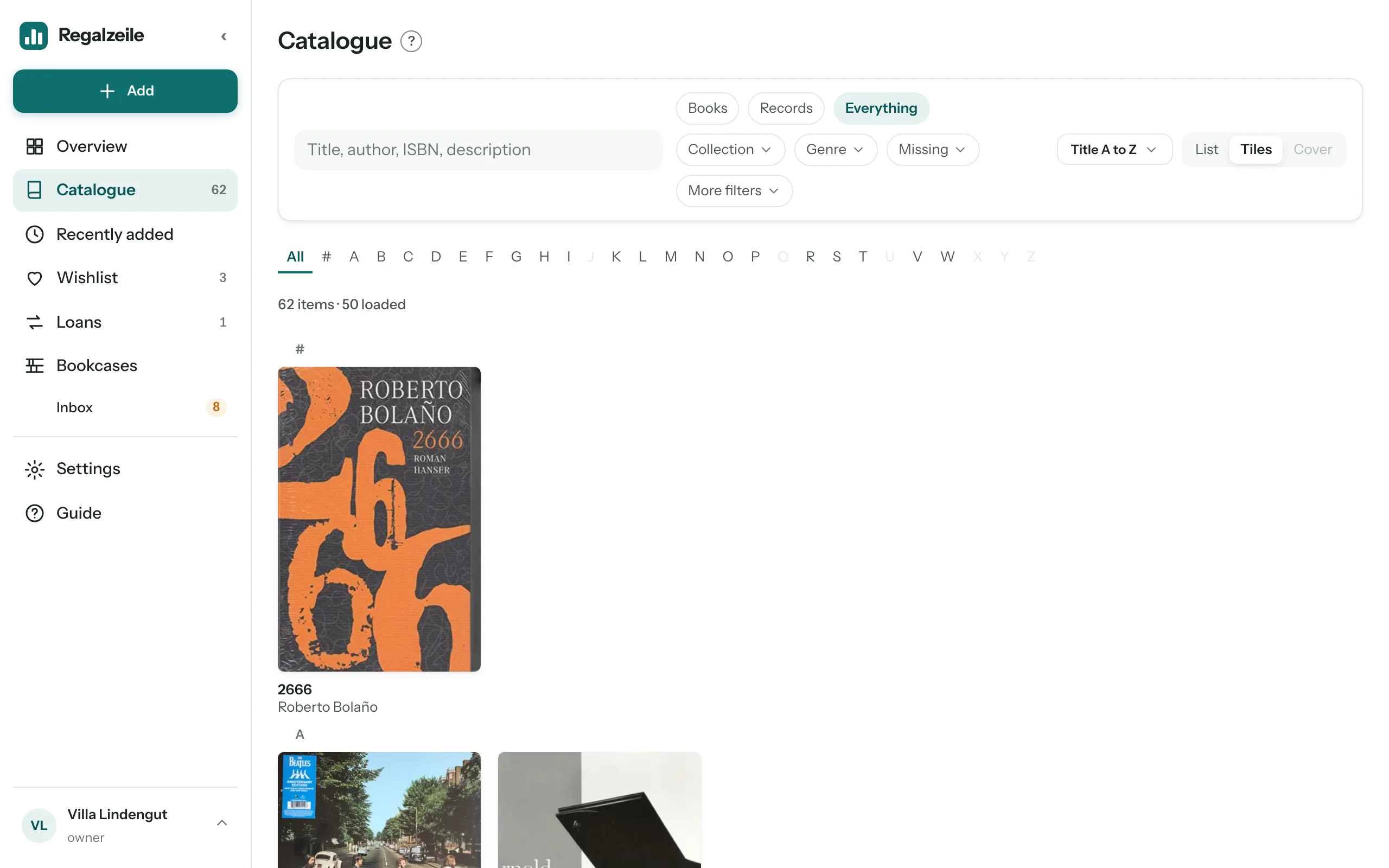
At the top of the catalogue are the chips Books · Records · Everything: they set the media type and remember it for next time. Next to them are the menu chips Collection, Genre, Reading status (books only), Missing (without cover, bookcase spot, spine width, height or genre) and More filters (Lent out, In inbox, Private only, Tags). An active chip turns teal and shows its value; “Reset all” clears everything at once.
Search and index
In the search field the start of a word is enough — “catch” finds “Catcher” — and accents do not matter: “opera” also finds “opéra” and vice versa. With several words the exact word order counts first; if that finds nothing, all the words anywhere in the title count. On the desktop and iPad the A–Z letter index jumps to the first letter; on the phone the small letter headings guide you through the list.
Sorting and view
The sort menu shows what applies: “Title A to Z”, “Author A to Z”, “Newest first”, “Year descending” or — for books only — “Highest rated first”; field and direction are remembered per media type. “Author” sorts by the surname of the first author (for “Hesse, Hermann” by the part before the comma), for records by the artist without a leading “The”; the index and the letter headings then follow the author. “List” shows on the phone and iPad the catalogue row with cover, publisher, year, pages and two lines of description, on the desktop a table with a location column. “Tiles” shows only cover, title and author. “Cover” shows just the covers, large and without headings — books upright, records square — with the “S · M · L” switch for the size; this view exists only for “Books” or “Records” and is locked for “Everything”. A click on a row, tile or cover opens the item; you edit it there.
Letters and chips in the row
Five amber letters show what is still missing: H height, S spine width, P bookcase spot, C cover, G genre. Word chips show the state: green for the location (“Bookcase 2 · Shelf 1”) or “Read”, amber for “In inbox” and “Lent out”, teal for “Reading now”, grey for “private”.
Wishlist
The Wishlist collects what you do not have yet: an ISBN you scan on the go, or a book you found on Amazon — at the top of the Wishlist, paste the ISBN, the Amazon link or the short link from “Share”. The Wishlist resolves title and cover; if the catalogue comes up empty, you enter the title by hand. Each entry has a note (“for Coco for her birthday”), the “Buy on Amazon” button, “Ordered” (with date and person, so nobody buys twice) and “Arrived”: that creates the item including a copy and puts it in the inbox. A book you already have does not go on the list — the item page itself shows a buy button for that, for a gift for example. As an Amazon Associate I earn from qualifying purchases; the price stays the same for you.
“Recently added” and context
“Recently added” in the menu shows the new arrivals as cards by day (Today, Yesterday, date) with the next task — put in bookcase, upload cover, enter dimensions — or the location. The catalogue itself remembers filters, page and scroll position, so that “Back” from the item takes you exactly to where you were. Until an item has a spot, it sits in the plan view’s tray.
Sharing
If exactly one collection, one genre or one author is filtered (and nothing else — no search, no tag, no letter; the medium Books/Records does not matter), the “Share” button appears on the right in the chip row; on the item page it sits small behind the author’s name. The dialog asks for the period — 7, 30 or 90 days, 30 preselected — and says how many items the rule matches today. “Create link” produces an address regalzeile.ch/s/… that you copy or, on the phone, pass on via “Share via…”. Whoever has the link sees, without an account, a list with cover, title, author, year, genre, for each item a page with description and a buy button, and can sign up on their own with “Create your own library”. The list is live: whatever you add to the collection later shows up there too. Private items are never included — nor are loans, notes, prices, dimensions, copies or reading status. In the settings the “Shares” box lists all links with views and period: End makes a link invalid at once, Extend creates a new link with a new period for an expired or ended share — the old one stays invalid. Owners and members may share.
Bookcases and plan view
The “Bookcases” menu item leads to the plan view. Every bookcase stands in exactly one room, every room in a building with a floor; a breadcrumb bar (building › room › bookcase) and arrows lead back and forth between bookcases. The very first time, “Set up your first bookcase” walks you through building, room and bookcase in one go.
Bookcase type and setup
The “Setup” tab guides you through the bookcase in five steps — Template, Dimensions, Shelves, Fronts, Done — with a large preview on the right (on the phone at the top). In the “Template” step you choose a template: “From Regalzeile” (grouped by maker — IKEA ranges such as Billy, Kallax, Bestå, Hemnes or Malm) or “Your templates”. Each card shows a thumbnail with shelves and fronts. An empty bookcase takes the template’s dimensions, columns, shelves and fronts; a bookcase holding books takes only the dimensions. “Save as template” turns the current setup into your own template, “Update template” writes it back into that template — other bookcases are not affected. Or you create your own type with your own dimensions; the “Dimensions” step changes width, depth, height, columns and, under “More dimensions”, sides, boards and grid — each field saves when you leave it. In the “Shelves” step a tap on a hole in the preview places a shelf, a selected shelf moves to the next hole you tap, “Shelf dimensions” overrides the derived values. In the “Fronts” step you pick Open, door left or right, double door, flap or drawer from the palette and tap a compartment or drag across several; “Open” removes a front. A bookcase has one to three columns and shelves at grid positions; the height of a compartment is the clear height between two shelves. A custom type without a hole grid stacks the shelves by their measured clear heights instead. Fronts (door, double door, drop-down or lift-up flap, drawer) cover ranges of compartments as a drawing and open with a tap in the plan view, an upper unit puts a second bookcase on top of another. “Storage on top” (“Done” step in setup, next to the top unit) turns the top surface into an open compartment “Top” — one per column, no height check; new bookcases have it from the start, a bookcase with a top unit does not. The location then reads “On top of …”. A newly created shelf first takes over the dimensions of the previous one. “Copy bookcase” creates an identical bookcase without books, “Lock bookcase” protects against accidental moving.
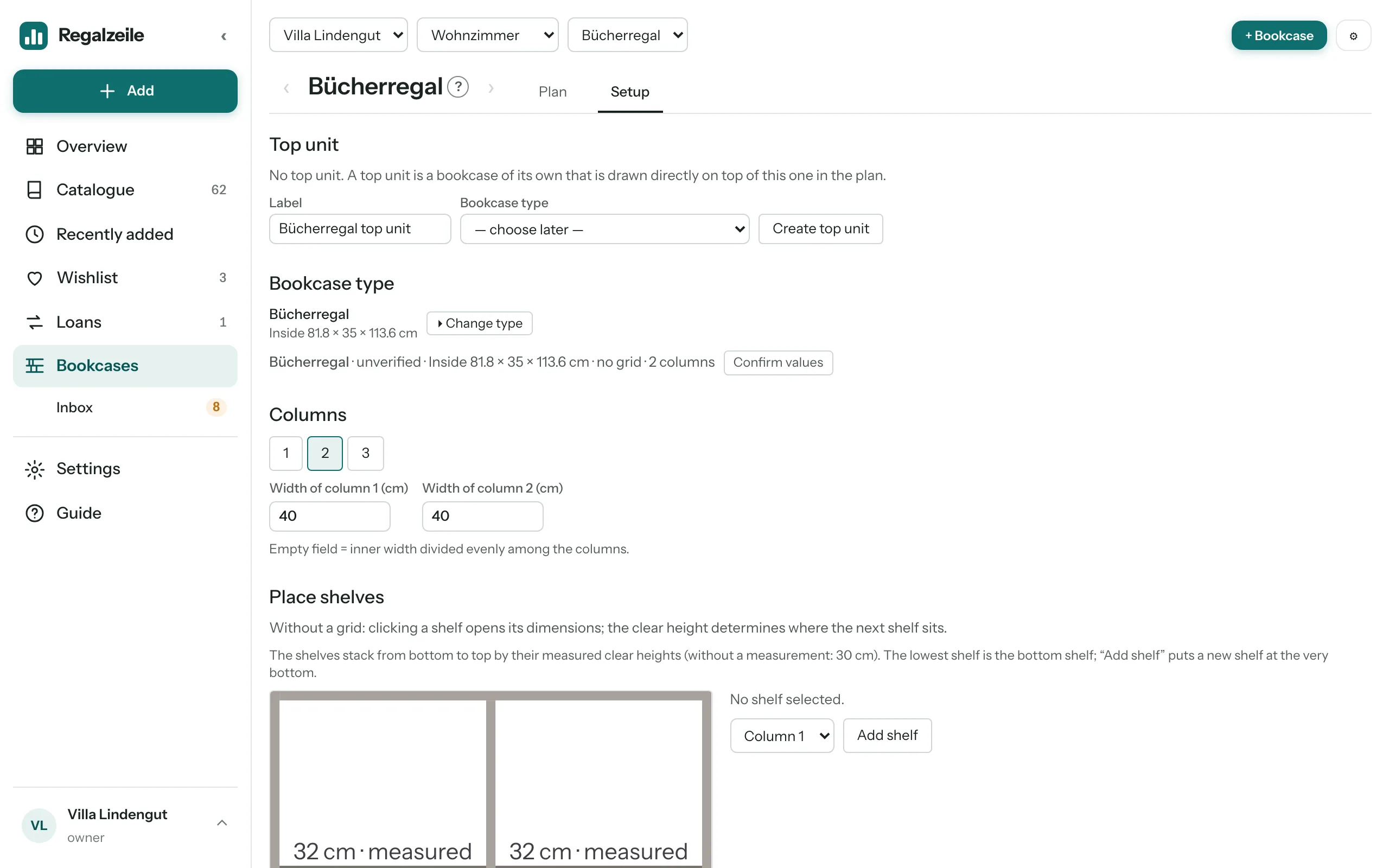
Plan view
The “Plan” tab draws the bookcase to scale. You zoom with the mouse wheel, with the “Zoom out”/“Zoom in” buttons or “Fit to width/height”, on a tablet also with a double tap. A click on ⤢ in the compartment label, a mouse double-click into the back of the compartment, or hovering over it with a dragged book focuses it — arrows lead to the neighbouring compartments, “Zoom out” ends the focus again.
Putting in
On the right, the tray shows titles without a spot, filterable by media type (Books · Records), search, collection, genre, sort order and “Only items that are not shelved anywhere”; it can be collapsed. You drag a book from the tray into the focused compartment, choose the row with the “front | back” switch, and can drag a book back into the tray at any time. “Empty row” moves a whole row back at once. On the phone, every row of the tray shows a “Put in bookcase” button instead, which places the book at the end of the front row in the focused compartment without dragging.
Inbox
Newly added books and records, or ones taken off a bookcase, are “in the inbox” until they have a spot or you take them out. The tray has its own “Inbox” tab for this, the sidebar shows the number under “Bookcases”; “Empty inbox” clears the tab at once (only without extra filters).
Laid flat
A book can also be laid flat in the compartment; it stays freely movable there. If you lay a second one flat across a first, it lies on top — that is how a stack is formed.
Table
On a table, books always lie at one spot on the top (width and depth) and can be rotated in 90° steps — singly or as a whole stack. The “Front / Top view” switch shows the top from above; there you tap a stack and move or rotate it, and “Sort stack” rearranges the books in the stack. You still stack in the front view by dragging a book from the tray onto an existing stack — or in the top view with the “Put on stack” button, as long as a stack is tapped.
Markers on the spine
In the focused compartment, spines carry small markers. Each line shows an example spine with exactly one marker:
- Top left “C”: without cover, “G”: without genre.
- Bottom left, yellow triangle: spine width is missing — the book is drawn with an estimated width.
- Bottom right, orange triangle: height is missing.
- Top right, padlock: private item — readers do not see it.
Quick entry and colours
Click a book in the focus compartment and press r (spine width), h (height) or b (width) to open a small field for the millimetre value — Enter saves it on the book. The spine appears in the colour of the cover, and the wood of the bookcase can be set independently of that, per bookcase, to White, Brown, Mahogany or Black.
Copies and loans
Copies
A title can have several copies — two editions of the same book, a gift copy, one in the cellar. The “Copies” section on the item page lists them openly as a table: number, label, condition, purchase date, price and “Located in” — the bookcase spot in short form, “In inbox since …” with the “Put in bookcase” link into the tray, or “No spot”. “Add” at the top right of the table opens the form for a further copy; “Edit” and “Remove” are in every row. Each copy has its own bookcase spot — two copies are two spines in two places. In the catalogue list, a title with several copies shows “n of m in the bookcase”, the item page at the top as a chip.
Loan
The “Loan” section on the item page lends a copy to a person: name as free text, with suggestions from earlier names, plus loan date, due date and a note. If the title has several copies, you pick one; otherwise the system finds the free one itself. “Mark returned” — in the header of the item page or in the section — takes the loan back without deleting the history; it stays in the “Earlier” line. While a copy is in the inbox, the button in the header reads “Put in bookcase”, otherwise “Lend”. In the catalogue, a lent-out item carries the “Lent out” pill, and there is the “Lent out” filter. The “Loans” page lists all open and overdue loans, and on the Overview a tile shows their number.
Reading
Reading status, stars and “Read on” belong to you, not to the library: every member enters their own details and sees only those — not the ones of the others. This exists for books only; records keep showing the rating from Discogs.
On the item page
The “Reading” block shows five stars to click, for example ; a click on the star that is already set clears the rating again. Next to them are three buttons: Unread, Reading now, Read. When you switch to “Read”, the “Read on” field appears with today’s date filled in — you can change it to an exact date or to just a year (“1998”). If you read the book again later, a new date simply overwrites the old one, without a history of its own. Below that, where applicable, comes the line “Read by …” with the other members who have read the book as well.
In the form
When you add or edit a book, there is the same “Reading” section — the details are saved independently of the rest of the form.
Catalogue and Overview
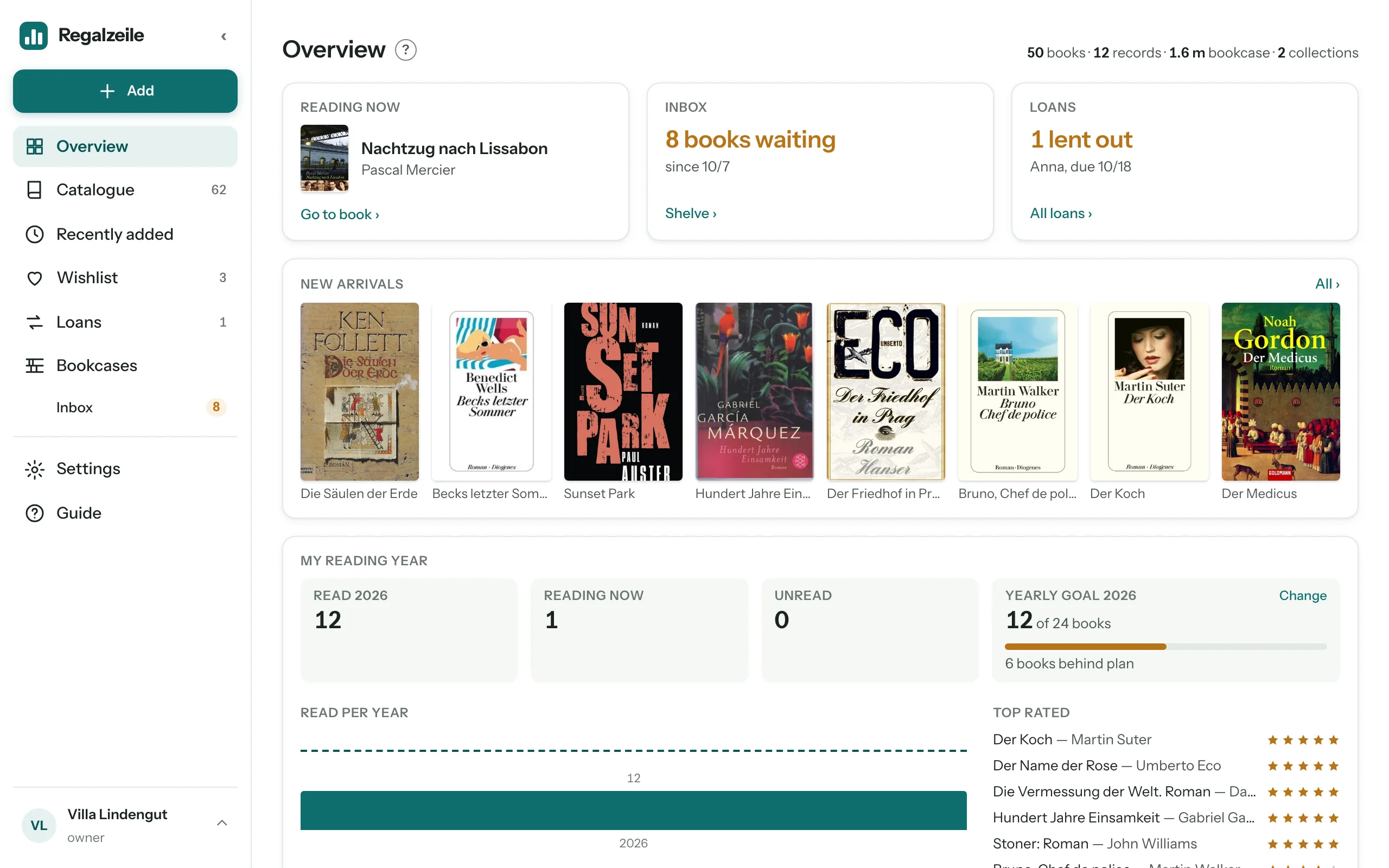
In the catalogue you filter by reading status and sort by rating; rows and tiles show your own stars in small size. On the Overview, the book you are reading right now sits at the very top as a card; the “My reading year” card shows four numbers — Read in the current year, Reading now, Unread and your yearly goal —, below them a bar for each year with a goal marker and the “Top rated” ranking. You set, change or remove the yearly goal directly in the card; the progress shows its pace as a sentence like “2 books ahead of plan”.
Genres
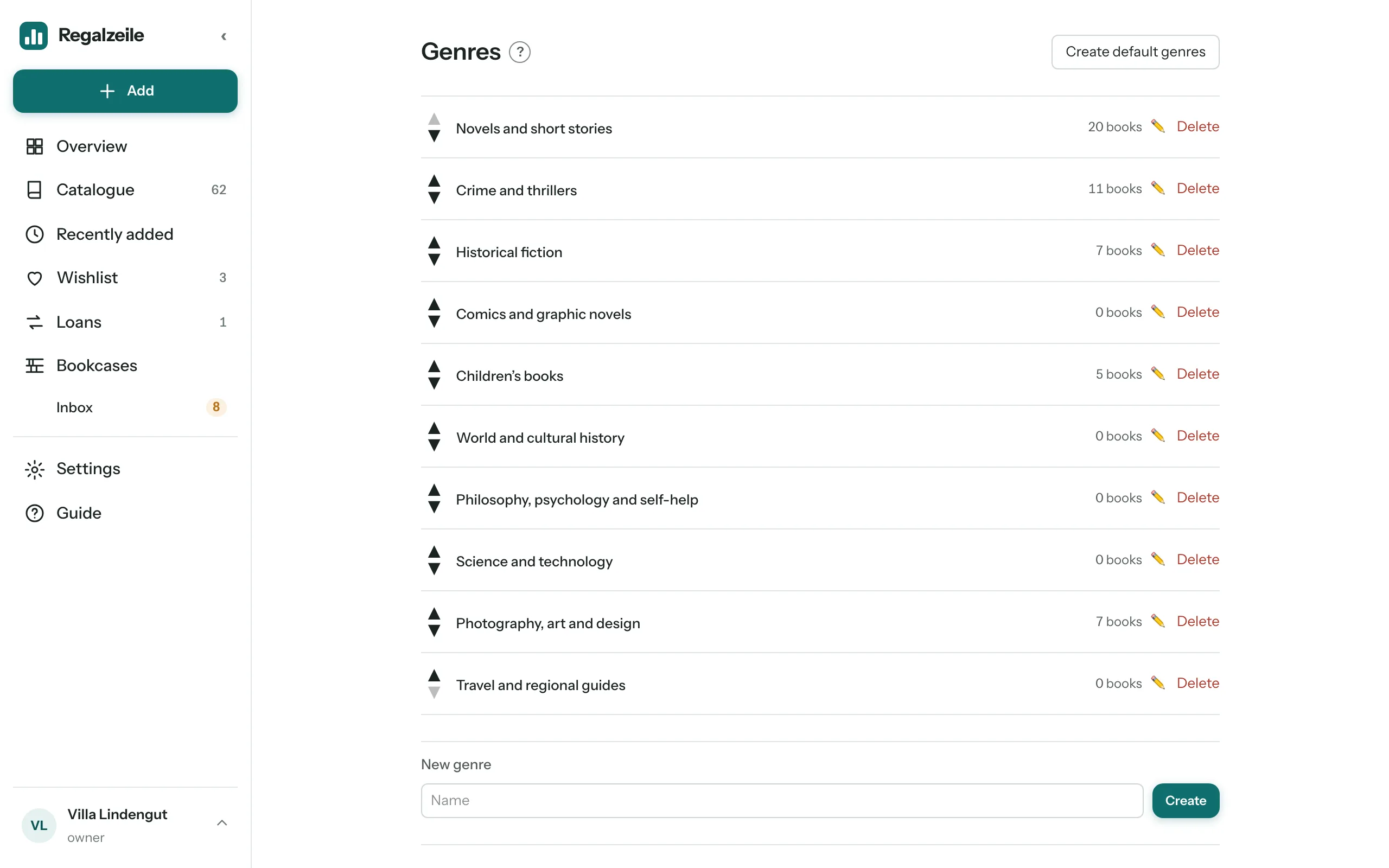
Every book carries exactly one genre — it is the location class for the bookcase, like a subject group in a library, and so it steers auto-layout and sorting. In addition, a book can have any number of tags; these are pure keywords and do not affect the location.
Automatic assignment
When you add a book, when you look up an ISBN in the form and when you import from Libib, every book automatically gets a genre by fixed rules: first Kinderbuch (children’s book), then Belletristik (fiction), then Geschichte (history), then the other subject areas, plus catalogue categories and, as the last stage, title and author patterns. If no rule finds a match, the book stays “Without genre”.
Genre page
From the “Genres” section in the settings (“Go to genres”) you reach the list: rename genres and sort them with the arrows — the order here is the same as in the selection fields of the form. The “Review suggestions” section shows books without a genre together with an automatic suggestion; you accept it or reject it and choose by hand.
Filter and markers
In the catalogue you find books without a genre with the “Without genre” filter; the marker letter G flags them in list and tiles, and in the plan their spine carries the same mark “G”.
Libraries, roles, invitations
Create an account
At regalzeile.ch/register you create an account for free: name, email address, password and the tick for the terms of use and the privacy policy. You get an email with a confirmation link — only after clicking it can you log in. If no email arrives, look in your spam folder; on the login page there is the “Resend email” button. With Google or Apple it works without a confirmation email, because these providers have verified the address themselves.
When you log in for the first time, your own library is created, named “Bibliothek von first name”. You can rename it at any time in the settings under “Library”. Ten general genres are already set up, and more are added as soon as the genre automation needs them. The plan is Basic: up to 200 titles and one member. Anyone who joins through an invitation lands directly in the inviting library instead — the link from the invitation email works unchanged, even if you already have an account of your own.
A library is the shared collection of a household: its own bookcases, its own settings, its own list of members. You can be a member of several libraries — the sidebar then shows a switcher that lets you switch between them.
Roles — who may do what
| Area | reader | member | owner |
|---|---|---|---|
| View | yes | yes | yes |
| See private items | – | yes | yes |
| Reading details and yearly goal | yes | yes | yes |
| Add and edit | – | yes | yes |
| Lend | – | yes | yes |
| Build bookcases and put books in | – | yes | yes |
| Settings | Language, two-factor, leave | yes | yes |
| Create and rename collections | – | yes | yes |
| Delete a collection | – | – | yes |
| Invitations, roles and access to collections | – | – | yes |
| Change plan and pay | – | – | yes |
| Backup and restore | – | – | yes |
| Delete library | – | – | yes |
Access to collections
The owner can limit a member’s role per collection: No access, reader or member. The level caps the role, never the other way round: a reader never becomes a member in any collection. The default is “All collections”. Restricted members see only their collections — in counts, search, export and the shelf plan (books from other collections appear there as grey blocks). They may shelve their own books and records from collections where their level is member — grey blocks and books at reader level stay where they are; auto layout, the lock and the setup stay with members who have access to all collections. They add items only in collections where their level is member; creating collections, merging authors, shares and the wish list stay with members who have access to all collections. Set it in Settings under Members or already when inviting. New collections are at first not visible to restricted members.
Inviting
Under Settings → “Invitations”, an owner invites an address with a role and sends the link. Whoever opens the link registers or logs in with an existing account and is then a member of this library. A registration without an invitation creates a separate, new library instead.
Private items
In the form, the “Private” tick marks an item as private. On the item page, the “Visible to readers” switch in the “In the library” table toggles the same thing. A reader then sees it nowhere — not in the list, search, plan or Overview. Owners and members recognise it by the pill private.
Leaving a library / removing a member
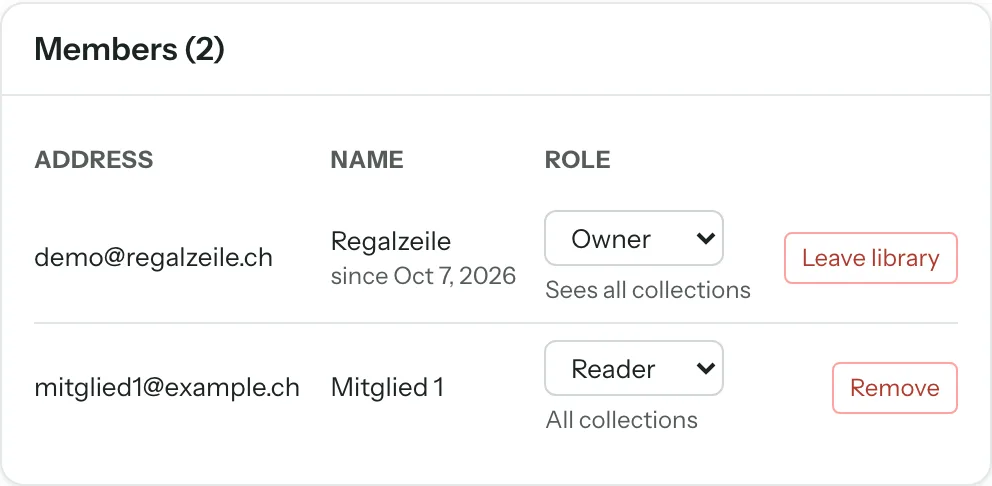
Under “Settings” → “Members” you can leave yourself or — as an owner — remove someone else. The last remaining owner of a library cannot leave. Your personal reading details and your yearly goal are deleted in the process — nothing of them stays behind in the library.
Settings
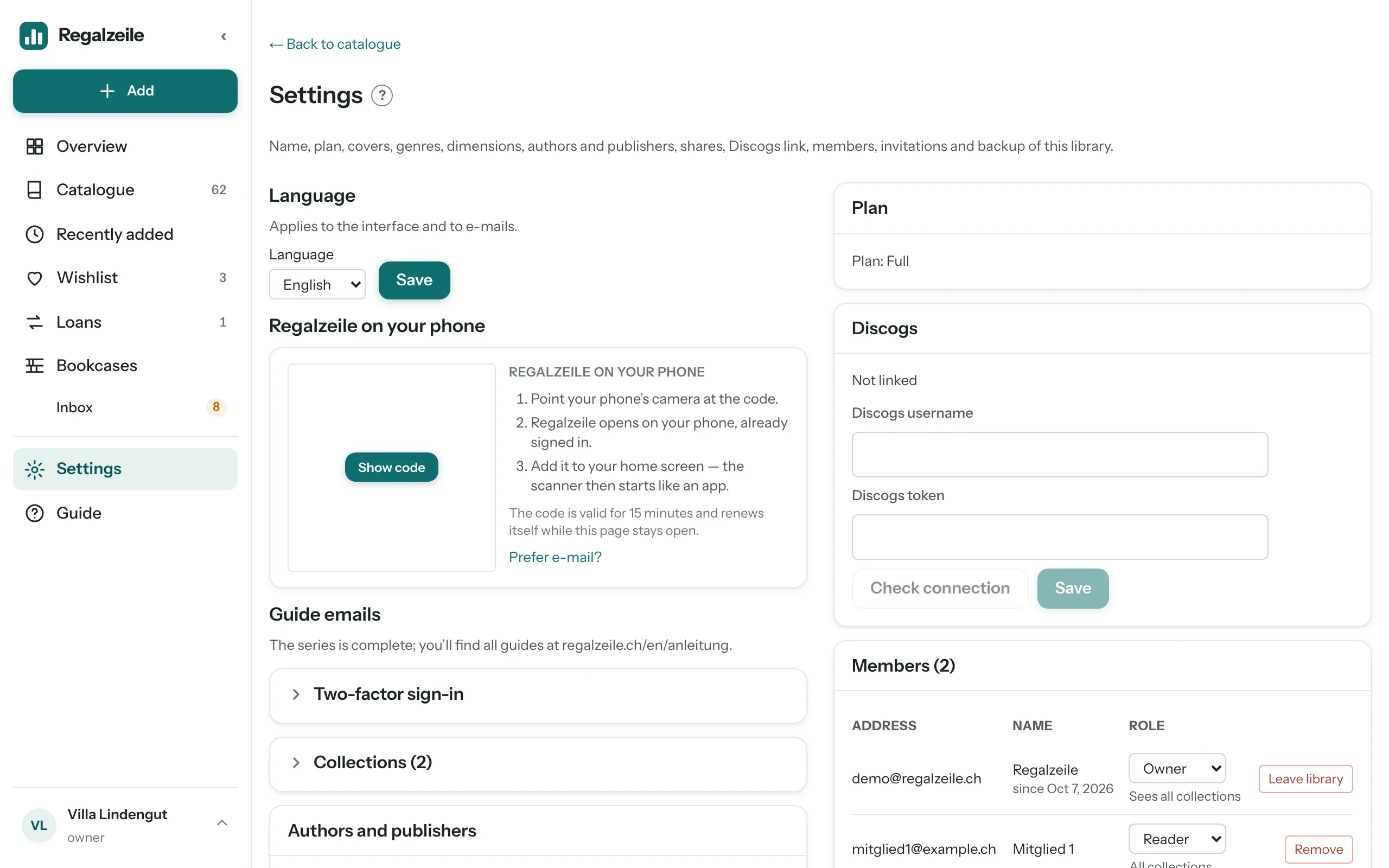
Under the “Settings” menu item you manage the library: its name, the currency of prices (francs or euros, without a setting the currency of your subscription, otherwise francs), its collections (the default collection carries a star), its plan, the covers, the genres, the dimensions and the list of members — members see that too. As an owner you also get the Discogs link, the invitations and the backup. As an owner you can also rename collections and delete them with the bin icon: if a collection still contains items, Regalzeile asks which collection they should move to and revokes any share link for the dissolved collection. The last collection always stays. Readers see only their language, the two-factor sign-in and their own row with “Leave library”.
Every area sits in a box of its own. Only the collections are collapsed, because the list can get long: a click on the row with the arrow opens it, a second click closes it again. Where a number follows the title, it tells you what is inside — “Collections (4)”, “Members (2)”.
Exporting data
In the “Library” box, “Export data” downloads the whole library as a ZIP file. It contains four CSV files: artikel.csv with all titles including authors, publisher, ISBN, genre, dimensions and your reading status, exemplare.csv with the bookcase spot of every copy, ausleihen.csv with all loans and merkliste.csv with the wishlist. The files are separated by semicolons and open directly in Excel and Numbers. Owners and members may export, readers may not.
Reminder for overdue loans
Below the export is the switch “Reminder for overdue loans (weekly by email)”. When it is on — the normal case —, a collective email goes to all owners and members of the library on the due date of a loan and weekly after that, with title, borrower and due date and a link to the loans. Borrowers and readers get no email. Only an owner may flip the switch; members just see whether it is on or off.
Plan
There are three plans: Basic allows 200 titles, a single member, no Discogs link and no nightly backup. Plus allows 1000 titles and 2 members and brings the nightly backup, but no Discogs sync. Full knows no limits and brings the Discogs sync as well as the nightly backup. An owner switches to Plus or Full as an annual subscription via “Plan” — the current prices are shown by the plan in the settings. Anyone who has Plus and wants Full changes the tier in the customer portal (“Manage subscription”); Stripe charges the rest of the year pro rata. Cancelling is likewise done in the customer portal; when the subscription has ended, the library falls back to Basic.
Reloading covers
The “Cover” section shows how many items still have no cover, and a button fetches missing covers from the catalogue sources; a counter shows the progress.
Authors and publishers
“Manage authors and publishers” opens a list of all authors and publishers in your catalogue with the number of items. At the top are possible duplicates: spellings that are the same after ignoring case, accents and punctuation and in any word order, for example “Hesse, Hermann” and “Hermann Hesse” or “Suhrkamp” and “Suhrkamp Verlag”. With the pencil you rename a name; with ticks on several names you merge them into one spelling. Beforehand, the dialog tells you how many items will be changed.
Genres and dimensions
The two maintenance pages are no longer in the menu but here: “Go to genres” leads to the genre list including the review list, “Go to dimensions” to the table in which you enter height, width and spine width of many books one after another.
Discogs
With the Full plan, the owner enters the Discogs username and token. The sync runs immediately on request or by itself every night.
Backup
The “Backup” section is reserved for owners; it names the latest backup, and “Manage backups” leads to the list of existing versions. A manual backup can be made at any time with a button — on every plan; the automatic nightly backup comes with the Plus and Full plans. “Restore” replaces the current state completely — before that, the app automatically makes one more backup of the current state. The “Retention” column tells you what a version currently counts as: for 7 days as a daily backup, then as a weekly backup (the latest version of the week, 4 weeks), then as a monthly backup (12 months) and finally as a yearly backup, which stays. With age, a version thus climbs up the tiers; “expiring” means that a younger version of the same day has replaced it.
Two-factor sign-in
If you like, secure your account with a code from an authenticator app (Google Authenticator, Authy, 1Password and the like) in addition to your password. In the “Two-factor sign-in” box click “Enable”, scan the QR code with the app and type in the first code. Regalzeile then shows ten recovery codes once — keep them safe; each works once and replaces the app code when your phone is not at hand. From now on, signing in with your password asks for the code; signing in through Google or Apple stays as it is.
Lost your phone? Sign in with a recovery code, then generate new codes in the box or disable the second step. If the codes are gone too, the operator helps: a short e-mail to the address in the legal notice, and they reset two-factor sign-in for your account so you can set it up again.
Deleting a library
An owner can delete the library; a deletion period of 30 days follows, during which the library is locked but can still be brought back.
On your phone
Regalzeile can be installed as an app of its own on both the iPhone and the iPad. The app opens on the page you installed it from.
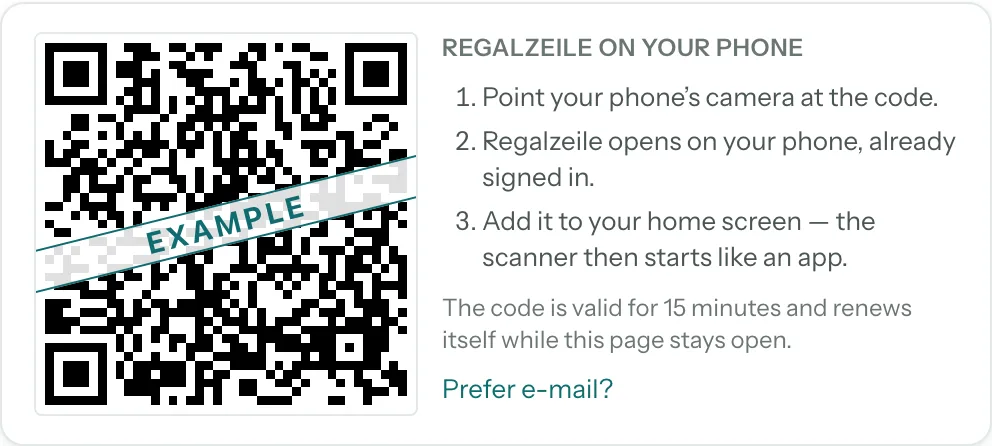
The quickest way to get Regalzeile onto your phone is the QR code: while nothing has been added yet, the overview on your computer shows a code; after that you will always find it in Settings under “Regalzeile on your phone”. Scan it with your phone’s camera — Regalzeile opens on the phone, already signed in, right in the scanner.
iPhone — scanner as an app
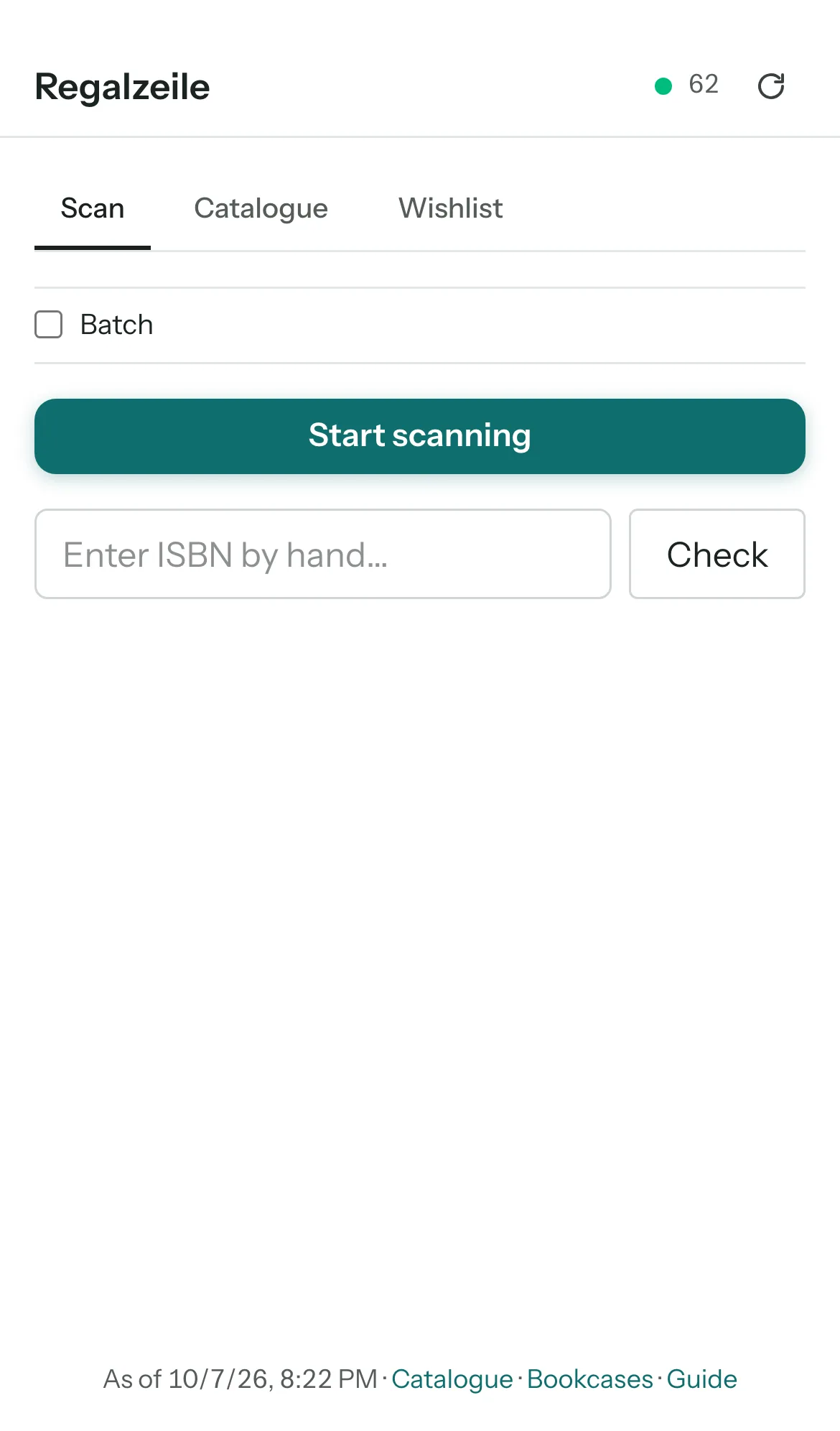 Open Regalzeile in Safari, log in and open “Scan” in the menu.
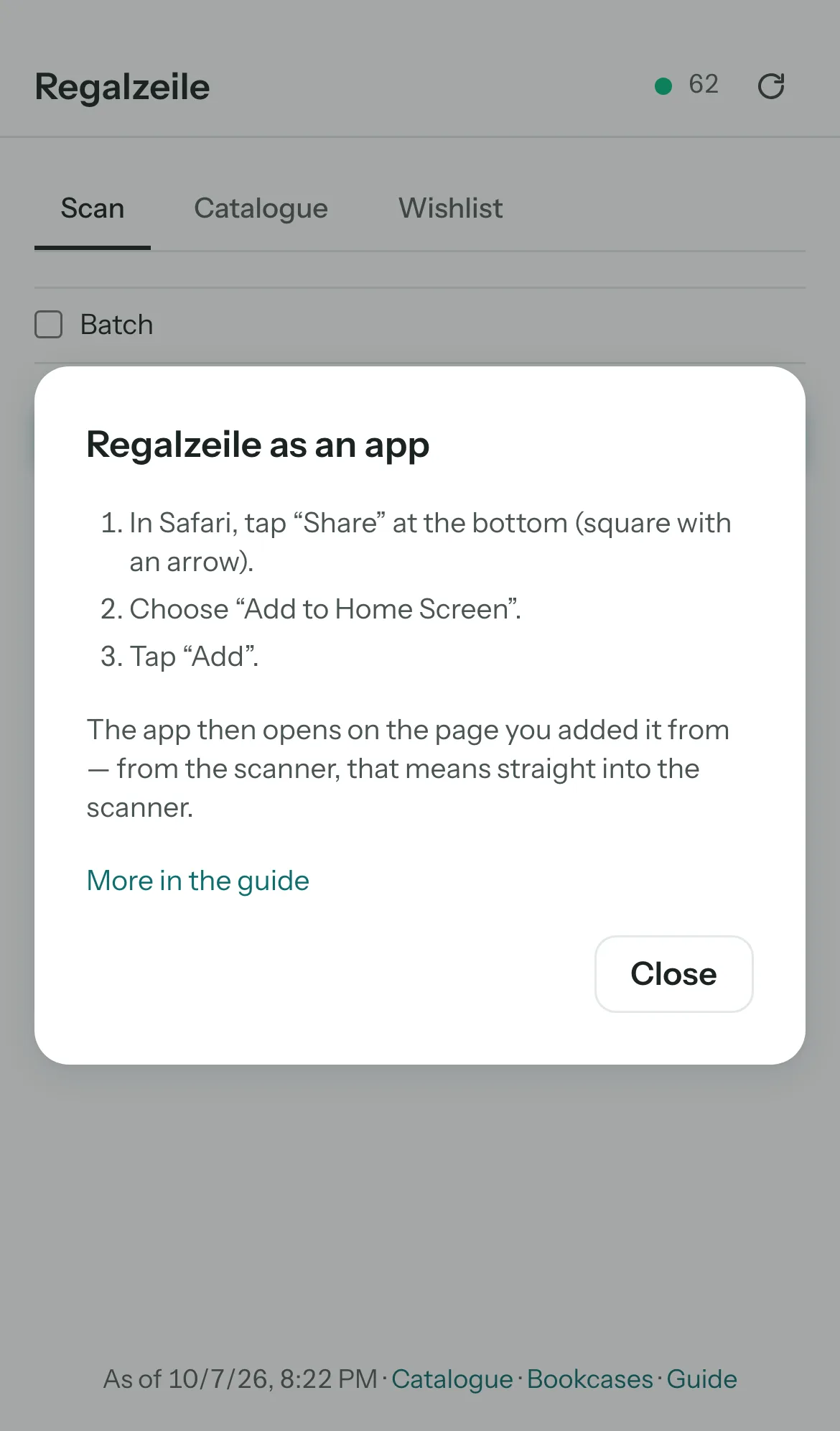 In Safari, tap “Share” at the bottom (square with an arrow), then “Add to Home Screen” and “Add”.
- From now on the app opens on the page you installed it from — here, the scanner.
The scanner also works without a network: it mirrors your catalogue and shows you, in the bookshop without reception, whether you already have a book. The bar at the bottom stays in the scanner too; Catalogue and Wishlist are the usual tabs. In batch scanning you hold several barcodes in front of the camera one after another; every recognised code creates an item right away — a “Looking up book data…” field shows that it is still looking it up. “×” deletes a just-created item again. Unknown ISBNs land on the wishlist; there, when online, you can also paste an Amazon link from the clipboard and mark wishes as ordered or arrived. “Done” stops only the camera, nothing more. At the top, the header shows a green dot when you are online, next to it the number of mirrored items; as soon as you are online again, the “↻” button fetches the new additions. The state of the mirror and the ways into the full app are at the bottom of the page.
iPad — catalogue and plan
The catalogue runs in a Safari tab or — installed from the catalogue — likewise as an app, which then opens there. In landscape, the iPad is particularly suited to the plan view: you push the bookcase with one finger, a double tap zooms in and out again, and you drag a book from the tray straight into the compartment with a pressed finger. In portrait, the iPad shows the menu as a narrow bar with icons, in landscape the full sidebar.
Menu on your phone
At the bottom is a bar with Overview, Catalogue, Scan (the petrol circle in the middle), Bookcases and “More”. Behind “More” are Recently added, Wishlist, Loans, Inbox (as long as books are waiting in it), Add item, Import, New collection, Settings, Guide and your account with “Sign out”. The circle at the top right opens the account directly. On sub-pages such as “Add item” or an item, there is an arrow at the top left that leads back to where you came from.
Android — install as an app
- In the browser menu ⋮ choose “Install app” or “Add to Home screen”.
- Confirm.
Connect AI assistants
Regalzeile is an MCP server (Model Context Protocol): AI assistants that speak MCP — Claude (claude.ai, Claude Desktop, Claude on your phone, Claude Code), ChatGPT and others — connect to your library as a connector. The assistant can then search your library, look up items and locations, show loans — and, if you allow it, add books by ISBN, edit them, lend and return them, set the reading status and note wishes. Deleting and rebuilding bookcases stay in the app. The connector is available to libraries on the Plus or Full plan.
Connect
The server address is https://regalzeile.ch/api/mcp. Any assistant that supports remote MCP servers with OAuth connects to it; no client ID or secret is needed, the client registers itself. Using Claude as an example:
- In Claude open Settings, then “Connectors” and “Add custom connector”.
- Enter
https://regalzeile.ch/api/mcpas the address; leave client ID and secret empty. - Sign in to Regalzeile, choose the library and click “Allow”. You’ll receive an email “New connection”.
In Claude Code: claude mcp add --transport http regalzeile https://regalzeile.ch/api/mcp. Other assistants (such as ChatGPT, Cursor or VS Code) ask for the same address; the approval works the same way: sign in, choose the library, “Allow”.
Permissions
The assistant has exactly the permissions of the signed-in person in the chosen library: readers see no prices, no loans and nothing private, and cannot add anything. One library per connection — for a second library, connect Regalzeile a second time.
Disconnect
Under Settings → Connected apps you see every connection with library, permissions and last use; “Disconnect” revokes access immediately. Resetting your password also disconnects everything.
What's new
What changed recently, by day. Newest first.
- October 16, 2026
- Offer for public authorities and organisations: courts, administrations, law firms and libraries find what Regalzeile can do for several locations at /organisationen and send their enquiry there. For this there is a new account type, «Organisation», with unlimited items and members; it is set up under a contract.
- October 15, 2026
- Faster, on the phone too: pages respond in a fraction of the previous time, Settings and the shelf page load only half as much code, and the setup dialog only on the «Setup» tab. The guide no longer jumps while its images load.
- October 14, 2026
- Connect AI assistants: Regalzeile is now an MCP server (Model Context Protocol) — for Claude (claude.ai, Desktop, mobile, Claude Code), ChatGPT and other clients that speak MCP. The assistant searches, shows items, locations and loans, adds and edits books, lends and returns, sets the reading status and notes wishes — with exactly your permissions in the chosen library. Connections are listed under Settings → Connected apps; for Plus and Full.
- Setup in five steps: template, dimensions, shelves, fronts, done — with a large preview on the right (on the phone at the top). Place shelves by tapping a hole, fronts by tapping a compartment or dragging across several; the palette offers open, door left and right, double door, flaps and drawer. Dimensions save when you leave the field; “Done” sums everything up in one line. Touch-ups: the preview sits below the header on iPhones with a notch, swiping on the preview scrolls the page, compartments can be chosen by keyboard and screen reader.
- The gear menu next to “+ Bookcase” now stays fully on screen on the phone and sits above the plan view.
- Touch-ups: double doors split in the middle of the divider, the fronts list names the hinge only for doors, table and wall shelf show no height in the preview, a template saved from a bookcase with a top unit keeps storage on top switched on for new bookcases, and English texts consistently say “shelf”.
- October 13, 2026
- Fronts instead of just doors: a compartment can now have a door, a double door, a drop-down or lift-up flap or a drawer. In the plan view a tap opens any front; in setup you pick the kind when adding one. Existing doors stay doors.
- Storage on top: on a dresser or a low bookcase you can now put books on top. The switch sits in setup next to the top unit; the plan view shows a row “Top”, the location reads “On top of …”. New bookcases have it from the start, existing ones stay as they are.
- Templates as whole furniture: setup shows cards with a thumbnail in two tabs, “Your templates” and “From Regalzeile”. A template brings columns, shelves and fronts — an empty bookcase takes it all, one holding books only the dimensions. “Save as template” keeps your setup; new in the catalogue: Bestå with doors, plus Hemnes and Malm dressers with drawers.
- October 11, 2026
- Follow-ups for issues: a title-search match now brings the album’s cover along. A price change of the series (new press code) no longer counts as a new series, press codes starting with 414 are recognised, and the overview counts issues in the inbox separately. If the code does not know the series, recently used series are offered for quick selection, and the title from the search comes without a leading “Asterix 35”. The overview header now counts issues too.
- “Series” card in the overview: per series the count, the span and the missing numbers, e.g. “Asterix · 8 issues · 9 to 39 · 31 missing: 1–8, …”. Tapping the series opens the library with that series only, sorted by number; on the item page the series is a link too.
- Currency of prices: “Automatic” no longer follows the browser language but the currency of the subscription, otherwise francs. If you want euros, set it in the settings.
- Comics and magazines: issues with a press code (e.g. Asterix, MINT) can be scanned and entered — with series, number and issue date. Magazines have their own filter next to books and records, and lists can be sorted by series and number.
- October 10, 2026
- Prices in euros or francs: item and copy prices and the value of records now carry the library’s currency. Without a setting it is francs in Switzerland and Liechtenstein and euros elsewhere, detected from the browser region. Owners set the currency in the settings, box “Library”. Amounts are not converted.
- Back to the tray: on the item page, the link “To the tray” sits under a copy’s shelf location. One click takes the copy off the shelf; it then lies in the shelf plan’s tray and can be placed again from there.
- October 9, 2026
- Tidying collections: in the settings every collection has a bin icon. An empty collection is deleted after confirmation; if it still contains items you choose which collection they move to, and the old one is dissolved. A share link for the dissolved collection is revoked, and the last collection always stays.
- First book without detours: every new library starts with the collection “Books” as default. Until now the add form required a collection, but a fresh account had none — the browser blocked silently and the first book could not be saved. Existing libraries without a collection get “Books” added, and the form offers a “Create collection “Books”” button in case none exists.
- Getting started: the confirmation, “account exists” and password e-mails now use the same frame as the other Regalzeile e-mails, with a button instead of a bare link. The empty library on desktop shows the “This is what your shelf looks like in three minutes” image. The “First steps” checklist starts with the first book and the shelf; naming the library and the collection come after.
- Rename collections, pick the target spelling with a click: in the settings every collection has a pencil for renaming. When merging authors and publishers, the spellings now appear as buttons below the field — one click sets the target spelling, including the preselected one that the browser dropdown used to hide.
- October 8, 2026
- Shelf door, reading year, index: an open shelf door now stands as a narrow edge beside the compartment instead of in front of it — the first book behind it stays visible. The “Read per year” bar in the overview scrolls sideways with many years instead of overflowing to the right. The letter index knows А–Я as soon as titles or authors start in Cyrillic (ё counts as е, also in search). The media type is called “Records” everywhere.
- Terms of use: the Plus plan is now covered by the terms of use — annual subscription, up to 1000 titles, up to two members, nightly backup; prices, termination and the switch to Full are updated accordingly (as of 8 October 2026).
- Spanish and Russian: Regalzeile is now available in Spanish and Russian — landing page, app, emails, guide and legal texts. Pick the language at the bottom of the landing page or in the settings.
- Scanner header: like the other pages, the scanner now shows the logo and the page name “Scan” in the same place at the top left; the status line at the bottom keeps clear of the scan button.
- Scanner as a tab: on the phone the bottom bar now stays in the scanner, “Scan” is highlighted there, and one tap takes you back to the overview. The scanner’s own tab row (Scan · Catalogue · Wishlist) is gone — Catalogue and Wishlist are the usual tabs. Offline the scanner keeps working; the other destinations are greyed out.
- Help inside the app: “Guide” in the menu now opens the help within the app, with the eight guides at the top. The “?” next to a page title shows the matching chapter as a drawer without leaving the page. The “Getting started” checklist links to the guide “Adding your first 50 books”.
- October 7, 2026
- Help with pictures: the help starts with “Your first bookcase in three minutes”, the table of contents is a grid of cards with thumbnails, every chapter and guide has a lead picture, and the step lists show what happens on screen — real screenshots from the sample library, in all four languages.
- Regalzeile on your phone: the empty overview and Settings show a QR code. Point your phone’s camera at it — Regalzeile opens on the phone, already signed in, right in the scanner. Prefer e-mail? The same link comes by e-mail.
- Sample library: while your library is empty, the overview shows a picture of the shelf plan and a “View sample” button — you browse Villa Lindengut with its 62 titles as a reader and return any time via the bar at the top.
- Plan view: a shelf with two or three columns and no shelf type was drawn two to three times too tall because the board heights of all columns were added up. The tallest column now sets the height.
- October 6, 2026
- Prices in euros: visitors outside Switzerland see Plus and Full in euros and pay in euros — the same amount as in francs. A switch above the prices toggles between CHF and EUR; after the first payment the currency stays fixed.
- Guides: eight step-by-step articles at regalzeile.ch/anleitung — from the first book to the record collection. New users get a welcome e-mail and then one article a week by e-mail; turn it off in Settings or via the link in every e-mail.
- October 1, 2026
- iPhone: tapping an input field zoomed the page in and left it wider than the screen. Form fields on iPhone now use a font of at least 16 points so iOS no longer zooms.
- Collection access: the owner limits each member’s role per collection to “No access”, “Reader” or “Member”. Restricted members see only their collections. Set it in Settings under Members or when inviting. Deleting a collection is now owner-only.
- Restricted members now shelve their own books and records in the shelf plan; other people’s books stay put as grey blocks. The tray shows them only collections where they are members.
- Readers can now open Settings: language, two-factor sign-in and their own row with “Leave library”.
- Tables: restricted members can shelve again even when older books of other people still lie in the table’s second row.
- September 30, 2026
- Two-factor sign-in: if you like, secure your account with a code from an authenticator app. Enable it in Settings in the “Two-factor sign-in” box, with ten recovery codes for emergencies. Applies to password sign-in; Google and Apple stay as they are.
- Regalzeile now counts visits with Plausible Analytics: no cookies, no IP address, no profile and therefore no consent banner. The privacy policy explains exactly what is recorded.
- The standard genres (“Crime and thrillers”, “Historical fiction” …) now appear in your language — in the Catalogue, when adding items, in the genre manager, in the plan view and tray, on the Overview and for guests on shared pages. Genres you created or renamed keep their name.
- The guide, “What's new”, the privacy policy and the terms are now also available in English, French and Italian (regalzeile.ch/en/hilfe etc.). For the legal texts the German version remains authoritative; the legal notice stays in German in every language.
- The whole app, every error message and all e-mails are now available in German, English, French and Italian — pick your language in Settings.
- September 29, 2026
- Regalzeile now speaks English, French and Italian: the home page, sign-in, registration, invitations and shared links appear in your browser’s language (regalzeile.ch/en, /fr, /it). In Settings you choose your language; it then applies everywhere you are signed in. The app itself, the guide and the legal texts follow in the next rounds.
- Regalzeile is on Instagram: the link to the @regalzeile account is in the footer of the home page and of shared pages.
- Drop-down menus stay on screen on your phone: the sort menu of the Catalogue (“Newest first” etc.) stuck out on the left edge of the iPhone screen and its entries were cut off. Every menu now shifts inward as far as needed to be fully visible.
- New plan “Plus” between Basic and Full: 1000 titles, 2 members and the nightly backup as an annual subscription, without Discogs sync. Settings now show both buttons “Switch to Plus” and “Switch to Full”; if you have Plus, you switch to Full in the customer portal.
- The home page now shows everything Regalzeile can do: besides the bookcase plan and the scanner, records with Discogs, plus loans, reading year, household, wishlist, sharing, overview, cover wall and table, the promises on import, export and backup, and frequently asked questions.
- Record spines in the plan view are labelled like real ones: artist and title run on one line from bottom to top, the artist first in capitals, the title in semi-bold — instead of two squeezed columns. The lettering makes better use of the narrow sleeve, so even a single LP is readable when you zoom in.
- Overview: clicking a name in the “Authors” or “Artists” ranking now shows exactly the items by that author (“Author” filter) instead of a full-text search for the name.
- September 28, 2026
- Sharing: a collection, a genre or an author can be shared by link — valid for 7, 30 or 90 days, and you can end it at any time. Anyone with the link sees, without an account, cover, title, author, year, genre and, for each item, a page with description and buy button; private items, loans, notes, prices and dimensions never. The “Share” button appears in the Catalogue as soon as exactly one such filter is set, and on the item page next to the author’s name; Settings list all shares with views, “End” and “Extend”.
- New “Author” filter in the Catalogue: clicking the author’s name on the item page or the number in “Authors and publishers” shows all items by that author; the “Author: …” chip removes the filter again.
- When adding an item, Regalzeile checks the ISBN before searching: if the check digit is wrong (typo, record barcode), “Not a valid ISBN” appears right away instead of “No match”, and no source is queried.
- Open Library and DNB now get 10 instead of 5 seconds for a lookup. If a source still answers too slowly, the operations log shows “Time limit exceeded” as a warning — “not reachable” stays reserved for real outages.
- September 26, 2026
- Spine lettering in the plan view: the title now starts with a gap from the foot of the book (4 % of the book height) instead of right at the edge, and on thick books the lettering grows only slowly with the spine width — very wide spines no longer shout. Books lying flat get the same gap at the start of the title. Slipcases at least 60 % as wide as they are tall are labelled like a box: horizontal, centred, title on up to three lines, author above it.
- New “Cover” view in the Catalogue next to list and tiles: just the covers, large and without headings, books upright, records square, with a size switch S · M · L. Available for “Books” or “Records”, not for “Everything”.
- Sort order “Author A to Z”: by the surname of the first author, for records by the artist (ignoring “The”); the letter index and headings follow along.
- Discogs sync recognises multiple copies: if a record appears several times in your Discogs collection, the sync creates the missing copies — with the condition, price and purchase date of each entry. Existing copies are left untouched.
- On the desktop, Settings appear in two columns; the members table shows “since” below the name.
- The “Inbox” card on the Overview counts books and records separately (“2 books and 1 record waiting”).
- For bookcases with more than four shelves, the location on the item page also shows the item’s compartment enlarged to the right of the whole bookcase, like a magnifying glass at the height of the compartment — so the highlighted spine is easy to spot even in tall bookcases.
- September 25, 2026
- Records appear in the plan with a more realistic spine width: 2 mm for the sleeve plus 3 mm per disc (single LP 5 mm, double LP 8 mm) instead of a flat 4 mm per disc. A record shelf that is really full now also looks full in the plan; measured values stay unchanged.
- The table’s top view shows every stack across its whole footprint: books that stick out beneath a smaller book are visible with their cover. This way you see the occupied space correctly instead of just the top book.
- When adding an item, Regalzeile suggests authors and publishers from your library from the third letter on, the most common spelling first. With several authors, the suggestion applies to the name after the last comma.
- New maintenance page “Authors and publishers” in Settings: all names with counts, possible duplicates such as “Hesse, Hermann” and “Hermann Hesse” or “Suhrkamp” and “Suhrkamp Verlag” at the top, renaming with the pencil, merging with checkmarks — with a preview of how many items will change.
- September 24, 2026
- The tray of the plan view can be limited to books or records (chips “Books · Records · All” in the filter block); the collection choice follows the medium, records show their square cover, and the count line names both groups (“6 books and 2 records in the tray”).
- When adding an item, “Cancel” and the back link take you back to where you came from: Wishlist, Scan, Overview, an item (Copy) or the Catalogue with the same filters. On your phone there is an arrow at the top left for this, and the header names the page (“Add item”, “Item”, “Edit”, “Import”).
- “Save and next” at the bottom of the form adds several items in a row: the item is saved, a line at the top shows it with a link, search and form are empty again, and the collection stays preselected. After a batch scan and after an import, a link leads to “Recently added”.
- When editing, description, publisher, notes, year, pages, ISBN and price can be cleared again — a cleared field is now saved.
- Covers by drag and drop in the Catalogue: drag an image onto a tile, a row or a card, and it becomes the item’s cover.
- In the list view on your phone, records show a cover twice as large; on the desktop, table and cards show a 96-pixel cover with a taller row.
- Records can be put into a bookcase: they appear in the tray and in the inbox, get default dimensions from the Discogs format (LP 31.5 cm, 4 mm spine per disc) and are placed in auto-layout as a group after the books, sorted by artist and year. A top board that is too deep is also reported in the front row.
- September 23, 2026
- The Catalogue has been reorganised: filters as chips below the search (Books · Records · Everything, Collection, Genre, Reading status, Missing, More filters), sorting as a menu in plain words (“Title A to Z”, “Newest first”). Each row shows publisher, year, pages and the location (“Bookcase 2 · Shelf 1”), missing details as amber letters (new: P for “no bookcase spot”). On the desktop the list is a table with a location column and uses the full width. “Recently added” shows cards by day with the next task. Tiles come without lines and without a pencil — the row opens the item, and you can edit it there.
- The item page starts with the book: cover, collection, title, author, then an “Edit” button and next to it, depending on the state, “Put in bookcase”, “Lend” or “Mark returned”. Three chips show location, reading status and loan at a glance. The details appear as tables “Edition” (with the ISBN in hyphens and “copy”), “Dimensions” and “In the library” (where the “Visible to readers” switch is); the copies are shown openly as a table with “Located in”. Copy and Delete are behind “⋯”, “Change cover” is right at the cover, “Sync metadata” at “Edition”.
- Addendum to the item page: confirmation dialogs can be closed with Escape and keep the focus, empty stars are easier to see, and “Remove from inbox” has its own line in the copies table.
- The Overview has been reorganised: it starts with what is going on right now — the book you are reading, the inbox and the loans —, then new arrivals, your reading year, the collection in numbers with the rankings as tabs “Books · Records”, the bookcases, and at the very bottom the maintenance as a single line. Everything as cards; at the top right a short line with books, records, bookcase metres and collections.
- The home page shows a real bookcase from the plan view next to the headline, three feature cards and the prices as one card, all in petrol blue. Sign in, register and the other sign-in pages use the same palette; the app icon is now petrol blue.
- Addendum to the home page: input fields on the sign-in pages show keyboard focus with a visible petrol frame; the old address of the icon (favicon.ico) leads to the new icon.
- Regalzeile loads faster: covers stay cached in the browser and are fetched again only when they have changed; images in lists load only when they scroll into view. The Overview calculates the fill level of the bookcases in one go instead of bookcase by bookcase.
- Addendum: the Catalogue now calculates copy counts and loans only for the page shown instead of for the whole library. The plan view no longer waits for the colour analysis of new covers; the spine colour appears by itself shortly afterwards.
- Covers in lists and bookcases now come as small thumbnails instead of the original image — pages load noticeably faster on your phone and the scanner’s offline supply becomes much smaller. The item page shows a medium size, the original only when you enlarge it.
- September 22, 2026
- A new look: petrol blue instead of black for buttons and links, a new typeface, cards on a light background. The menu on the left starts with “Add” (item, Scan, Import, new collection), shows icons and numbers, and your account at the bottom. On your phone the menu is a bar at the bottom with Scan in the middle; “More” opens the rest. On an iPad in portrait it is a narrow bar with icons.
- Addendum to the new look: darker secondary text, semi-bold menu entries and section titles, a white main area with outlined cards — the new typeface was too light.
- “Dashboard” is now called “Overview”. The “Books · Records · All” switch is in the header of the Catalogue.
- The “Regalzeile as an app” hint now appears only as a card at the bottom of the Overview and can be dismissed.
- Scanner for readers: if you are only a reader in a library, you now find “Scan” in the menu and can see offline whether a book is already there. Adding, saving to the wishlist and batches remain reserved for members and are hidden for readers.
- If you open a page that requires a higher role, you land in the Catalogue with a note saying which role is missing — instead of without any explanation.
- Recommend Regalzeile: at the bottom of the “Overview” there is a card with “Share” (on your phone) or “Copy text”, e-mail and WhatsApp.
- September 21, 2026
- Open Library delivers data again: its old interface had answered every request with an error since 18 September, and since then neither details nor covers came from there. We now query its new interface.
- Grey placeholder images saying “no cover available”, which some data sources deliver instead of a real cover, no longer end up in the bookcase — the next source is queried instead.
- “Fetch covers” now also fetches covers for the wishlist, not just for books in the bookcase.
- September 19, 2026
- New libraries start with a “Getting started” checklist in the “Overview”; an empty Catalogue and an empty bookcase page show the next step.
- Libraries created through an invitation get the ten default genres, just as with registration.
- Settings: “Export data” downloads your library as a ZIP with four CSV files.
- Overdue loans: owners and members receive a summary e-mail on the due date and weekly after that — it can be switched off in Settings.
- September 18, 2026
- The plan Basic now allows 200 instead of 50 titles.
- The sidebar is shorter: the daily destinations at the top, below them the “Add” group, with Settings set apart. “New” is now called “Recently added”. You reach Genres, Dimensions and Backup through Settings, and the administration through the footer.
- Backup: the new “Retention” column shows whether a snapshot currently counts as a daily, weekly, monthly or yearly backup.
- Covers now also come from the catalogue of the German National Library — for German-language books that have no image at Google and Open Library (Wishlist, Scan, “Fetch covers” and “Sync metadata”). A used-up Google quota no longer blocks the other sources.
- Settings are divided into boxes like the administration; the collection list can be collapsed.
- If you do not have an account yet, you can request an invitation on the login page.
- On your phone, the login page and the home page explain how to put Regalzeile on your home screen as an app.
- Table: books now lie at a specific spot on the tabletop (width and depth) and can be rotated in 90° steps — individually or as a whole stack. New top view (switch “Front / Top view”) for moving and rotating; stacking still happens in the front view. “Sort stack” arranges the books in the stack.
- Scanner: a new header bar like in the rest of the app (wordmark, online dot, item count, ↻), with the tabs directly below; links and status are in the footer. Nothing lies in the blurred strip under the iOS status bar any more.
- Item page: “Remove cover” below the cover — also removes a catalogue cover; an upload, copying or a metadata sync brings one back.
- Regalzeile has a public home page: slogan, three examples and the two plans with prices.
- You can now register yourself — name, e-mail, password, confirmation e-mail. On your first sign-in your own library “Bibliothek von …” is created with ten default genres. Google and Apple work without a confirmation e-mail.
- Terms of use and legal notice are now under “Terms” in the footer; the privacy policy names the operator.
- Invitation links continue to work unchanged — even if you already have an account of your own, you can use one to become a member of another library.
- September 17, 2026
- The login area has been redesigned; the password field has an eye icon to show what you typed.
- Plan view: on a computer, a double-click on the back panel of a compartment focuses that compartment — like the ⤢ in the compartment label.
- The former watch list is now the Wishlist: paste an ISBN or Amazon link, “Buy on Amazon”, “Ordered” and “Arrived” (puts the book into the inbox), a note per wish. The item page has a buy button, too. As an Amazon Associate I earn from qualifying purchases.
- September 16, 2026
- Reading: reading status, your own stars and “Read on” for each book — personal for each member. In the “Overview”, the “My reading year” section with a yearly goal.
- Guide: this page, reachable through “Guide” in the sidebar and the “?” next to the page titles — it opens in a new tab so you do not lose your place in the app.
- App on the home screen: it now starts on the page from which you installed it — the scanner on the iPhone, the Catalogue on the iPad.
- Plan view: tables and other narrow furniture are fully in view when opened; the tabletop has a wood finish, and the rear table legs join the top cleanly.