Chapters
- 1. Getting started
- 2. Adding items
- 3. Catalogue
- 4. Bookcases and plan view
- 5. Copies and loans
- 6. Editions and supplements
- 7. Circulation
- 8. Reports
- 9. Sign in with Microsoft
- 10. Reading
- 11. Genres
- 12. Libraries, roles, invitations
- 13. Settings
- 14. On your phone
- 15. Connect AI assistants
- 16. Regalzeile for Chrome
- 17. What's new
Regalzeile for Chrome
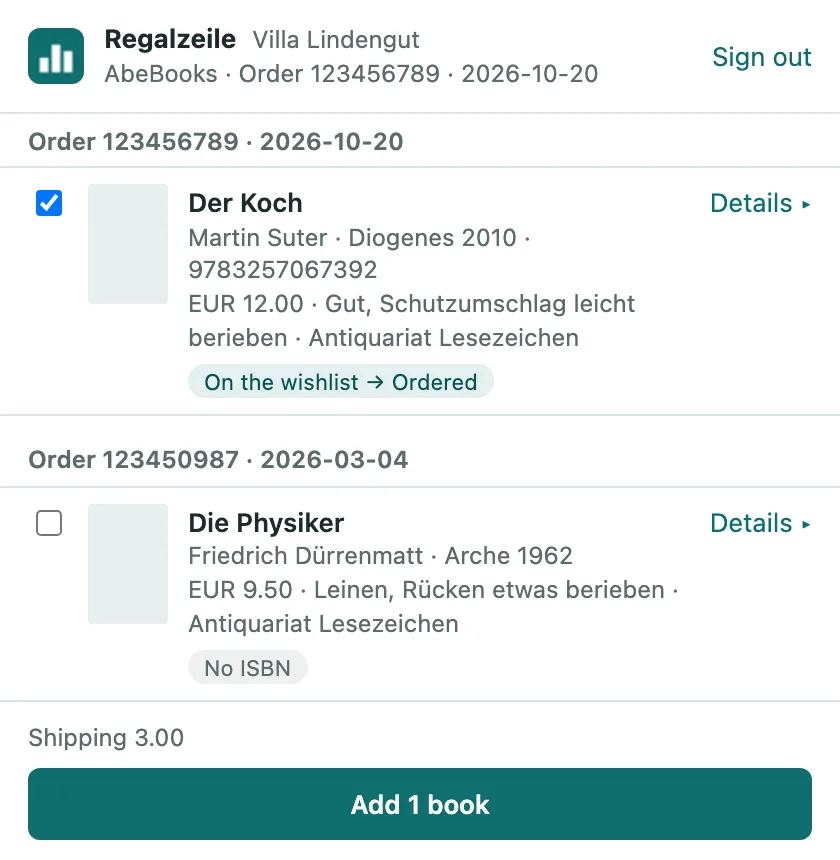
Regalzeile for Chrome is a browser extension: books you order from Amazon (.de, .ch, .com, .co.uk, .fr, .it, .es), ZVAB or AbeBooks land on the wishlist as wishes with the status “Ordered” — with price, condition, seller and order number. When the book arrives, click “Arrived” there: Regalzeile creates the item and carries the purchase details into the copy. Ex Libris and Orell Füssli follow in a later version. The extension is available from the Plus plan; members and owners can add books. Readers see “You can only read in this library.” in the window.
Install
- The extension will be available in the Chrome Web Store soon. There you then click “Add to Chrome”.
- Pin the Regalzeile icon to the toolbar (puzzle piece → pin) and click it. Click “Connect to Regalzeile”, sign in, choose the library and click “Allow”. As when connecting an AI assistant, you’ll receive an email “New connection”.
- After your purchase, click the icon on the shop’s thank-you page — or later in “My orders” (AbeBooks, ZVAB) or in the order details (Amazon).
Add books
The window lists the books it found, grouped by order, each with a checkbox; only the books of the most recent order are ticked in advance. A chip says what adding will do: “On the wishlist → Ordered” (the existing wish is marked as ordered), “New on the wishlist, Ordered”, “Already in your library”, “No ISBN” or “Kindle — cannot be added” (e-books stay out). Under “Details” you adjust price, currency, condition, seller, order number and note. The button “Add 3 books” enters the ticked books. With the keyboard: Space ticks or unticks the row, Enter adds.
If the shop gives no ISBN — common with second-hand booksellers —, Regalzeile creates the wish with a placeholder; the wishlist then shows “no ISBN”. Title and author come from the order.
What the extension reads
When a shop page loads, the extension only checks whether it lists ordered items and shows their number on its icon; that stays in your browser. Nothing is sent to Regalzeile until you tick books in the window and click “add” — never the delivery address, payment method or anything else on the page. Details under Privacy → Regalzeile for Chrome.
Disconnect
In the extension’s window, “Sign out” signs it out. Under Settings → Connected apps Regalzeile for Chrome is listed like any connected assistant; “Disconnect” revokes access immediately.