Adding your first 50 books
Guide 1 of 8
The first fifty books are the hard part: after that you know the moves, and the rest happens along the way. With your phone in one hand and a pile of books beside you, it takes about an hour. This article shows the quickest route — and what to do when a book simply won’t turn up.
Regalzeile on your phone
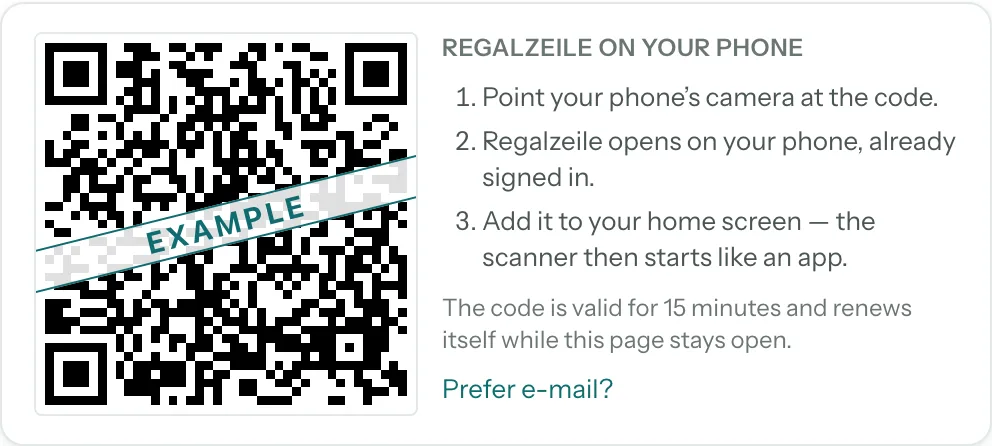
Sitting at your computer? Then get Regalzeile onto your phone first: while nothing has been added yet, the overview shows a QR code; afterwards you’ll find it in Settings under “Regalzeile on your phone”. Point your phone’s camera at it — Regalzeile opens on the phone, already signed in, right in the scanner. No password, no typing.
The scanner on your phone
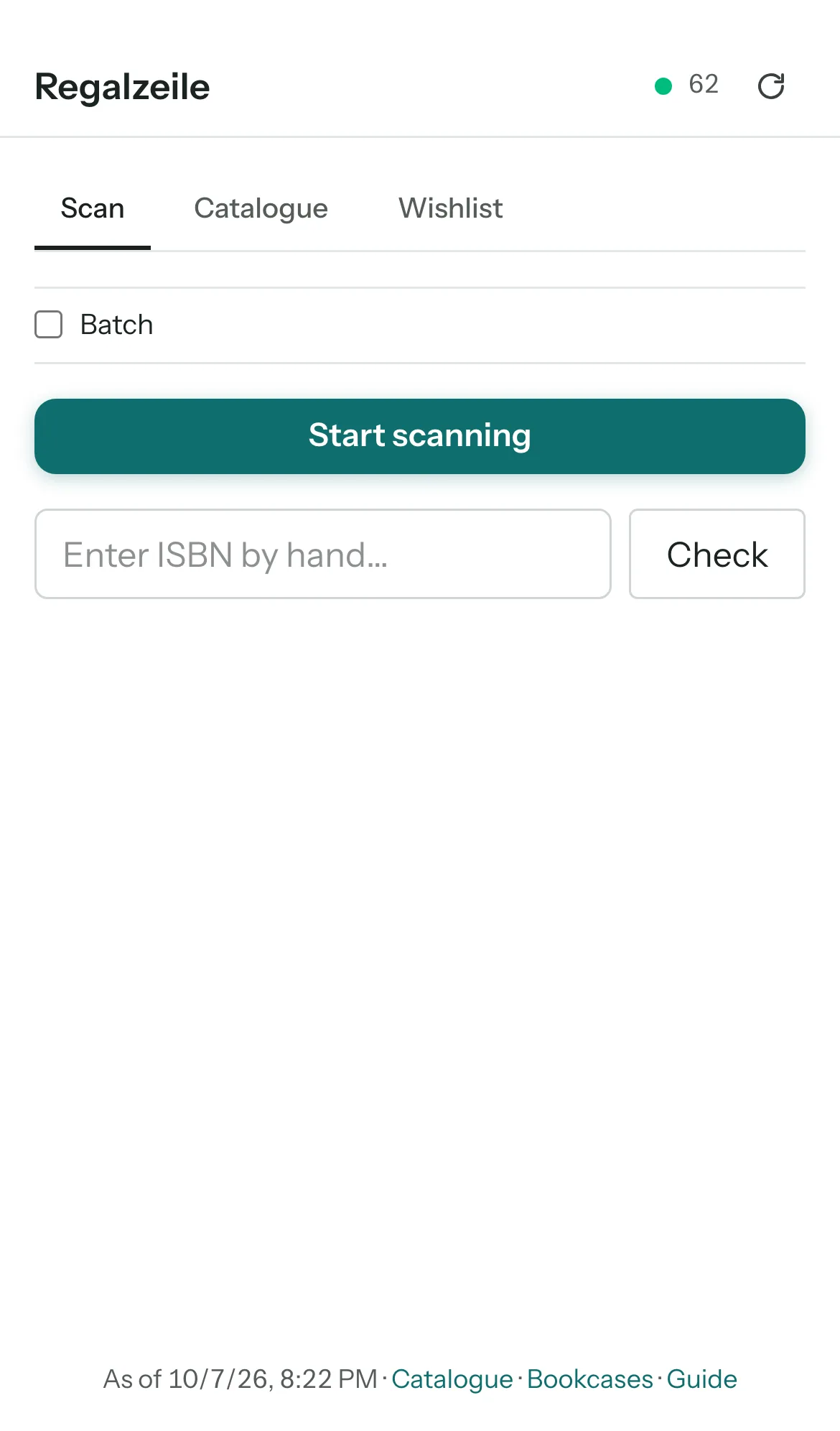
Open Regalzeile on your phone and tap “Scan” in the bar at the bottom — the petrol circle in the middle. The first time, your browser asks for the camera; allow it, or the picture stays black. Now hold the barcode on the back of a book in front of the camera. As soon as it is recognised, Regalzeile creates the item and looks up title, author, publisher and cover in the background — a field saying “Looking up book data…” shows that it is still at work.
You don’t have to wait: hold the next book up to the lens straight away, then the one after that. This batch scanning is where the time is saved. Caught a book twice by mistake? “×” deletes the item you just created. “Done” only stops the camera. Every book lands in your default collection; you choose which one that is in Settings, under collections, with the star.
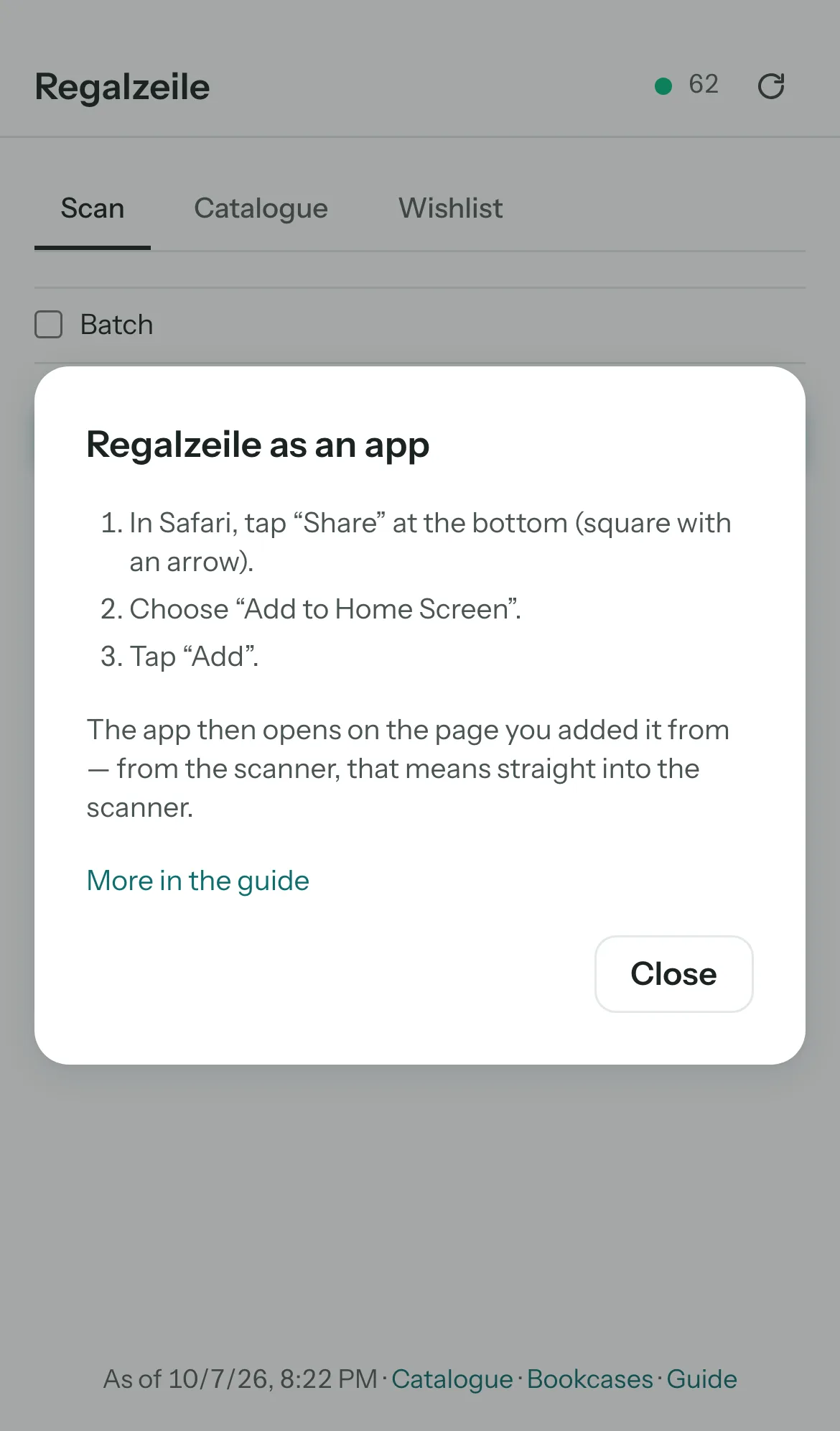
Tip: install the scanner as an app on your home screen. It then works without a connection too, and tells you in the bookshop whether you already own a book.
Typing an ISBN and books without a barcode
Some barcodes are scratched, covered by a sticker or missing altogether. In that case, open “Add item” and type the ISBN on the “Search” tab — it is usually printed in small type on the back of the title page as well. “Apply” on the result fills in the form; at most you add a genre or a note. To carry on straight away, press “Save and next”: search and form are cleared, and the collection stays selected.
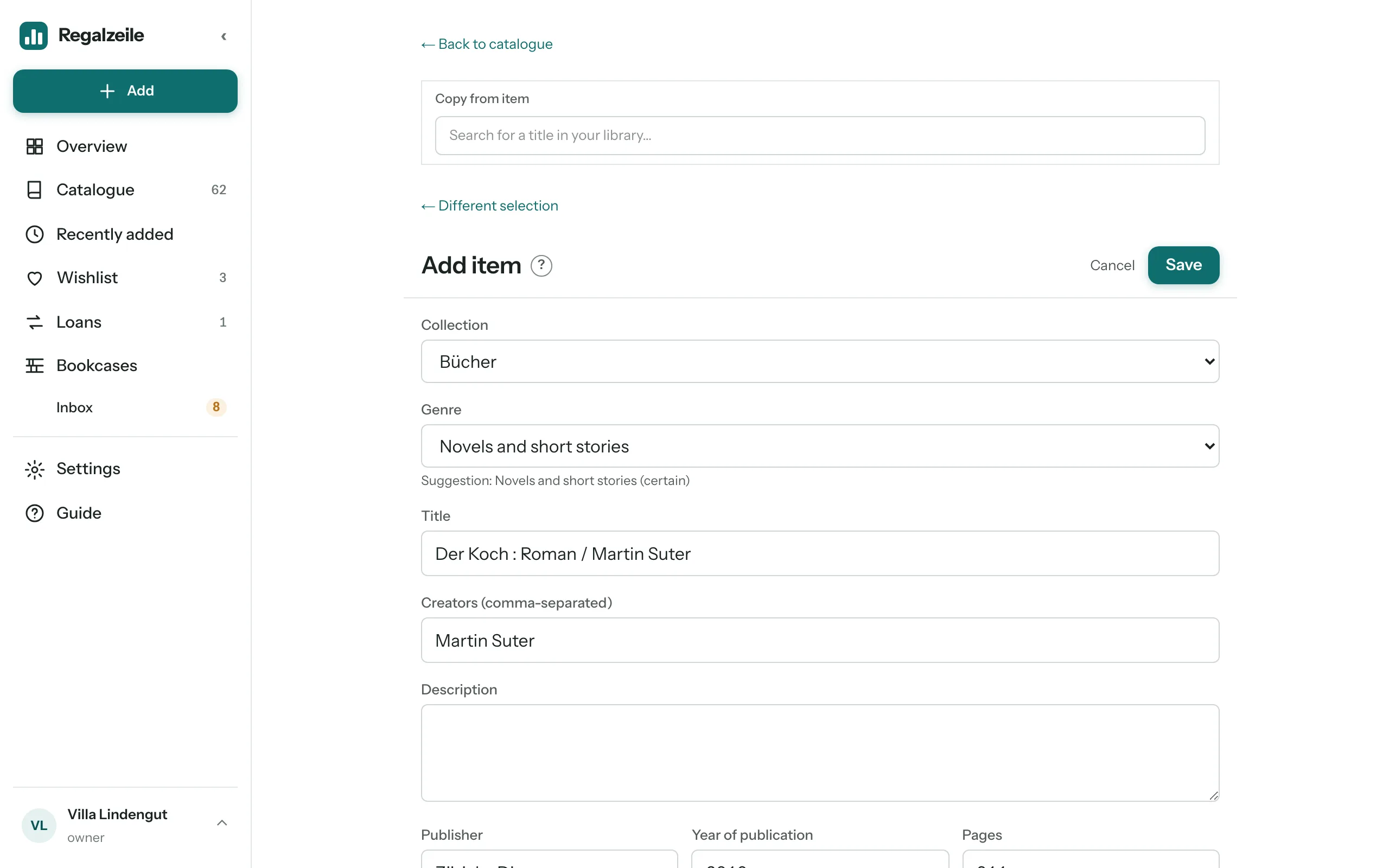
Older books often have no ISBN at all. The search helps here too: a word from the title or the author’s name is enough. If it finds nothing, fill in the form by hand — title and author are plenty to begin with.
The inbox: everything new in one place
Whatever you add has no spot on a bookcase yet. Such books sit in the “Inbox” until you shelve them. The sidebar shows their number under “Bookcases”, and the catalogue has an “In inbox” filter for them. So you don’t need to think about bookcases while scanning: add everything first, shelve it later in one go — how that works is explained in the next article, on bookcases.
What to do when nothing is found
Regalzeile asks several sources: Google Books, Open Library, the German National Library (DNB) and ISBNdb. Each source gets ten seconds at most; whichever hasn’t answered by then is skipped. If everything still comes back empty, it is usually for one of these reasons:
- A typo: an ISBN ends in a check digit. If it doesn’t match, Regalzeile doesn’t even look it up — check the digits once more.
- Too old or too obscure: books from small publishers or from before 1970 are often missing from every catalogue. Enter title and author by hand; you can photograph the cover later.
- During batch scanning: a code without a catalogue match goes onto the wishlist rather than into the catalogue. Add the title there by hand and mark it as “Arrived” — and it becomes a perfectly ordinary item.
More on the form, covers and the Libib import in the Adding items chapter of the Guide.