Chapters
- 1. Getting started
- 2. Adding items
- 3. Catalogue
- 4. Bookcases and plan view
- 5. Copies and loans
- 6. Editions and supplements
- 7. Circulation
- 8. Reports
- 9. Sign in with Microsoft
- 10. Reading
- 11. Genres
- 12. Libraries, roles, invitations
- 13. Settings
- 14. On your phone
- 15. Connect AI assistants
- 16. Regalzeile for Chrome
- 17. What's new
Bookcases and plan view
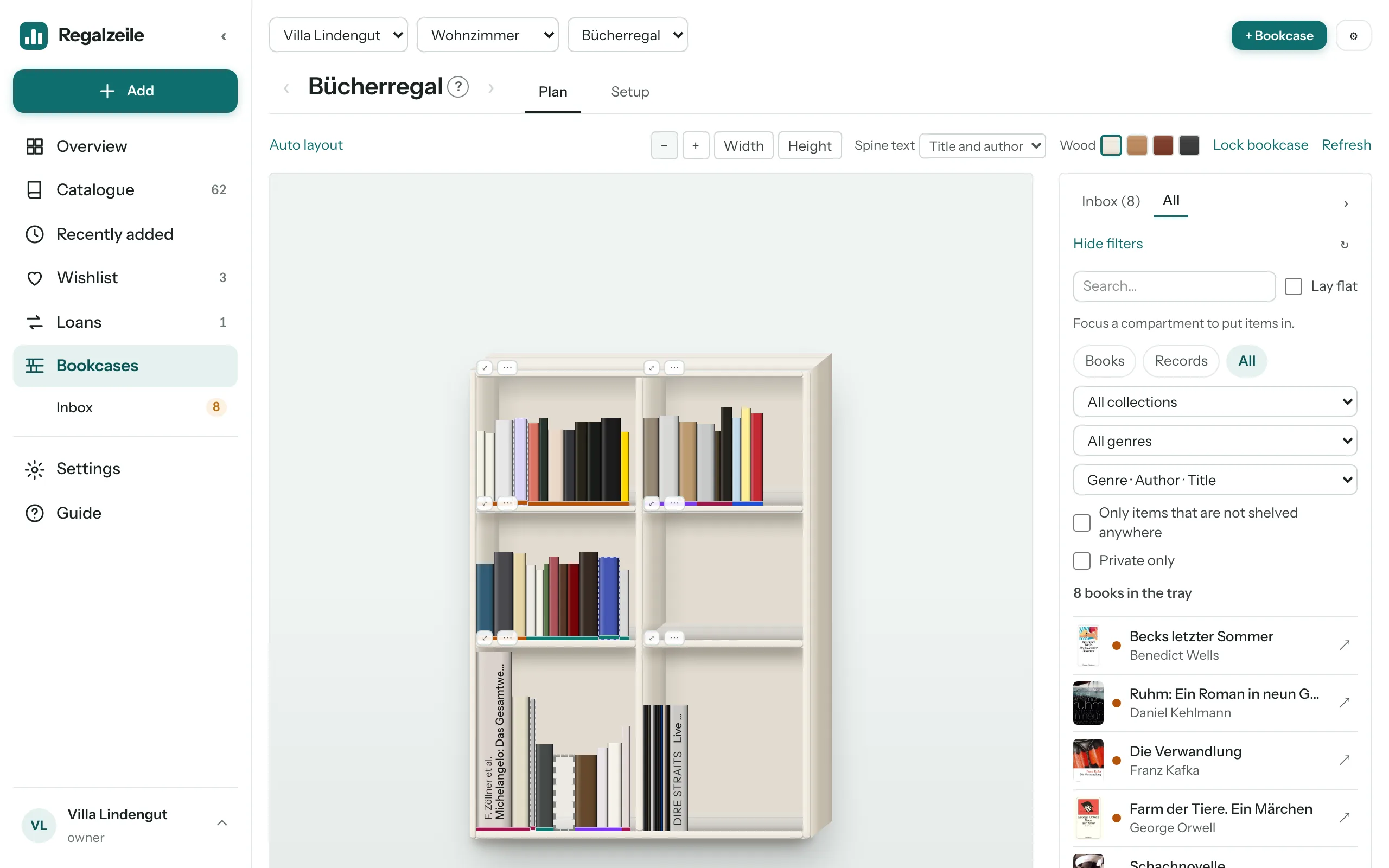
The “Bookcases” menu item leads to the plan view. Every bookcase stands in exactly one room, every room in a building with a floor; a breadcrumb bar (building › room › bookcase) and arrows lead back and forth between bookcases. The very first time, “Set up your first bookcase” walks you through building, room and bookcase in one go.
Bookcase type and setup
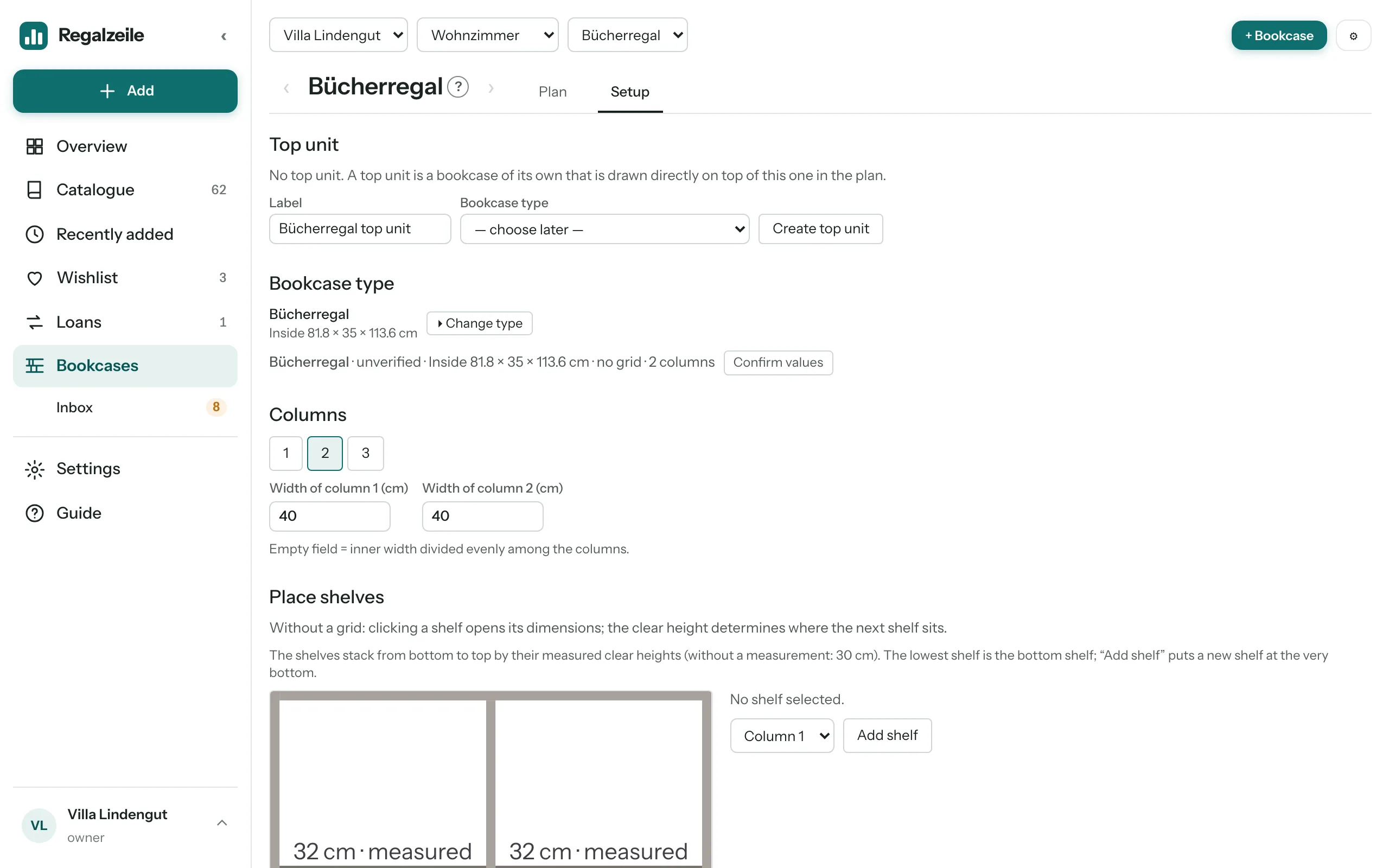
The “Setup” tab guides you through the bookcase in five steps — Template, Dimensions, Shelves, Fronts, Done — with a large preview on the right (on the phone at the top). In the “Template” step you choose a template: “From Regalzeile” (grouped by maker — IKEA ranges such as Billy, Kallax, Bestå, Hemnes or Malm) or “Your templates”. Each card shows a thumbnail with shelves and fronts. An empty bookcase takes the template’s dimensions, columns, shelves and fronts; a bookcase holding books takes only the dimensions. “Save as template” turns the current setup into your own template, “Update template” writes it back into that template — other bookcases are not affected. Or you create your own type with your own dimensions; the “Dimensions” step changes width, depth, height, columns and, under “More dimensions”, sides, boards and grid — each field saves when you leave it. In the “Shelves” step a tap on a hole in the preview places a shelf, a selected shelf moves to the next hole you tap, “Shelf dimensions” overrides the derived values. In the “Fronts” step you pick Open, door left or right, double door, flap or drawer from the palette and tap a compartment or drag across several; “Open” removes a front. A bookcase has one to four columns and shelves at grid positions; the height of a compartment is the clear height between two shelves. A custom type without a hole grid stacks the shelves by their measured clear heights instead. Fronts (door, double door, drop-down or lift-up flap, drawer) cover ranges of compartments as a drawing and open with a tap in the plan view, an upper unit puts a second bookcase on top of another. “Storage on top” (“Done” step in setup, next to the top unit) turns the top surface into an open compartment “Top” — one per column, no height check; new bookcases have it from the start, a bookcase with a top unit does not. The location then reads “On top of …”. A newly created shelf first takes over the dimensions of the previous one. “Copy bookcase” creates an identical bookcase without books, “Lock bookcase” protects against accidental moving.
Plan view
The “Plan” tab draws the bookcase to scale. You zoom with the mouse wheel, with the “Zoom out”/“Zoom in” buttons or “Fit to width/height”, on a tablet also with a double tap. A click on ⤢ in the compartment label, a mouse double-click into the back of the compartment, or hovering over it with a dragged book focuses it — arrows lead to the neighbouring compartments, “Zoom out” ends the focus again.
Putting in
On the right, the tray shows titles without a spot, filterable by media type (Books · Records), search, collection, genre, sort order and “Only items that are not shelved anywhere”; it can be collapsed. You drag a book from the tray into the focused compartment, choose the row with the “front | back” switch, and can drag a book back into the tray at any time. “Empty row” moves a whole row back at once. On the phone, every row of the tray shows a “Put in bookcase” button instead, which places the book at the end of the front row in the focused compartment without dragging.
Inbox
Newly added books and records, or ones taken off a bookcase, are “in the inbox” until they have a spot or you take them out. The tray has its own “Inbox” tab for this, the sidebar shows the number under “Bookcases”; “Empty inbox” clears the tab at once (only without extra filters).
Laid flat
A book can also be laid flat in the compartment; it stays freely movable there. If you lay a second one flat across a first, it lies on top — that is how a stack is formed.
Table
On a table, books always lie at one spot on the top (width and depth) and can be rotated in 90° steps — singly or as a whole stack. The “Front / Top view” switch shows the top from above; there you tap a stack and move or rotate it, and “Sort stack” rearranges the books in the stack. You still stack in the front view by dragging a book from the tray onto an existing stack — or in the top view with the “Put on stack” button, as long as a stack is tapped.
Markers on the spine
In the focused compartment, spines carry small markers. Each line shows an example spine with exactly one marker:
- Top left “C”: without cover, “G”: without genre.
- Bottom left, yellow triangle: spine width is missing — the book is drawn with an estimated width.
- Bottom right, orange triangle: height is missing.
- Top right, padlock: private item — readers do not see it.
Building: canton and closing days
Every building has a canton and closing days. You maintain them under “Manage” with “Edit building”: name, canton and closing days with from, to and a label (expired ones are hidden). They decide which working day a calculated due date falls on: weekends, statutory full-day public holidays of the canton and the closing days are skipped. What counts is the building where the lent copy is kept; without a place only weekends count.
Quick entry and colours
Click a book in the focus compartment and press r (spine width), h (height) or b (width) to open a small field for the millimetre value — Enter saves it on the book. The spine appears in the colour of the cover, and the wood of the bookcase can be set independently of that, per bookcase, to White, Brown, Mahogany or Black.
More chapters
Related guides
- Planning your bookcasesCreate shelves, put books in, see the spines in the bookcase — the plan view step by step.