Chapters
- 1. Getting started
- 2. Adding items
- 3. Catalogue
- 4. Bookcases and plan view
- 5. Copies and loans
- 6. Editions and supplements
- 7. Circulation
- 8. Reports
- 9. Sign in with Microsoft
- 10. Reading
- 11. Genres
- 12. Libraries, roles, invitations
- 13. Settings
- 14. On your phone
- 15. Connect AI assistants
- 16. Regalzeile for Chrome
- 17. What's new
Adding items
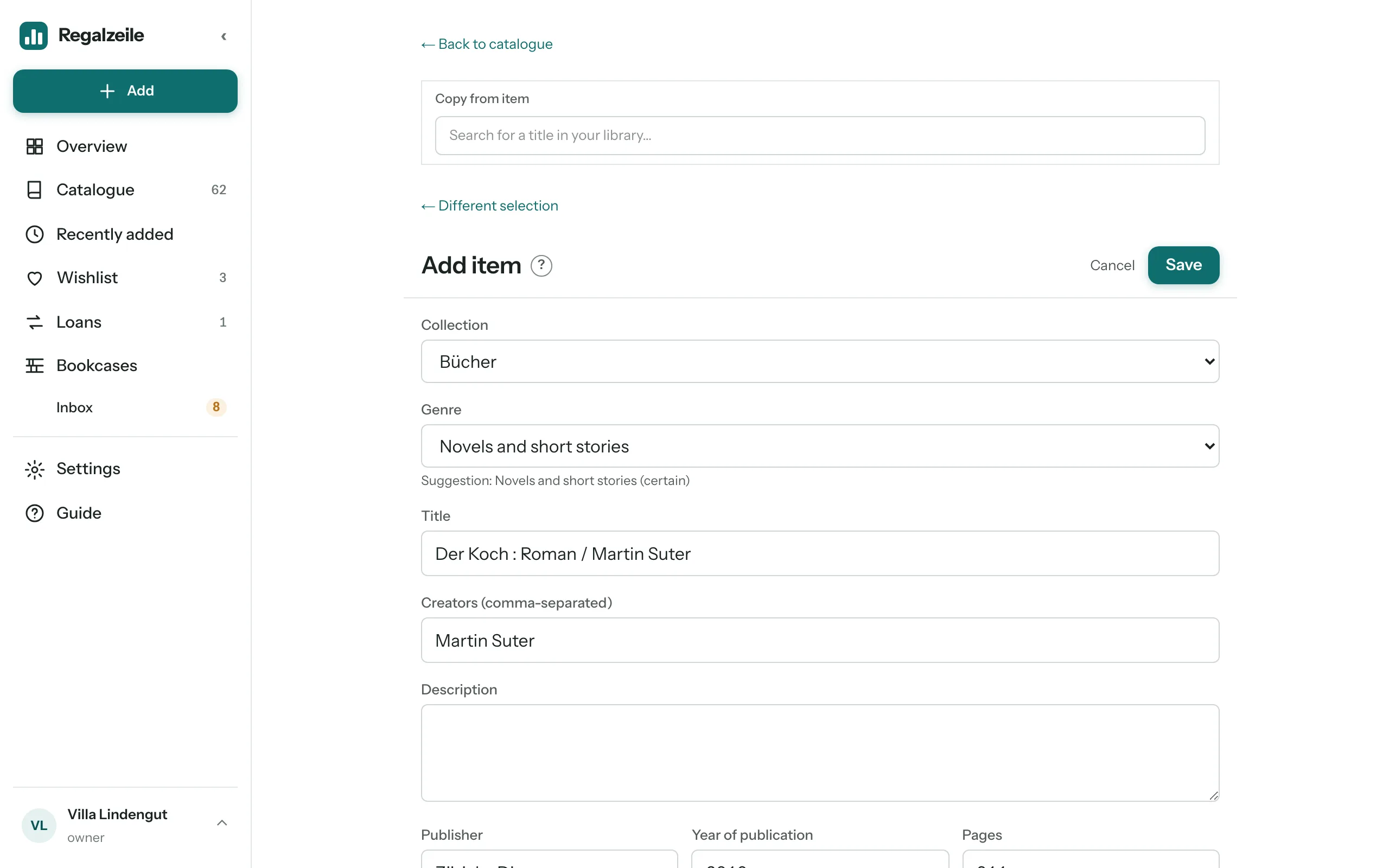
You add an item with the “Add” button → “Add item” (on the phone behind “More”) — through a search or by hand in the form. “Cancel” and the back link at the top take you back to where you came from: the Wishlist, the scanner, the Overview or the Catalogue with the same filters.
ISBN search and form
On the “Search” tab you type an ISBN or EAN (a keyword works too); “Apply” on a match opens the form prefilled — title, authors, publisher, year, pages and cover arrive by themselves. On top of that you add price, dimensions (height, width, spine in mm), tags, genre, notes and whether the item should stay Private. A sticky header with “Save” and “Cancel” stays with you, however far you have scrolled. If you want to add the next book straight away, press “Save and next” at the bottom: the item is saved, a line at the top shows it with a link, and search and form are empty again — only the collection stays preselected. On the phone it is even quicker with the scanner.
Suggestions for author, publisher, series and work
From the third letter on, Regalzeile suggests authors, publishers, series and works that are already in your library — the most common spelling first, with the number of items next to it. With several authors, the suggestion applies to the name after the last comma. You accept it with the arrow keys and Enter, or with a tap.
Copy
“Copy” behind the “⋯” button on the item page — or “Copy from item” in the form — takes over all fields, including identifiers, into a new item; Added on, copies, bookcase spot and loans start from zero. The cover is copied along, your reading details are not. Nothing is created until you press “Save”.
Cover
You upload a cover on the item page with “Change cover” — on the computer the button appears when you hover over the cover, on the phone it sits below it — or you drag an image file straight onto it. If several items lack one at the same time, “Fetch covers” in the settings fetches them from the catalogue sources.
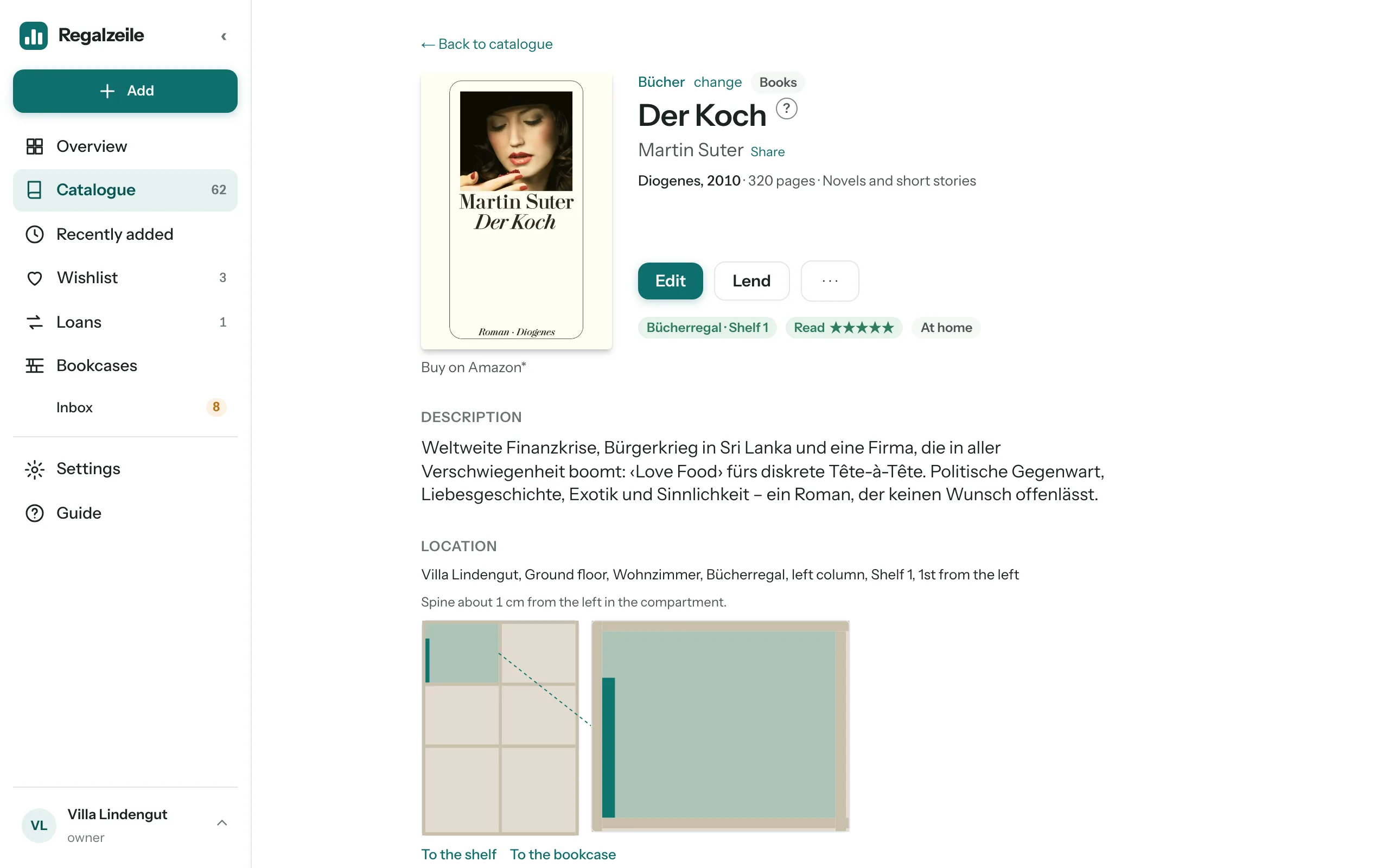
“Remove” next to “Change cover” takes it away again — even a cover that came from the catalogue stays away afterwards. An upload, “Copy from item”, a metadata sync or “Fetch covers” brings one back. “Sync metadata” is at the top right of the “Edition” table on the item page.
Libib import
With the “Import” menu item you upload a CSV export from Libib and choose the target collection. Titles that already exist (same ISBN or same title in the same collection) are skipped; the report says how many titles were created, enriched or skipped as duplicates — the same genre automation as when adding a single item runs along.
Discogs for records
With the Full plan, the owner enters a Discogs username and token in the settings; the sync fetches your Discogs collection as records including cover, tracklist and rating — at the press of a button and afterwards every night by itself. If you own a record more than once, it appears in your Discogs collection more than once; the sync then creates the missing copies, with the condition, price and purchase date of the respective entry. It does not touch existing copies and never deletes any — a copy you deleted in Regalzeile comes back as long as Discogs still lists it.
Comics and magazines with a press code
Comic books and magazines carry a press code instead of an ISBN: a barcode starting with 414, 419 or 977. It identifies the series and the price, not the individual issue — “Asterix” has the same code on every issue. The issue number sits in the small add-on code next to it; the scanner reads it too and suggests it as the number.
For the first issue of a series, Regalzeile asks for the series (for example “Asterix” or “MINT”) and the kind: a comic book goes into your books, a magazine into the “Magazines” collection, which is created automatically the first time. “Continue” searches for the title, “Continue without a match” opens the form right away. There, title, series, number and press code are filled in; for magazines the issue date is added.
When you scan the same series again, Regalzeile recognises the code and shows which numbers you already have. When you save, Regalzeile applies the dimensions (height, width, spine) of the last issue you entered in the series — the form does not show them. To sort, choose “Series and number” in the library — in the magazines it is the default.
More chapters
Related guides
- Adding your first 50 booksScanner, ISBN and inbox: how your books land in the app within an hour.
- Adding vinyl recordsAdd records by barcode or Discogs, covers and spine width, records in the bookcase plan.