Chapters
- 1. Getting started
- 2. Adding items
- 3. Catalogue
- 4. Bookcases and plan view
- 5. Copies and loans
- 6. Editions and supplements
- 7. Circulation
- 8. Reports
- 9. Sign in with Microsoft
- 10. Reading
- 11. Genres
- 12. Libraries, roles, invitations
- 13. Settings
- 14. On your phone
- 15. Connect AI assistants
- 16. Regalzeile for Chrome
- 17. What's new
On your phone
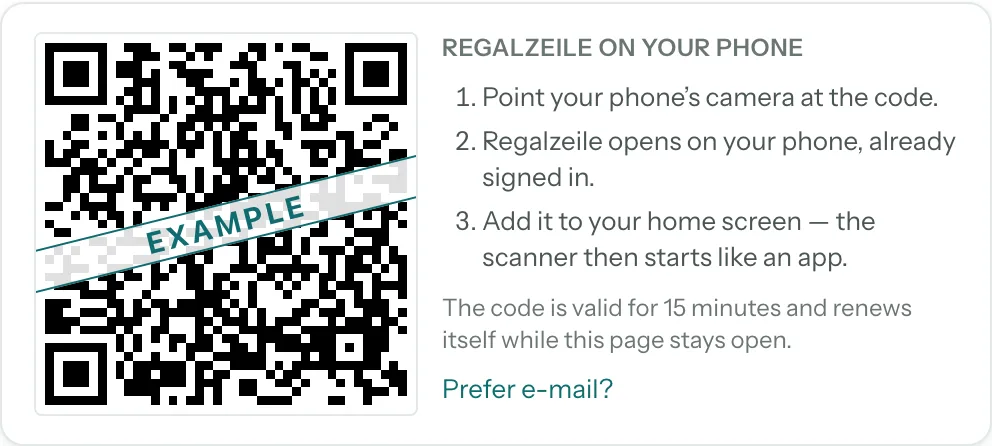
Regalzeile can be installed as an app of its own on both the iPhone and the iPad. The app opens on the page you installed it from.
The quickest way to get Regalzeile onto your phone is the QR code: while nothing has been added yet, the overview on your computer shows a code; after that you will always find it in Settings under “Regalzeile on your phone”. Scan it with your phone’s camera — Regalzeile opens on the phone, already signed in, right in the scanner.
iPhone — scanner as an app
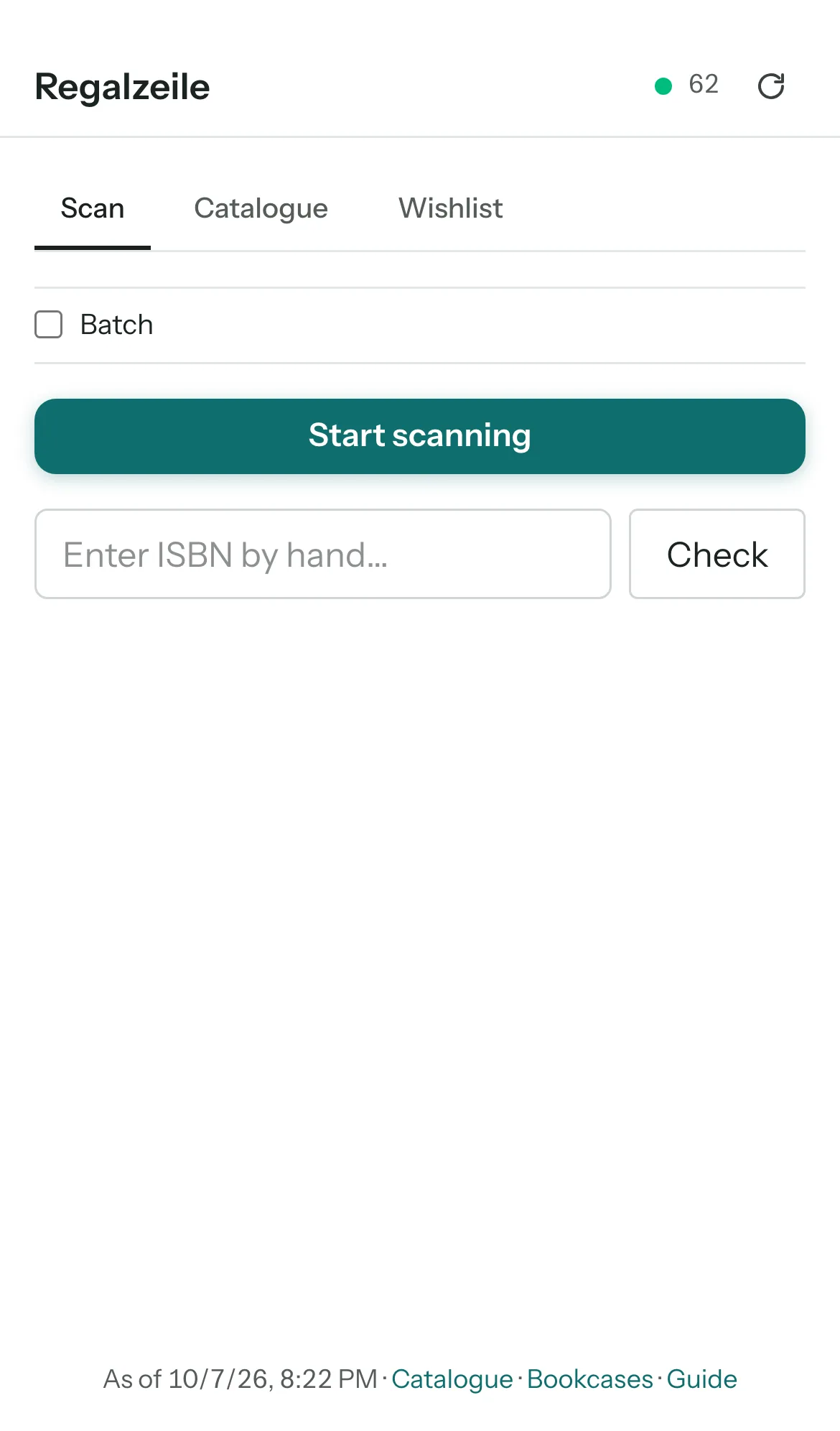 Open Regalzeile in Safari, log in and open “Scan” in the menu.
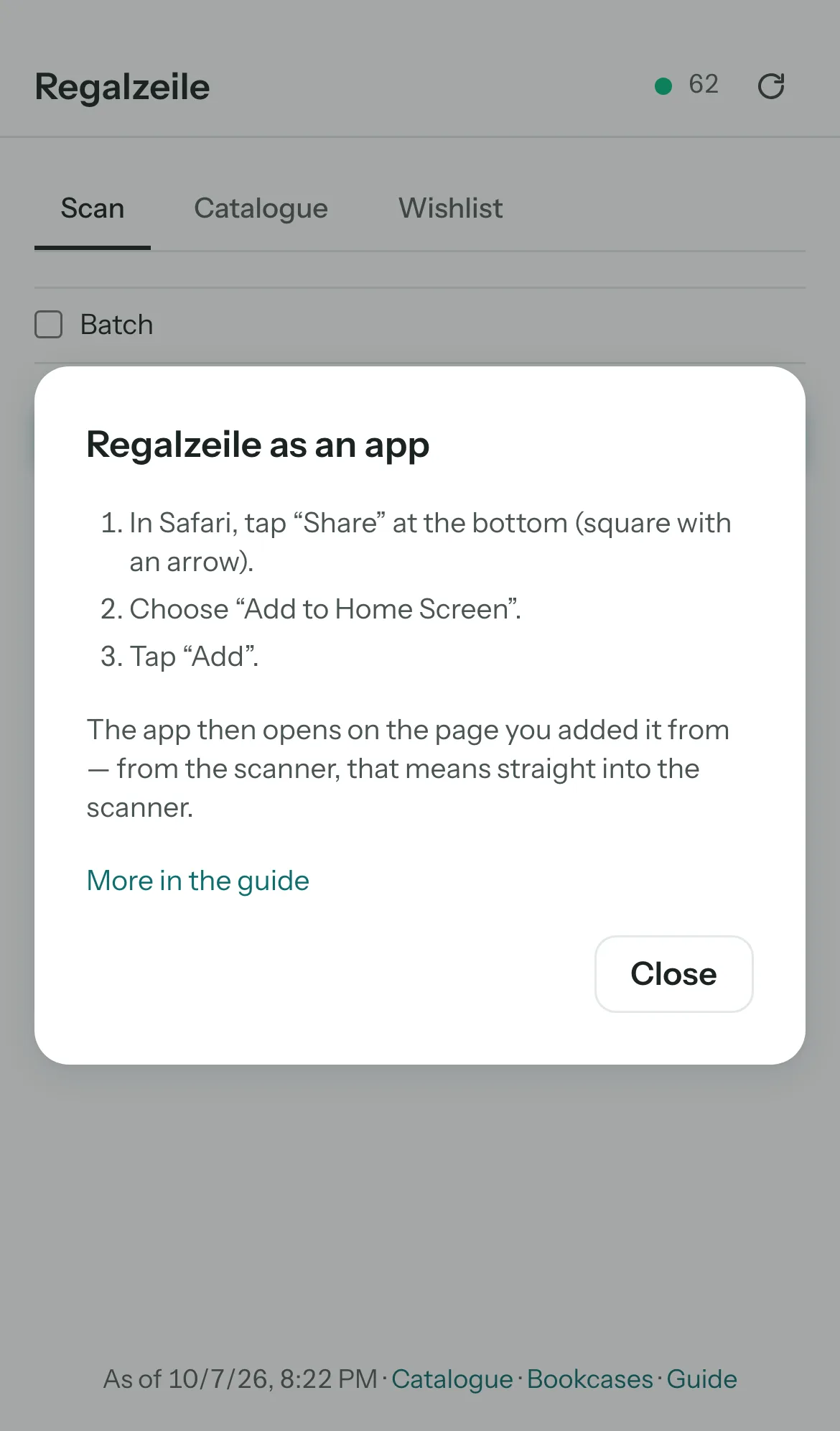 In Safari, tap “Share” at the bottom (square with an arrow), then “Add to Home Screen” and “Add”.
- From now on the app opens on the page you installed it from — here, the scanner.
The scanner also works without a network: it mirrors your catalogue and shows you, in the bookshop without reception, whether you already have a book. The bar at the bottom stays in the scanner too; Catalogue and Wishlist are the usual tabs. In batch scanning you hold several barcodes in front of the camera one after another; every recognised code creates an item right away — a “Looking up book data…” field shows that it is still looking it up. “×” deletes a just-created item again. Unknown ISBNs land on the wishlist; there, when online, you can also paste an Amazon link from the clipboard and mark wishes as ordered or arrived. “Done” stops only the camera, nothing more. At the top, the header shows a green dot when you are online, next to it the number of mirrored items; as soon as you are online again, the “↻” button fetches the new additions. The state of the mirror and the ways into the full app are at the bottom of the page.
iPad — catalogue and plan
The catalogue runs in a Safari tab or — installed from the catalogue — likewise as an app, which then opens there. In landscape, the iPad is particularly suited to the plan view: you push the bookcase with one finger, a double tap zooms in and out again, and you drag a book from the tray straight into the compartment with a pressed finger. In portrait, the iPad shows the menu as a narrow bar with icons, in landscape the full sidebar.
Menu on your phone
At the bottom is a bar with Overview, Catalogue, Scan (the petrol circle in the middle), Bookcases and “More”. Behind “More” are Recently added, Wishlist, Loans, Inbox (as long as books are waiting in it), Add item, Import, New collection, Settings, Guide and your account with “Sign out”. The circle at the top right opens the account directly. On sub-pages such as “Add item” or an item, there is an arrow at the top left that leads back to where you came from.
Android — install as an app
- In the browser menu ⋮ choose “Install app” or “Add to Home screen”.
- Confirm.
More chapters
Related guides
- Adding your first 50 booksScanner, ISBN and inbox: how your books land in the app within an hour.