Chapters
- 1. Getting started
- 2. Adding items
- 3. Catalogue
- 4. Bookcases and plan view
- 5. Copies and loans
- 6. Editions and supplements
- 7. Circulation
- 8. Reports
- 9. Sign in with Microsoft
- 10. Reading
- 11. Genres
- 12. Libraries, roles, invitations
- 13. Settings
- 14. On your phone
- 15. Connect AI assistants
- 16. Regalzeile for Chrome
- 17. What's new
Circulation
A circulation sends a copy once through a fixed series of stops, for example a new issue through the departments of a court. Regalzeile keeps track of where it is, emails the stop and sends a reminder when the due date has passed. Circulation is part of the offer for organisations.
Creating a routing list
A routing list is the template for future circulations. You manage it under Settings → “Routing lists” (button “Manage routing lists”); members who have access to all collections can do this. A list has:
- a name and, if you like, a building;
- series as chips, for example “NJW Zivilabteilung”: Regalzeile suggests the list for these series;
- the time at each stop in working days (default 3, at most 30);
- the language of the emails;
- the option “Stay with the last stop at the end”: otherwise the issue goes back to the shelf;
- the stops in order, each with a name and, if you like, an email address (at most 30). While you type, Regalzeile suggests members of the library, earlier stops and borrowers.
Starting a circulation
- Open the item and click “Start circulation” in the “Circulation” section. If it has several copies, you choose the copy in the dialog.
- Choose the routing list. Lists whose series match the item come first under “Matching this series”, the others under “Others”. Without a list, choose “no routing list” and enter the stops by hand.
- If needed, adjust the stops, the “Working days per stop” and “Last stop keeps the copy”. This applies to this circulation only.
- Click “Start”. The first stop gets its email at once.
If you have just added a new issue of a series that has a routing list, a hint with the button “Start with “…”” appears in the “Circulation” section of the item page, above the start button. It shows for 30 days after you added the issue and only as long as the item has never been in circulation. A circulation never starts by itself.
When you start, Regalzeile copies the stops and settings of the list into the circulation. If you change or delete the list later, running circulations stay as they are.
The email and the link
Every stop with an email address gets a message as soon as the copy reaches it. It names the due date and the next stop. The link in it opens a page without sign-in; one click on “Passed on” records the handover, and the next stop gets its email. The last stop is asked to return the copy to the library. If the copy stays with the last stop, the button reads “Received” instead, and that ends the circulation. Stops without an email address get no message; the library then records the handover itself.
Due date and reminders
A stop’s due date is the day the copy arrives plus the time at each stop in working days. Weekends, the canton’s public holidays and the building’s closing days do not count. Regalzeile works out the due date on arrival; closing days added later do not change a running due date. Once the due date has passed, the circulation counts as overdue.
The stop gets a reminder the day after the due date, then every three days, at most three times. On the way back Regalzeile sends no reminders, and no emails go to the library.
Stepping in as the library
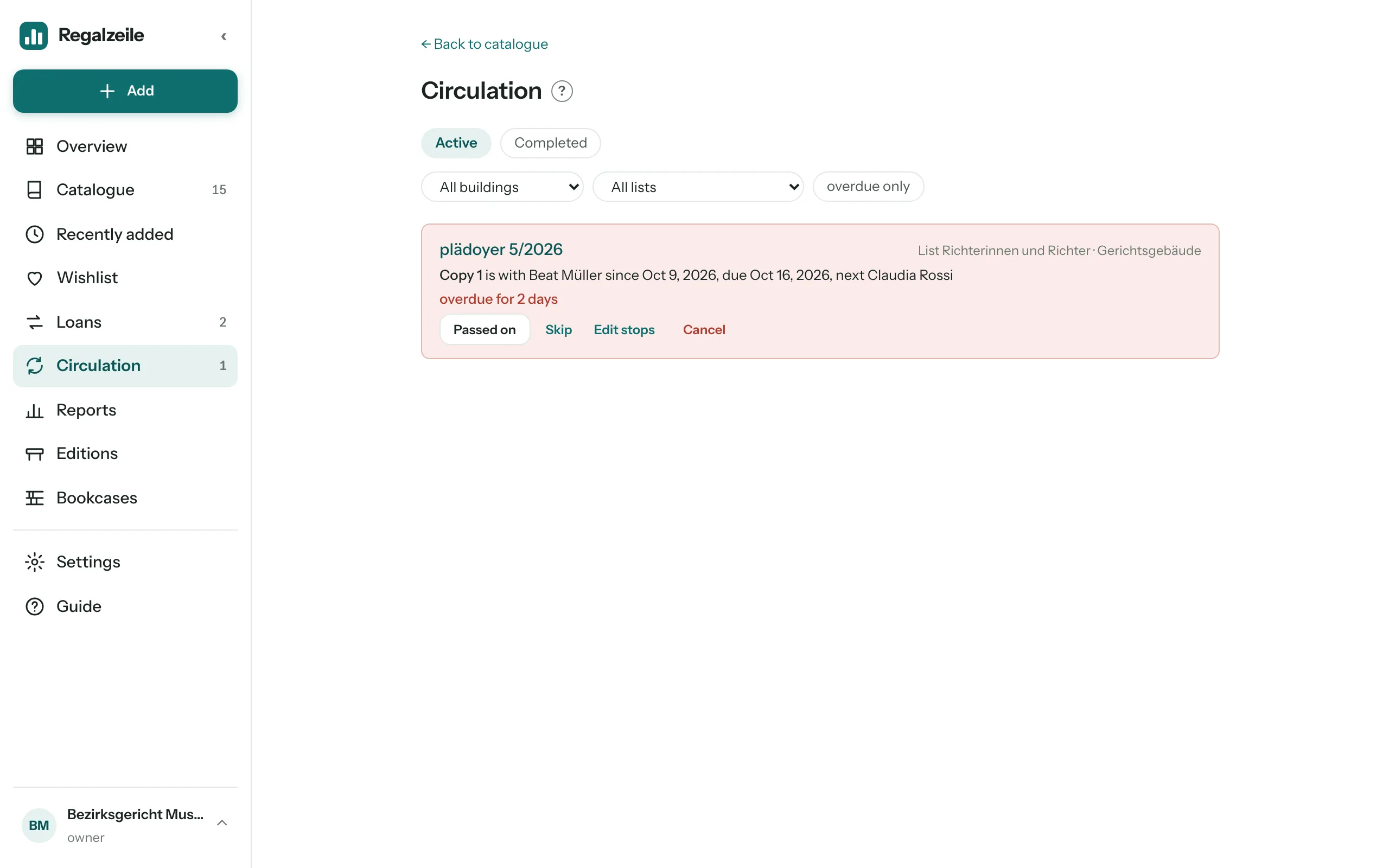
For a running circulation, on the item page and on the “Circulation” page, you have these buttons:
- Passed on: records the handover when the stop did not click itself.
- Skip: leaves out the current stop; the circulation moves on to the next one.
- Back on the shelf: confirms on the way back that the copy has returned. The circulation is then complete.
- Cancel: ends the circulation after a confirmation. No email is sent.
After the last stop the copy is “on its way back” to the library, with the same time allowed. With “Stay with the last stop” there is no way back. You can add, remove and reorder the future stops of a running circulation (button “Edit stops”); stops already done and the current stop stay fixed. Under “History” on the item page you see who had the copy and for how long.
The “Circulation” page
The “Circulation” menu entry comes after “Loans”; a counter shows how many circulations are overdue. The “Active” tab lists all circulations by due date, the oldest first, overdue ones in red. The “Completed” tab shows the last 90 days. At the top you filter by “Building” and “Routing list” or show “overdue only”. On the Overview the “Circulation” card sums up how many circulations are active, overdue and on their way back.
Circulation and loans
You cannot have both at once. A copy in circulation cannot be lent: the “Lend” button is grey; the “Current” row in the “Loan” block gives the reason (“In circulation with …”). Conversely, “Start circulation” is grey for a copy that is lent out (“lent to …”). A circulation does not appear in the list of loans. More under Copies.
With Claude
An AI assistant sees with list_circulationswhat is in circulation (optionally only the overdue ones). With start_circulationit starts a circulation; with advance_circulation it passes it on, skips a stop, confirms the return or cancels.