Sharing and wishlist
Guide 5 of 8
“Have you got this one already?” and “Show me everything you have by her” — two questions every book collector knows. The wishlist answers the first. Shares answer the second: a link that lets others see a slice of your catalogue without needing an account.
Creating a share
You always share a clearly defined slice: a collection, a genre or an author. Filter the catalogue down to exactly one of these — the genre “Crime”, for instance — and a “Share” button appears on the right of the row of chips. On an item page it sits, in small, behind the author’s name, for when you want to share all the books by that author.
The dialog asks for the duration: 7, 30 or 90 days. It also tells you how many items the share covers today. “Create link” gives you an address that you copy or pass on directly from your phone. The list behind it is live: whatever you add to the collection later shows up there too.
What others see — and what they don’t
Whoever opens the link sees cover, title, author, year and genre, plus a page per item with its description. Private items are never included, and neither are loans, notes, prices, dimensions, copies or your reading status. So you can safely share a whole collection without tidying up first.
Revoking and extending
In Settings, the “Shares” box lists every link with its number of views and the time left. “End” makes a link invalid immediately — useful if you sent it to the wrong group by mistake. “Extend” creates a new link with a new duration for a share that has expired or been ended; the old one stays invalid.
The wishlist
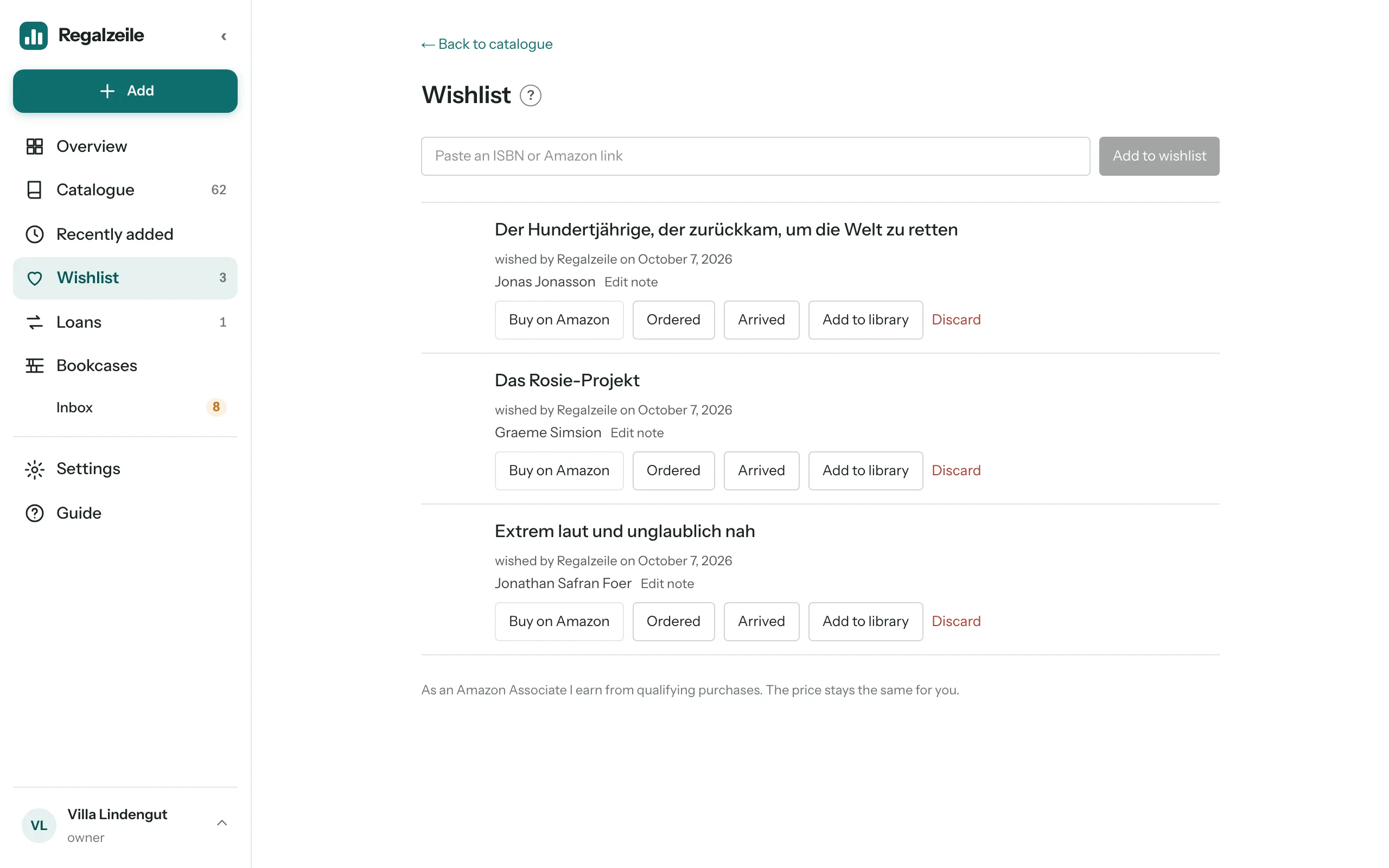
On the wishlist you collect books you don’t have yet. At the top, paste an ISBN, an Amazon link or the short link from the Amazon app; Regalzeile fetches title and cover. Each entry has a note (“for Coco’s birthday”), an “Ordered” button with date and person — so nobody buys it twice — and “Arrived”, which turns the book into an item and puts it in the inbox. If you scan a barcode in a bookshop and the title is unknown, you will find it on the wishlist as well.
The “Buy on Amazon” button takes you straight to the book. As an Amazon Associate I earn from qualifying purchases. The price stays the same for you. The button appears on every item page too — handy when you want to give a book you already own as a present.
More on sharing and the wishlist in the Catalogue chapter of the Guide.