Maintaining genres and authors
Guide 7 of 8
A catalogue only becomes easy to navigate once the names are in order. But catalogues deliver genres and authors in every possible variant: “Hesse, Hermann”, “Hermann Hesse”, “H. Hesse”. Regalzeile takes care of most of this for you — and where it doesn’t, a few minutes of tidying up will do.
One genre per book
Every book has exactly one genre. Think of it as the shelf mark in a public library: it decides where a book belongs on the bookcase and drives sorting and automatic shelving. On top of that, a book can have as many tags as you like — free keywords such as “holiday reading” or “signed” that have no effect on where it goes.
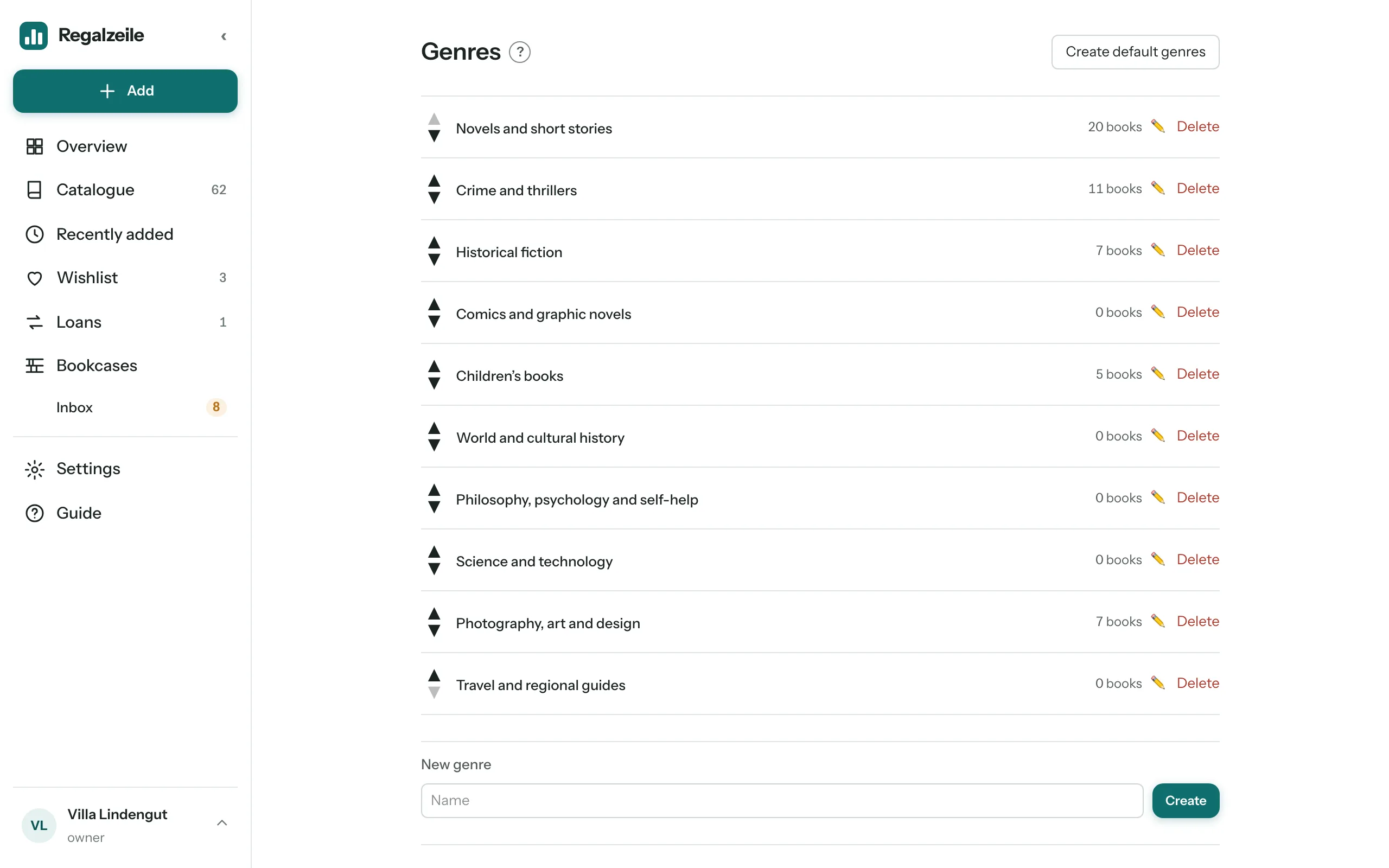
Ten general genres are set up from the start, from fiction to history to children’s books. More are added on their own as soon as the automatic assignment needs them.
Automatic assignment
When you add, scan or import from Libib, every book gets a genre according to fixed rules: first it checks whether it is a children’s book, then fiction, then history, then the remaining non-fiction subjects. The catalogue categories come into play too and, as a last resort, patterns in the title and the author’s name. It hits the mark surprisingly often. If no rule matches, the book stays “Without genre” and carries the “G” marker in the list, the tiles and the bookcase plan.
Maintaining genres
In Settings, “Go to genres” takes you to the genre page. There you rename genres and use the arrows to put them in your own order — the same order then appears in the form’s drop-down lists. The “Review suggestions” section shows every book without a genre, together with a suggestion from the automatic assignment. Accept it with one click or pick one by hand. A non-fiction book with a novel-sounding title sometimes ends up in the wrong genre; simply move it in the form.
Merging authors and publishers
Under Settings › “Manage authors and publishers” you will find every spelling in your catalogue, with authors and publishers on separate tabs. At the very top are possible duplicates: names so similar that they probably mean the same person. Select the variants and tap “Merge”; afterwards all the affected items carry the same spelling. You can rename a single name the same way. Careful: there is no undo. That is why the dialog tells you beforehand how many items will change.
Suggestions from the third letter
To stop new variants from appearing in the first place, the form suggests authors and publishers already in your catalogue from the third letter you type — the most frequent spelling first. Accept a suggestion with the arrow keys and Enter, or with a tap.
More in the Genres chapter of the Guide.