Chapters
- 1. Getting started
- 2. Adding items
- 3. Catalogue
- 4. Bookcases and plan view
- 5. Copies and loans
- 6. Editions and supplements
- 7. Circulation
- 8. Reports
- 9. Sign in with Microsoft
- 10. Reading
- 11. Genres
- 12. Libraries, roles, invitations
- 13. Settings
- 14. On your phone
- 15. Connect AI assistants
- 16. Regalzeile for Chrome
- 17. What's new
Settings
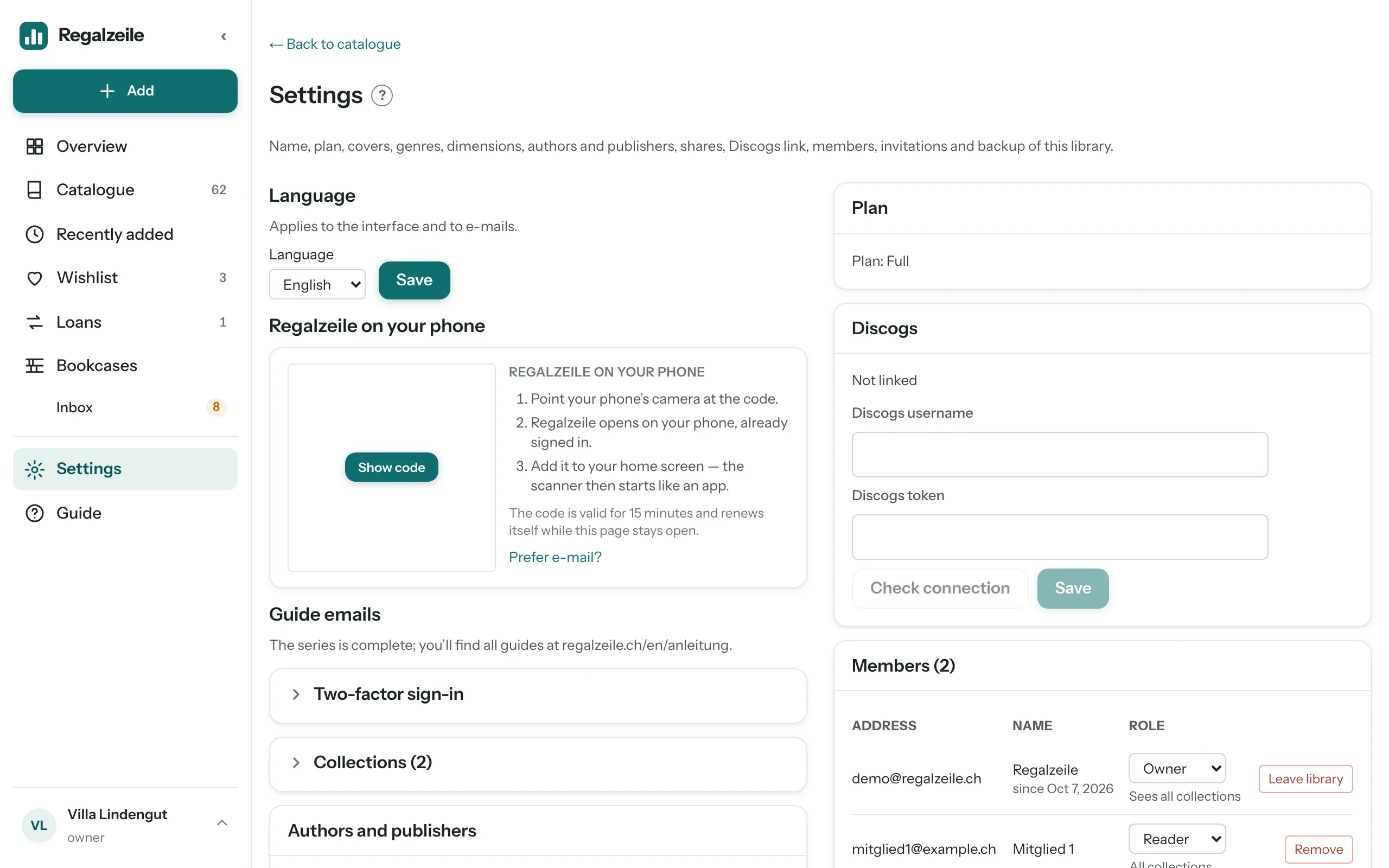
Under the “Settings” menu item you manage the library: its name, the currency of prices (francs or euros, without a setting the currency of your subscription, otherwise francs), its collections (the default collection carries a star), its plan, the covers, the genres, the dimensions and the list of members — members see that too. As an owner you also get the Discogs link, the invitations and the backup. As an owner you can also rename collections and delete them with the bin icon: if a collection still contains items, Regalzeile asks which collection they should move to and revokes any share link for the dissolved collection. The last collection always stays. Readers see only their language, the two-factor sign-in and their own row with “Leave library”.
Every area sits in a box of its own. Only the collections are collapsed, because the list can get long: a click on the row with the arrow opens it, a second click closes it again. Where a number follows the title, it tells you what is inside — “Collections (4)”, “Members (2)”.
Exporting data
In the “Library” box, “Export data” downloads the whole library as a ZIP file. It contains four CSV files: artikel.csv with all titles including authors, publisher, ISBN, genre, dimensions and your reading status, exemplare.csv with the bookcase spot of every copy, ausleihen.csv with all loans and merkliste.csv with the wishlist. The files are separated by semicolons and open directly in Excel and Numbers. Owners and members may export, readers may not. At the end of exemplare.csv come the columns anschaffung_am (date as YYYY-MM-DD) and anschaffungspreis (number with two decimals); both are empty if nothing was entered.
Loans
The “Loans” block bundles four settings; only an owner may change them, the block is only visible to owners. “Default loan period in days” applies when no date is entered while lending; empty means no due date, and a calculated due date always lands on a working day. “Reminder for overdue loans (weekly by email)” is the switch for the collective email: when it is on — the normal case —, an email goes to all owners and members of the library on the due date of a loan and weekly after that, with title, borrower, due date, “reminded N times” and a link to the loans. The other two settings exist from the Organisation plan: “Remind borrowers by email” sends the person who has the book an email three days before the due date, the day after and then weekly (at most six; replies go to the contact person, otherwise to the owner), and “Extension by link in the reminder email” lets them extend the due date once by the default loan period; after that it only works through the library. Borrowers and readers do not get the collective email.
Sign-in with Microsoft
In the plan for organisations, Regalzeile shows the owner the block “Sign-in with Microsoft” here: enter tenant ID, client ID, client secret, email domains and groups, press “Check connection” and pass on the “Link for your intranet”. The steps for IT are under Sign in with Microsoft.
Plan
There are three plans: Basic allows 200 titles, a single member, no Discogs link and no nightly backup. Plus allows 1000 titles and 2 members and brings the nightly backup, but no Discogs sync. Full knows no limits and brings the Discogs sync as well as the nightly backup. An owner switches to Plus or Full as an annual subscription via “Plan” — the current prices are shown by the plan in the settings. Anyone who has Plus and wants Full changes the tier in the customer portal (“Manage subscription”); Stripe charges the rest of the year pro rata. Cancelling is likewise done in the customer portal; when the subscription has ended, the library falls back to Basic.
Reloading covers
The “Cover” section shows how many items still have no cover, and a button fetches missing covers from the catalogue sources; a counter shows the progress.
Authors and publishers
“Manage authors and publishers” opens a list of all authors and publishers in your catalogue with the number of items. At the top are possible duplicates: spellings that are the same after ignoring case, accents and punctuation and in any word order, for example “Hesse, Hermann” and “Hermann Hesse” or “Suhrkamp” and “Suhrkamp Verlag”. With the pencil you rename a name; with ticks on several names you merge them into one spelling. Beforehand, the dialog tells you how many items will be changed. The third tab, “Works”, handles the works that group the editions of a title in the same way (Editions and supplements). The fourth tab, “Series”, does the same for the series of your books, records and issues; the number leads to the library filtered by that series, and routing lists that listen for the series follow the new spelling.
Genres and dimensions
The two maintenance pages are no longer in the menu but here: “Go to genres” leads to the genre list including the review list, “Go to dimensions” to the table in which you enter height, width and spine width of many books one after another.
Discogs
With the Full plan, the owner enters the Discogs username and token. The sync runs immediately on request or by itself every night.
Backup
The “Backup” section is reserved for owners; it names the latest backup, and “Manage backups” leads to the list of existing versions. A manual backup can be made at any time with a button — on every plan; the automatic nightly backup comes with the Plus and Full plans. “Restore” replaces the current state completely — before that, the app automatically makes one more backup of the current state. The “Retention” column tells you what a version currently counts as: for 7 days as a daily backup, then as a weekly backup (the latest version of the week, 4 weeks), then as a monthly backup (12 months) and finally as a yearly backup, which stays. With age, a version thus climbs up the tiers; “expiring” means that a younger version of the same day has replaced it.
Two-factor sign-in
If you like, secure your account with a code from an authenticator app (Google Authenticator, Authy, 1Password and the like) in addition to your password. In the “Two-factor sign-in” box click “Enable”, scan the QR code with the app and type in the first code. Regalzeile then shows ten recovery codes once — keep them safe; each works once and replaces the app code when your phone is not at hand. From now on, signing in with your password asks for the code; signing in through Google or Apple stays as it is.
Lost your phone? Sign in with a recovery code, then generate new codes in the box or disable the second step. If the codes are gone too, the operator helps: a short e-mail to the address in the legal notice, and they reset two-factor sign-in for your account so you can set it up again.
Deleting a library
An owner can delete the library; a deletion period of 30 days follows, during which the library is locked but can still be brought back.